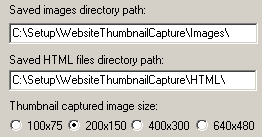
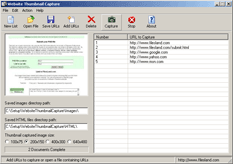
Website Thumbnail CaptureThis software captures the view if a website in a browser and saves the corresponding HTML code on your hard disk. You may enter up to a thousand URLs, specify output screenshot size and click one button and all website thumbnail snapshots will be captured in a batch process. This is a "must have" tool for webmasters when creating web directories to capture website browser shots. |
|||||||||||||||||||||||||||||||||||||||||||||||||
 |
Software Version: 3.24
Size: 1.63 MB Released: May 15th, 2020 Price: $19.95 Operating Systems: Windows 7/8/8.1/10 
 |
||||||||||||||||||||||||||||||||||||||||||||||||
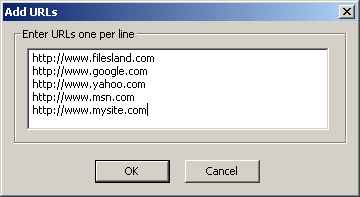
Websites Thumbnail Capture HelpAdd some URLs to capture. You may do this in two different ways. Click "Add URLs" button on the toolbar and type in URLs that you want to capture screenshots from. If you made a mistake you may delete the URL from the list by highlighting it and pressing "Delete" button on the toolbar.
|
|||||||||||||||||||||||||||||||||||||||||||||||||