Keywords Search ToolFor webmasters it is very important to optimize website for most popular search queries - search queries with a particular keyword or a phrase that is most often entered by search engine visitors. Sometimes they may know a single word or a phrase, or given by your client a keyword to optimize for. This software finds all related search request keyword queries, displays the popularity and number of requests per month. It uses several servers to do the relevant keywords search and is capable of looking up keywords based on visitors geo location. |
|
 |
Software Version: 2.33
Size: 565 KB Released: February 21st, 2020 Price: $19.95 Operating Systems: Windows 7/8/8.1/10 
 |
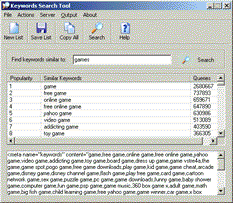
Keywords Search Tool HelpFirst select the main target keyword you want to research. This should be a fairly popular word otherwise no matching keyword phrases will be found. Enter the word in the edit box as shown below. |
|
 |
|
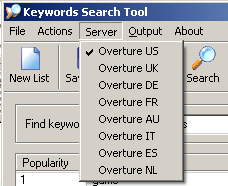
| Based of the geographical location of you visitors select a server that will be used to find relevant keywords. | |
 |
|
| If your site is targeted US or
UK customers, you may use "Overture US" or "Overture UK"
servers. If you website main language is German it is more
advisable to use "Overture DE" server. Similarly for sites
based in Australia one may use "AU" server, for sites in
French, Italian, Spanish or Dutch languages use FR, IT, ES
or NL servers. It is really important to chose the correct server. Even in the same language, say English, the number of request and the popularity of a search phrase may be different depending what countries website traffic is analyzed. By allowing the user to choose what server to use to lookup relevant phrases this tool can be used for the sites in main languages and major countries. Now once the server is selected and the keyword is typed in you may click "Search" button next to the key phrase or at the toolbar. Wait a few seconds and the results will be displayed as a list below. |
|
 |
|
| How to interpret the output?
The first column merely list the popularity rank of the
keyword. The second column list similar keywords or keyword
phrases containing the original search term. The maximum
number of relevant keywords shown is 100. The third number
shows number of request for this particular keyword at
Overture search engine per month. From our experience, any
number that is greater than 3,000 per month is worth paying
attention. For the number of queries lower than 3,000 per
month even though you may get in the top search results per
that keyword the traffic from the search engine would not be
significant. A number of options under Output menu allows you quickly format the output. You may display the keywords as a simple return separated list, as a comma separated list or create a "keywords" HTML meta tag on the fly. Right clicking on the output panel brings a popup menu that can either clear all results or copy them to the clipboard. |
|