WinTraceRouteThis network utility shows the route taken by the packets through an IP network from your PC to a destination host. By showing a traversed list of the routers that packets pass when reaching destination, you may easily troubleshoot internet problems and determine if there was a network outage at your hosting provider or problem at a backbone network. This software is Windows based, fully configurable and is several times faster that the regular tracert or traceroute tool that comes with Windows. |
|
 |
Software Version: 2.74
Size: 2.56 MB Released: August 29th, 2020 Price: $19.95 Operating Systems: Windows 7/8/8.1/10 
 |
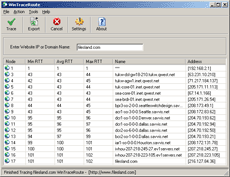
WinTraceRoute HelpType in destination computer IP address or domain name in the input box provided. Click on the toolbar button "Trace". Wait a few seconds while traceroute operation is in progress. A typical output screen looks like the one below. How to read the output? |
|
 |
|
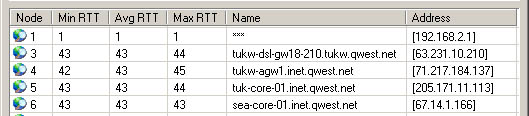
| The first column shows host
number in trace chain, the second column "Min RTT" shows
minimum round trip times for the packet, "Avg RTT" - average
round trip times, the next one - maxumum round trip times.
Name column shows DNS reverse name of the IP. Address
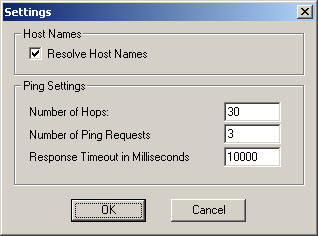
displays IP address of the host in the route. WinTraceRoute allows you to change several parameters before tracing a route to the host. You may disable or enable the option to resolve host IP addresses to names, choose number of Hops, number of ping requests and select timeout for the host to respond. |
|
| Settings dialog screenshot is
presented blow. When choosing the settings, please make sure
that number of hops is large enough. Sometimes it is also
called TTL value. Each time a host is reached this number is
decreased by one, so if this number is set too small, the
packets may never reach a host far enough in the traceroute
chain. Setting host response timeout too small may lead to results that could be interpreted that the host is not responding. However it may be up and running, just responding slow. |
|
 |
|
| You may export the result of the tracert operation into a text file or print out the traceroute information right from the software. Tray operation mode is also supported. | |