GetNetworkInfo Guide
GetNetworkInfo finds the devices connected to your local network and identifies what each of them is: its manufacturer, name, type, model, operating system and open ports. It also shows the network settings of your own computer and your public IP address. This guide describes the commands, the result columns and all settings of the program.
- Scanning the Network
- Reading the Results
- How Devices Are Identified
- Device Details
- Network Information and Public IP Address
- Settings
- Manufacturer (Vendor) Database
- Menus, Shortcuts and List Commands
- Tips and Troubleshooting
Scanning the Network
- Choose the Network adapter connected to the network you want to scan, for example Wi-Fi - 10.0.0.242 or Ethernet - 192.168.1.20. Only connected adapters with an IPv4 address are listed. If you plug in a cable or join another Wi-Fi network while the program is open, use Action > Refresh Network Adapters.
- The Scan range is filled in from the adapter's subnet. For a large subnet, at most 1024
addresses around this computer are scanned (the limit can be changed in Settings). You can type your
own range in any of these forms:
192.168.1.1 - 192.168.1.254
192.168.1.0/24
192.168.1.10-50 - Click Scan or press F5 (Enter in the range box also starts a scan). Click Stop or press Esc to stop.
- The line under the adapter box shows this computer's IP address, subnet mask, default gateway, DNS server and Wi-Fi network and speed.
A scan runs in two stages. First an ARP request is sent to every address in the range, 64 at a time; every device that answers is added to the list immediately. ARP is how devices on the same network find each other, so a device cannot ignore it — computers and phones whose firewall blocks ping are still found. Then each device is identified (16 at a time) with the methods described below, and its row is filled in as the answers arrive. The status bar shows the progress and, at the end, the number of devices found.
Reading the Results
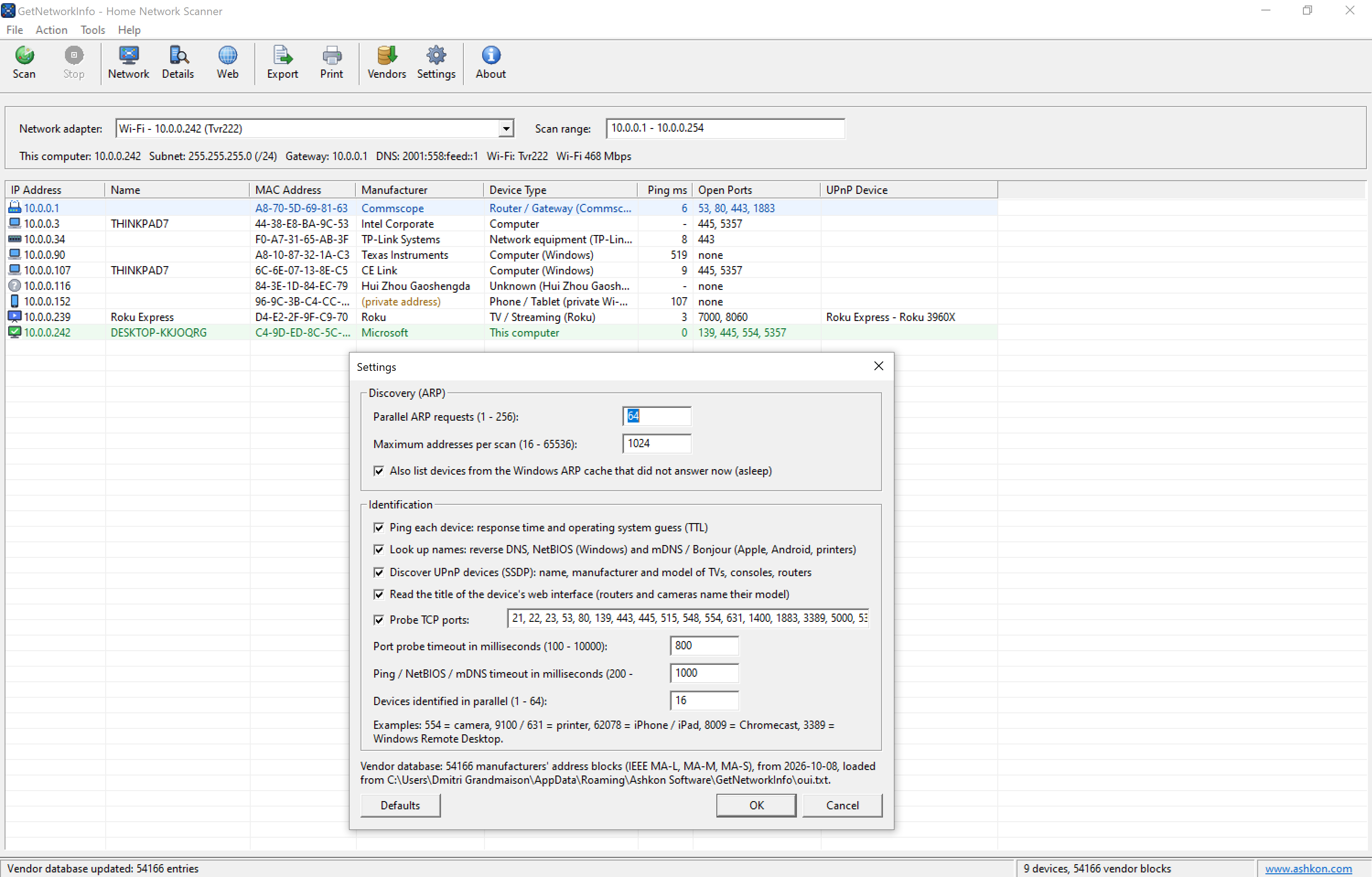
Each row is one device. Row colors and icons help you find the important devices quickly:
- Blue row — your router / default gateway.
- Green row — this computer.
- Gray row — a device that is in the Windows ARP cache (it was on the network recently) but did not answer now, usually a phone or a laptop that is asleep.
- The icon at the left of the row shows the device type (router, computer, phone, TV, printer and so on).
Columns marked with * are shown by default; right-click the column header (or use Tools > List Columns) to show or hide the others. Click a column header to sort by it.
| Column | Description |
|---|---|
| IP Address * | IPv4 address of the device. |
| Name * | The best name found for the device: UPnP friendly name, mDNS / Bonjour name, NetBIOS name or DNS name (in this order). |
| MAC Address * | Hardware address of the device's network adapter. |
| Manufacturer * | Company that the MAC address block is registered to. (private address) means a randomized MAC address (see below). |
| Device Type * | What the device most likely is, with the brand or model in parentheses. |
| OS (from TTL) | Operating system family guessed from the TTL of the ping reply. |
| Ping ms * | Ping response time in milliseconds; "-" if the device does not answer ping. |
| Open Ports * | TCP ports from the port list that accepted a connection; "none" if no port is open. |
| UPnP Device * | Friendly name and model from the device's UPnP description. |
| Web Interface | Title of the device's web page and the name of its web server. |
| Host Name (DNS) | Reverse DNS name, usually the name your router gave the device. |
| NetBIOS Name | Windows (or Samba) computer name. |
| Workgroup | Windows workgroup or domain. |
| mDNS Name | Bonjour / mDNS name, for example Johns-iPhone.local. |
| Organization | Full registered name of the organization that owns the MAC address block. |
| Discovered By | How the device was found: ARP reply or Windows ARP cache. |
The main window after a scan of a home Wi-Fi network, with the Settings dialog open:
How Devices Are Identified
No single method identifies every device, so GetNetworkInfo combines several. Each of them can be turned off in Settings.
| Method | What it tells |
|---|---|
| MAC address | The manufacturer of the network adapter, from the IEEE registry. This works for every device that answers ARP. |
| Ping (ICMP) | Response time and the TTL of the reply: 64 = Linux, Android, iOS or macOS; 128 = Windows; 255 = network equipment. |
| Reverse DNS | The name the router's DHCP / DNS server gave the device, for example Galaxy-S24.lan. |
| NetBIOS | Computer name and workgroup of Windows PCs and Samba servers (UDP port 137). |
| mDNS / Bonjour | Names of iPhones, iPads, Macs, printers, Chromecasts and Linux computers (UDP port 5353). |
| UPnP / SSDP | Friendly name, manufacturer, model, model number and serial number from the device description of smart TVs, Roku, Xbox, routers, Sonos, NAS drives and cameras. |
| TCP ports | Open ports reveal the kind of device: 554 = camera, 9100 / 631 / 515 = printer, 62078 = iPhone / iPad, 8009 = Chromecast, 3389 / 445 = Windows, 548 = Mac, 1400 = Sonos, 8060 = Roku, 32400 = Plex. |
| Web interface | The title, login prompt and server name of the device's web page. Routers and cameras usually name their model there. |
The results are combined by a set of rules into the Device Type: Router / Gateway, Computer, Phone / Tablet, TV / Streaming, Game console, IP camera, Printer, NAS / Storage, Smart speaker, Smart home / IoT, Network equipment or Unknown. The device type is a best guess; Device Details shows the reason for it.
Private (randomized) MAC addresses
iPhones (iOS 14 and later), Android phones (Android 10 and later) and many Windows laptops use a random "private Wi-Fi address" for each network instead of their real MAC address. No manufacturer is registered for such an address, so the Manufacturer column shows (private address). These devices are usually phones or tablets; their name (mDNS, DNS) or open ports often tell more.
Device Details
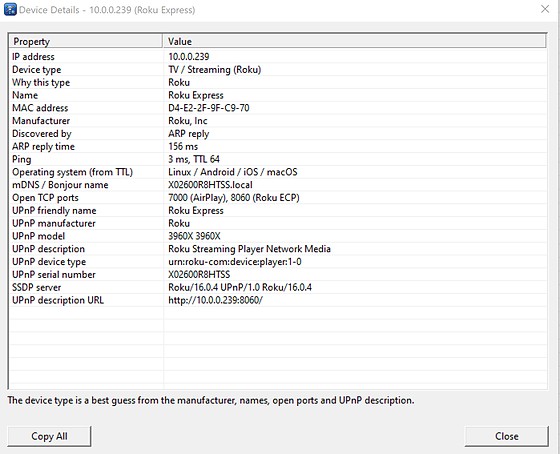
Double-click a device, select it and press Enter, or click Details on the toolbar. The window lists everything that is known about the device: IP and MAC address, manufacturer, device type and Why this type, how it was discovered and the ARP reply time, ping time and TTL, operating system guess, all names, open ports with their meaning, and the full UPnP description (friendly name, manufacturer, model, description, device type, serial number, SSDP server and description URL). For the router, the DHCP and DNS server roles are shown as well.
- Copy All copies the details to the clipboard as text.
- Open Web Page (shown when the device has a web interface) opens it in your browser.
Network Information and Public IP Address
Click Network on the toolbar (Action > Network Information) to see the network settings of this computer:
- Computer name, NetBIOS name, DNS domain, workgroup or domain, user name and Windows version.
- Public IPv4 address and Public IPv6 address — the addresses the Internet sees for your connection (looked up at api.ipify.org). This is the address assigned to your router by your Internet provider, not the local address of your PC.
- For every connected adapter: description, connection type (Ethernet, Wi-Fi, mobile broadband), status, MAC address, IPv4 and IPv6 addresses, subnet mask, default gateway, DNS servers and DNS suffix, DHCP state, DHCP server and when the lease expires, link speed, MTU and interface index.
- For Wi-Fi adapters: network name (SSID), Wi-Fi standard, signal quality and channel.
Copy All copies the information to the clipboard, for example to send it to your Internet provider's support.
Settings
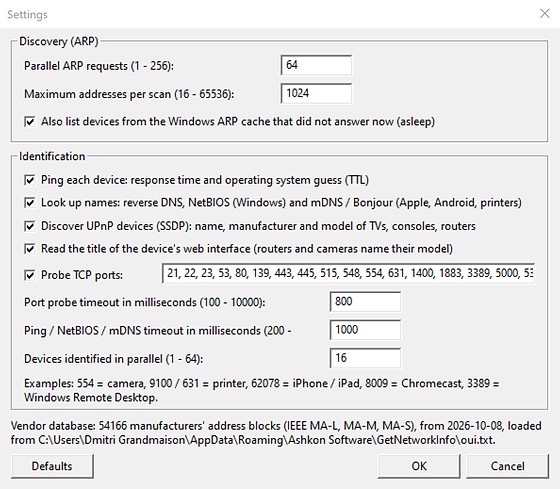
Click Settings on the toolbar (Tools > Settings). Defaults restores the original settings. The settings are saved and used for every scan.
Discovery (ARP)
- Parallel ARP requests (1 - 256, default 64): how many addresses are queried at the same time. Higher values scan faster.
- Maximum addresses per scan (16 - 65536, default 1024): the largest range that is scanned. Increase it to scan a large office network (for example a /16).
- Also list devices from the Windows ARP cache that did not answer now: adds recently seen devices that are asleep, shown in gray.
Identification
- Ping each device: fills the Ping ms and OS (from TTL) columns.
- Look up names: reverse DNS, NetBIOS and mDNS / Bonjour names.
- Discover UPnP devices (SSDP): name, manufacturer and model of TVs, consoles, routers and other UPnP devices.
- Read the title of the device's web interface: fills the Web Interface column.
- Probe TCP ports: the list of ports to test on each device, separated by commas. Ranges such as 8000-8100 are allowed, up to 1024 ports. The default list has 31 ports that help identify home devices.
- Port probe timeout (100 - 10000 ms, default 800): how long to wait for a port to accept a connection.
- Ping / NetBIOS / mDNS timeout (200 - 10000 ms, default 1000): how long to wait for these replies. Increase it on a slow or busy Wi-Fi network.
- Devices identified in parallel (1 - 64, default 16).
The bottom of the dialog shows how many manufacturer address blocks are loaded, their date and where they were loaded from.
Manufacturer (Vendor) Database
GetNetworkInfo includes a copy of the IEEE registry of MAC address blocks: more than 54,000 assignments of all three sizes (MA-L 24-bit, MA-M 28-bit and MA-S 36-bit; the longest matching prefix wins). New blocks are assigned to manufacturers every week. Click Vendors on the toolbar (Tools > Update Vendor Database) to download the current registry (about 6 MB) from standards-oui.ieee.org. The downloaded copy is saved in %APPDATA%\Ashkon Software\GetNetworkInfo\oui.txt and used from then on.
Menus, Shortcuts and List Commands
| File | Export Device List, Print Device List, Exit. |
| Action | Scan Network (F5), Stop Scan (Esc), Network Information, Refresh Network Adapters, Device Details, Open Device Web Page, Copy IP Address, Copy MAC Address, Clear List. |
| Tools | Settings, List Columns, Update Vendor Database. |
| Help | Register Now, Contents, Ashkon Software Web Site, About GetNetworkInfo. |
| Right-click a device | Device Details, Open Web Page, Copy IP Address, Copy MAC Address, Export This List, Print This List, Clear List. |
| Tray icon | Scan Network, Show, Exit. |
Exporting and printing
Export saves the visible columns of the device list to a CSV file that opens in Excel, or to a tab-separated text file. The suggested file name contains the date and time of the scan, so you can keep a history of the devices on your network. Print prints the list with the scanned range in the title.
Tips and Troubleshooting
- A device is missing. Phones put Wi-Fi to sleep when the screen is off; wake the device and scan again, or keep the ARP cache option on to see recently seen devices. Devices on a guest Wi-Fi network or another subnet cannot be reached by ARP — connect this PC to that network and scan again.
- The device type is Unknown. Only the manufacturer is known; check Device Details. Devices made by module makers (for example Espressif, Tuya or Texas Instruments) are usually smart plugs, bulbs and other smart home gadgets.
- An unfamiliar device. Compare its MAC address with the labels on your devices or with the list of clients in your router. If you do not recognize it, change your Wi-Fi password.
- Ping shows "-". The device's firewall blocks ping (Windows does so by default). It was still found by ARP.
- Scanning is slow. Turn off the methods you do not need, shorten the port list or lower the timeouts. Most time is spent waiting for devices that do not reply.
- VPN. When a VPN is active, choose your Wi-Fi or Ethernet adapter, not the VPN adapter.
System Requirements
Windows 7, 8, 8.1, 10 or 11, connected to a network over Ethernet or Wi-Fi. No administrator rights are needed for scanning. An Internet connection is needed only for the public IP address and the vendor database update.