Keywords Search Tool Guide
Keywords Search Tool finds keyword phrases that people type into search engines. It sends your keyword to the autocomplete services of several search engines, collects their suggestions and shows them in one list. This guide describes all commands and settings of the program.
- Quick Start
- Entering Keywords
- Region
- Search Mode
- Sources
- Results List
- Filtering Results
- Searching Further
- Output Formats
- Copying and Exporting
- Menus, Toolbar and Keyboard Shortcuts
- Tips and Troubleshooting
- System Requirements
Quick Start
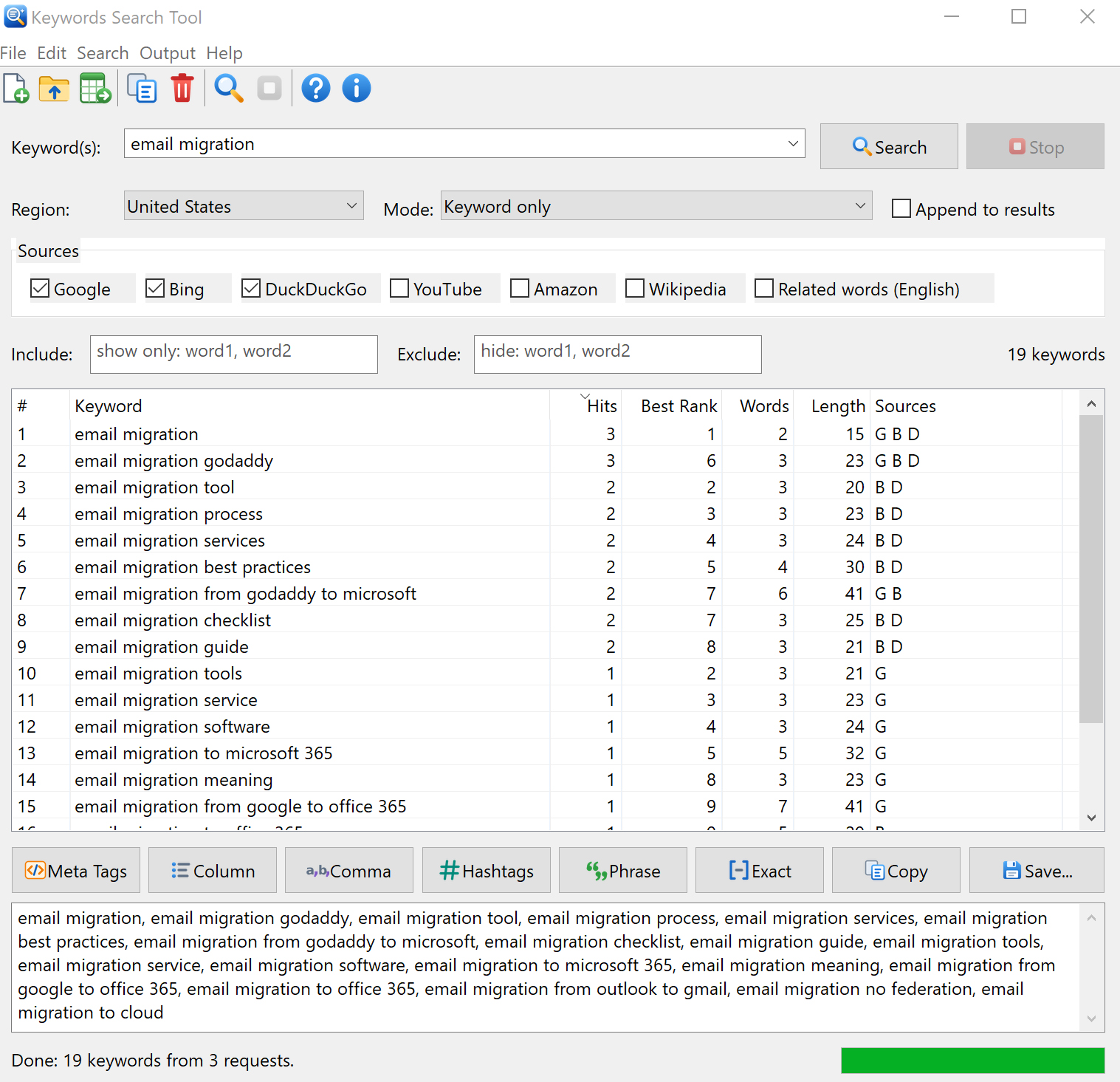
- Type a keyword in the Keyword(s) box, for example email migration.
- Select the country of your visitors in Region.
- Leave Mode set to Keyword only for a fast first search.
- Press Enter or click Search. The keywords appear in the list as they arrive.
- Click Meta Tags, Comma or another output button, then Copy or Save.
Entering Keywords
Type the main keyword or phrase you want to research in the Keyword(s) box. A short, general keyword returns more suggestions than a long, very specific phrase. Keywords in any language can be entered.
- Several keywords: separate them with a semicolon, for example email migration; mailbox migration; pst import. Each keyword is searched in turn and all suggestions are collected in one list.
- Import a keyword list: select File > Import Seed Keywords (Ctrl+O) and choose a text or CSV file with one keyword per line (up to 10 MB). A header line named "keyword" in a CSV file is skipped. The keywords are placed in the Keyword(s) box; click Search to search all of them.
- History: the last 20 keywords are kept in the drop-down list of the Keyword(s) box.
Region
Suggestions depend on the country and language of the searcher: the same keyword brings different phrases in the United States, in the United Kingdom or in Germany. Select the country your website is made for. The program asks every source for suggestions in the language and market of that country.
| Region | Language | Notes |
|---|---|---|
| United States, United Kingdom, Canada, Australia, India | English | All sources available |
| Germany | German | Related words source is not available (English only) |
| France | French | |
| Italy | Italian | |
| Spain, Mexico | Spanish | |
| Netherlands | Dutch | |
| Poland | Polish | |
| Brazil | Portuguese | |
| Japan | Japanese | |
| Russia, Ukraine | Russian, Ukrainian |
There is no Amazon store for Russia and Ukraine, so the Amazon source is skipped for these two regions.
Search Mode
An autocomplete service returns only about ten suggestions for one query. To find more keywords the program can send many variations of your keyword. Select how many in Mode:
| Mode | Queries sent | Example for "coffee" |
|---|---|---|
| Keyword only | 1 per source | coffee |
| A-Z expansion | 37 per source | coffee, coffee a, coffee b ... coffee z, coffee 0 ... coffee 9 |
| Questions | 14 per source | coffee, how coffee, what coffee, why coffee, where coffee, can coffee, should coffee ... |
| Prepositions & comparisons | 16 per source | coffee, coffee for, coffee with, coffee without, coffee near, coffee vs, coffee best, coffee free, coffee online ... |
| Full | all of the above | about 65 queries per source |
The number of queries is multiplied by the number of selected sources and keywords. A short pause is made between queries so that the services do not block them, so A-Z and Full searches take longer. If a search needs more than 300 queries, the program tells you how many it will send and asks before it starts. The progress bar and the status bar show the progress; click Stop or press Esc to stop at any time — the keywords found so far stay in the list.
Sources
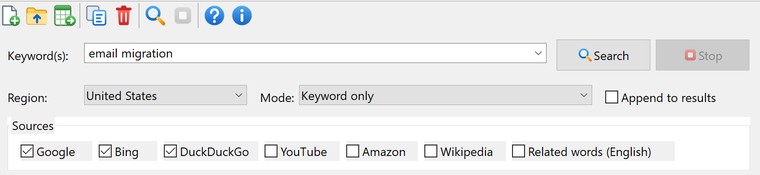
Check the services you want to use. Google, Bing and DuckDuckGo are selected by default. Hover the mouse over a check box to see a short description.
| Source | Letter | What it finds |
|---|---|---|
| G | Google Search autocomplete: the most popular web searches. | |
| Bing | B | Bing autocomplete. |
| DuckDuckGo | D | DuckDuckGo autocomplete. |
| YouTube | Y | YouTube search autocomplete: keywords for video titles and tags. |
| Amazon | A | Amazon product search autocomplete: keywords for products and online stores. |
| Wikipedia | W | Wikipedia article titles: topics, names and entities. |
| Related words | R | Words and phrases with a similar meaning (English regions only). |
Results List
Every keyword is shown only once, even if several sources and queries returned it. The number of keywords is shown above the list on the right.
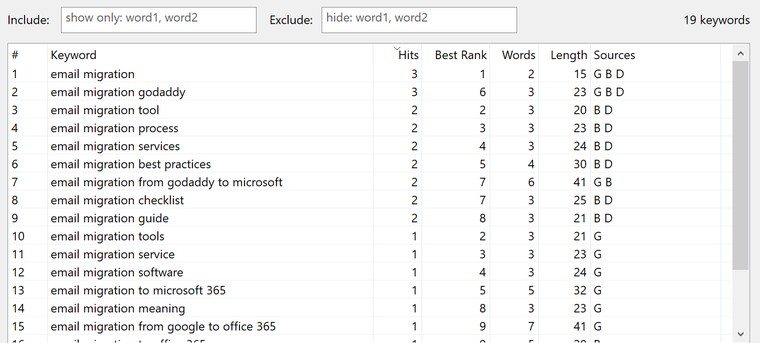
| # | Row number. |
| Keyword | The keyword phrase. |
| Hits | In how many suggestion lists the keyword appeared. A phrase suggested by several search engines and for several queries is more popular, so Hits is a good measure of popularity. |
| Best Rank | The best position of the keyword in any suggestion list (1 = first suggestion). |
| Words | Number of words in the phrase. Phrases of three words or more are "long-tail" keywords: less competition and more specific visitors. |
| Length | Number of characters, useful for page titles and ad headlines. |
| Sources | Letters of the sources that returned the keyword, for example G B D. |
The list is sorted by Hits, most popular first. Click a column header to sort by that column; click it again to reverse the order. Keywords with the same value are ordered by Best Rank.
Filtering Results
Use the two boxes above the list to narrow it as you type:
- Include: show only keywords that contain at least one of the words you enter. Separate words with commas, for example free, online.
- Exclude: hide keywords that contain any of the words you enter, for example brand names or jobs, salary.
When a filter is used, the counter shows "showing X of Y keywords". Copy, export and all output formats use only the keywords that are visible in the list. To remove keywords for good, select them and press Del or click Delete on the toolbar.
Searching Further
To find more phrases around a keyword in the results, double-click it, select it and press Enter, or right-click and choose Search Selected Keywords. You can select several keywords at once. Check Append to results to add the new suggestions to the current list instead of replacing it; in this way you can grow a large keyword list step by step.
Open in Google (right-click menu or Search > Open Selected in Google) opens the Google search results of the selected keywords in your web browser (up to five at a time), so you can see which sites already rank for them.
Output Formats
The buttons below the list turn the visible keywords into text in the output box. The same commands are available in the Output menu.
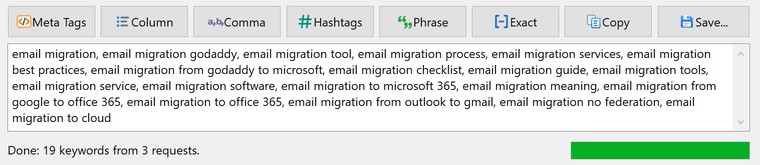
| Button | Format | Example |
|---|---|---|
| Meta Tags | HTML keywords meta tag | <meta name="keywords" content="coffee, coffee beans"> |
| Column | One keyword per line | coffee coffee beans |
| Comma | Comma separated list | coffee, coffee beans |
| Hashtags | Hashtags for social media | #coffee #coffeebeans |
| Phrase | Phrase match keywords for Google Ads and Microsoft Ads | "coffee" "coffee beans" |
| Exact | Exact match keywords for Google Ads and Microsoft Ads | [coffee] [coffee beans] |
Hashtags are made by removing spaces and punctuation; duplicate hashtags are left out. You can edit the text in the output box before copying it. Output > Clear Output empties the box.
Copying and Exporting
| Copy (output) | Copy the text of the output box to the clipboard. |
| Save... | Save the text of the output box to a text or HTML file. |
| Export Results to CSV | File menu or toolbar (Ctrl+S). Saves all columns — Keyword, Hits, Best Rank, Words, Length and Sources — to a CSV file that opens correctly in Excel, including keywords in other languages. |
| Export Results to Text | File menu. Saves the keywords to a text file, one per line. |
| Copy Selected Keywords | Ctrl+C in the list, or right-click menu. |
| Copy All Keywords | Toolbar Copy or Ctrl+Shift+C: copies all visible keywords, one per line. |
Menus, Toolbar and Keyboard Shortcuts
Toolbar
| New | Start a new search: clear the keyword, the filters, the output and the results (Ctrl+N). |
| Import | Import seed keywords from a text or CSV file (Ctrl+O). |
| Export | Export the results to CSV (Ctrl+S). |
| Copy | Copy all visible keywords (Ctrl+Shift+C). |
| Delete | Delete the selected keywords (Del). |
| Search | Start the search (Enter or F5). |
| Stop | Stop the running search (Esc). |
| Help | Open the online help (F1). |
| About | Show the program version. |
Menus
| File | New Search, Import Seed Keywords, Export Results to CSV, Export Results to Text, Save Output Text, Exit. |
| Edit | Copy Selected Keywords, Copy All Keywords, Select All, Delete Selected, Clear Results. |
| Search | Search Now, Stop, Search Selected Keywords, Open Selected in Google. |
| Output | HTML Meta Tags, Column List, Comma Separated List, Hashtags, Phrase Match, Exact Match, Copy Output, Save Output Text, Clear Output. |
| Help | Online Help, About Keywords Search Tool. |
Keyboard shortcuts
| Enter / F5 | Search (in the results list Enter searches the selected keywords) |
| Esc | Stop the search |
| Ctrl+N | New search |
| Ctrl+O | Import seed keywords |
| Ctrl+S | Export results to CSV |
| Ctrl+Shift+C | Copy all visible keywords |
| Ctrl+A / Ctrl+C / Del | Select all, copy selected, delete selected (in the results list) |
| F1 | Online help |
Tips and Troubleshooting
- No suggestions found: try a shorter or more general keyword, another region, or more sources.
- All requests failed: check your Internet connection, firewall and proxy settings.
- Some requests failed: the status bar shows how many requests failed and the last error. A service may limit the number of queries for a while (HTTP 429); wait a few minutes, use fewer sources or a smaller mode.
- Choosing keywords: keywords with high Hits found by several sources (G B D) are the most popular. Long-tail phrases with three or more words are easier to rank for and bring more targeted visitors.
- Questions mode is a quick way to find topics for articles and FAQ pages.
- Suggestions come from public autocomplete services and change over time; the program does not show the exact number of monthly searches.
System Requirements
Windows 10 or 11 and an Internet connection. Keywords Search Tool is freeware: there is no trial period and no registration. The program remembers the keyword history, region, mode, selected sources, the Append option and the window size and position between sessions.