WinTraceRoute Guide
WinTraceRoute shows every router between your PC and a destination host, how fast each one answers, how many probes it loses and who operates it. This guide describes the commands, the result columns and all settings of the program.
Tracing a Route
- Type a host name (for example example.com), an IPv4 address (93.184.215.14) or an IPv6 address (2606:2800:21f:cb07::1) in the Enter Host Name or IPv4 / IPv6 Address box.
- Click Trace to trace with the Address Family chosen in Settings (Automatic by default: IPv4 or IPv6 is chosen from the addresses of the host).
- Click Trace IPv4 or Trace IPv6 to trace over that address family for this trace only.
- Hops appear in the list as they are discovered. Click Cancel to stop a trace.
- When the trace is complete, the status bar shows the host name and the IP address that was traced.
Reading the Results
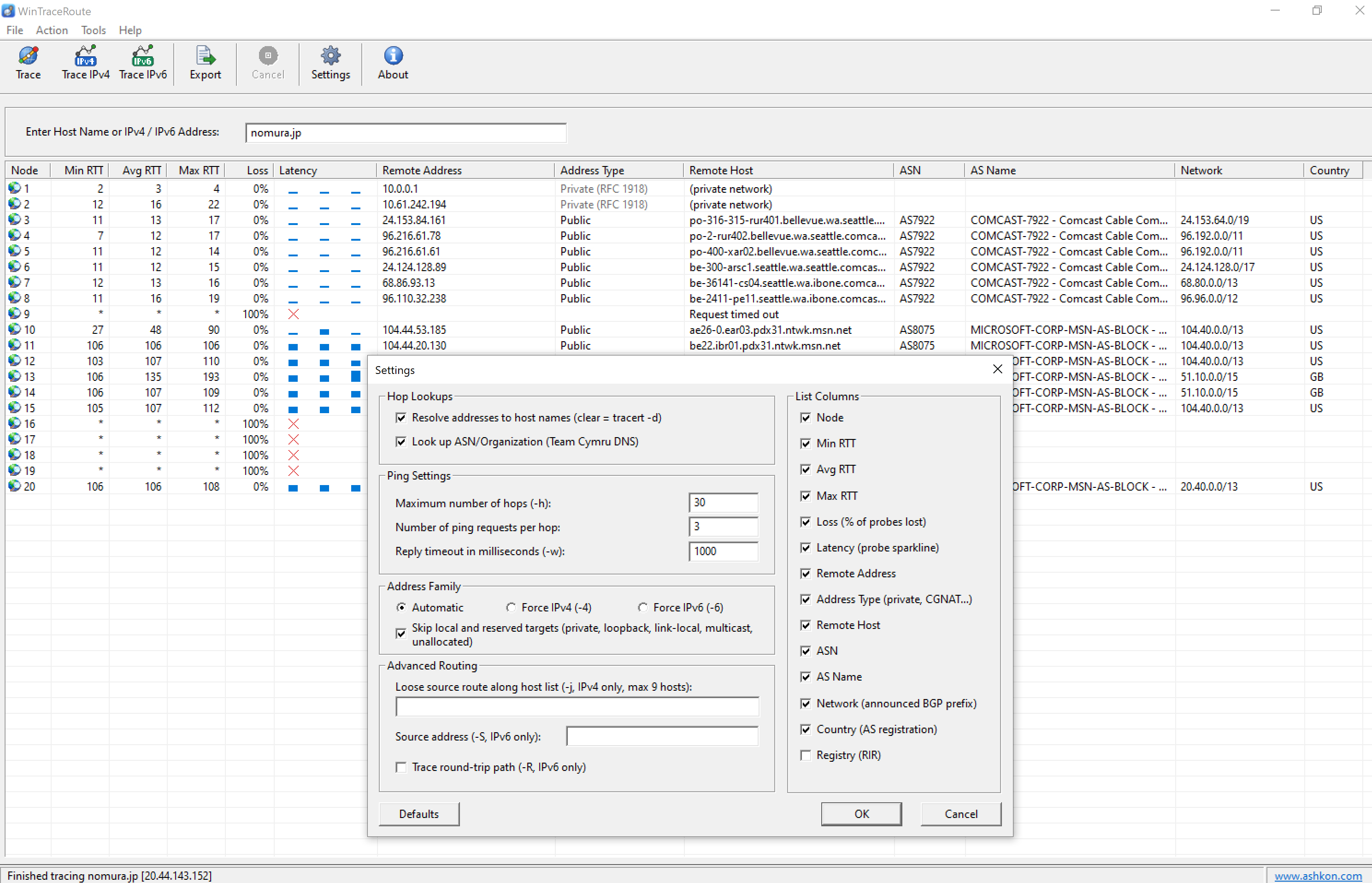
Each row is one hop (router) on the path; the last row is the destination host.
| Column | Description |
|---|---|
| Node | Hop number, starting from 1 (usually your own router). |
| Min / Avg / Max RTT | Fastest, average and slowest round-trip time of the probes, in milliseconds. |
| Loss | Percentage of probes to this hop that got no reply. |
| Latency | A small bar for each probe; a taller bar means a slower reply. A red cross marks a hop that did not answer. |
| Remote Address | IPv4 or IPv6 address of the hop. |
| Address Type | Public, Private (RFC 1918), CGNAT (shared carrier address space) or another special range. |
| Remote Host | Reverse DNS name of the hop. Router names often include a city or airport code that tells where the router is. |
| ASN | Autonomous System number of the network that the address belongs to, for example AS7922. |
| AS Name | Name of the organization that operates that network. |
| Network | The BGP prefix announced for the address, for example 24.153.64.0/19. |
| Country | Country in which the AS is registered (not necessarily where the router is). |
| Registry | Regional Internet Registry of the address: ARIN, RIPE NCC, APNIC, LACNIC or AFRINIC. |
Private and CGNAT hops have no public ownership data, so their ASN columns stay empty.
Interpreting timeouts and delays
- "Request timed out" with * in the RTT columns and 100% loss means the router did not reply in time. Many routers ignore or rate-limit traceroute probes but forward normal traffic, so a silent hop in the middle of the route is usually not a problem.
- A real problem shows as loss or a jump in delay that continues on every following hop up to the destination. The first hop where it starts is where to look.
- A large increase in RTT between two hops in different cities or countries is normal: it is the distance the signal travels. Compare the AS Name and Remote Host columns to see where your provider hands traffic to another network.
- If the last hops all time out, the destination or its firewall may block probes. Try again with a longer timeout, or trace over the other address family.
The main window with a trace to nomura.jp and the Settings dialog:
Settings
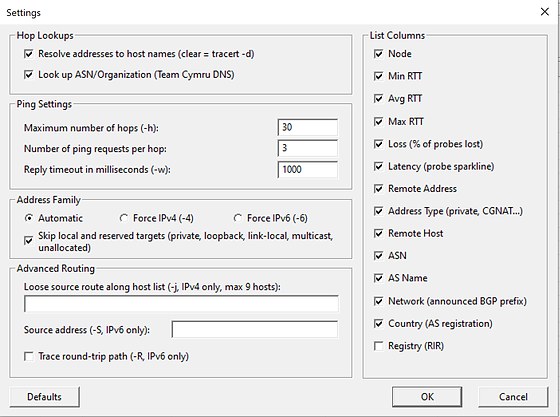
Click Settings on the toolbar. The equivalent Windows tracert option is shown in parentheses next to each setting. Defaults restores the original settings.
Hop Lookups
- Resolve addresses to host names: fills the Remote Host column. Clear it (same as tracert -d) for a faster trace.
- Look up ASN/Organization: fills ASN, AS Name, Network, Country and Registry through the Team Cymru DNS service.
Ping Settings
- Maximum number of hops (-h, default 30): the trace stops after this many hops. If it is too small, the trace ends before it reaches a distant host.
- Number of ping requests per hop (default 3): more probes give more accurate RTT and loss values but make the trace slower.
- Reply timeout in milliseconds (-w, default 1000): how long to wait for each reply. A timeout that is too short makes slow routers look as if they do not respond.
Address Family
- Automatic, Force IPv4 (-4) or Force IPv6 (-6): the address family used by the Trace button.
- Skip local and reserved targets: private, loopback, link-local, multicast and unallocated addresses are not traced.
Advanced Routing
- Loose source route along host list (-j, IPv4 only): a list of up to 9 hosts that the packets should pass through. Many networks drop source-routed packets.
- Source address (-S, IPv6 only): the local IPv6 address to send from, useful on PCs with several IPv6 addresses.
- Trace round-trip path (-R, IPv6 only): trace the path to the destination and back.
List Columns
Select which of the 14 columns to show in the list. Hiding unused columns makes the list easier to read on smaller screens.
Exporting Results
Click Export on the toolbar to save the results of the last trace to a text file, for example to attach to a support request to your Internet or hosting provider.
System Requirements
Windows 7, 8, 8.1, 10 or 11, with IPv4 or IPv6 network connectivity. IPv6 traces require an IPv6 connection to the Internet.