WinTraceRoute
WinTraceRoute shows the route that network packets take from your PC to any host on the Internet or your local network. Enter a host name or an IPv4 / IPv6 address, click Trace, and every router along the path is listed with its minimum, average and maximum round-trip time, packet loss and a latency graph, together with its host name, network owner (ASN and AS name), announced BGP prefix and country.
Use it to find where a connection slows down or breaks: in your home or office network, at your Internet provider, on a backbone network or at the hosting provider of the destination site. Address types such as private (RFC 1918) and CGNAT ranges are labeled automatically, and all of the familiar tracert options — hop limit, timeout, IPv4 / IPv6, loose source routing — are available in one Settings dialog. WinTraceRoute is Windows based, fully configurable and faster than the tracert tool that comes with Windows. For a full help guide please see the WinTraceRoute Help page.
Size: 2.56 MB
Released: October 2026
Price: $19.95
Operating Systems: Windows 7/8/8.1/10/11
Protocols: IPv4 and IPv6
Evaluation: free 30-day trial


Supported Features
IPv4 and IPv6 tracing
- Trace to a host name, an IPv4 address or an IPv6 address.
- Trace picks the address family automatically; Trace IPv4 and Trace IPv6 force one family with a single click.
- A running trace can be stopped at any time with Cancel.
Detailed statistics for every hop
- Min RTT, Avg RTT and Max RTT in milliseconds for each router on the path.
- Loss: the percentage of probes to the hop that got no reply.
- Latency graph: a small bar chart of the individual probes, so slow or unstable hops stand out at a glance; hops that do not answer are marked with a red cross.
Who owns each hop
- Remote Host: the reverse DNS name of the router.
- ASN, AS Name, Network (announced BGP prefix), Country and Registry (RIR), looked up through the Team Cymru DNS service.
- Address Type labels private (RFC 1918), CGNAT and other special ranges, so you can see where your local network ends and the Internet begins.
Familiar tracert options
- Maximum number of hops (-h), probes per hop and reply timeout (-w).
- Turn host name resolution off (-d) for a faster trace.
- Force IPv4 (-4) or IPv6 (-6), loose source route along a list of hosts (-j, IPv4), source address (-S, IPv6) and round-trip path tracing (-R, IPv6).
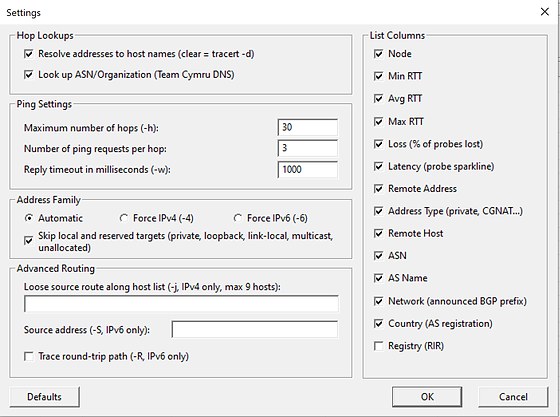
- Show or hide any of the 14 list columns.
Export
- Export the trace results to a text file for reports and support tickets.
Main Window
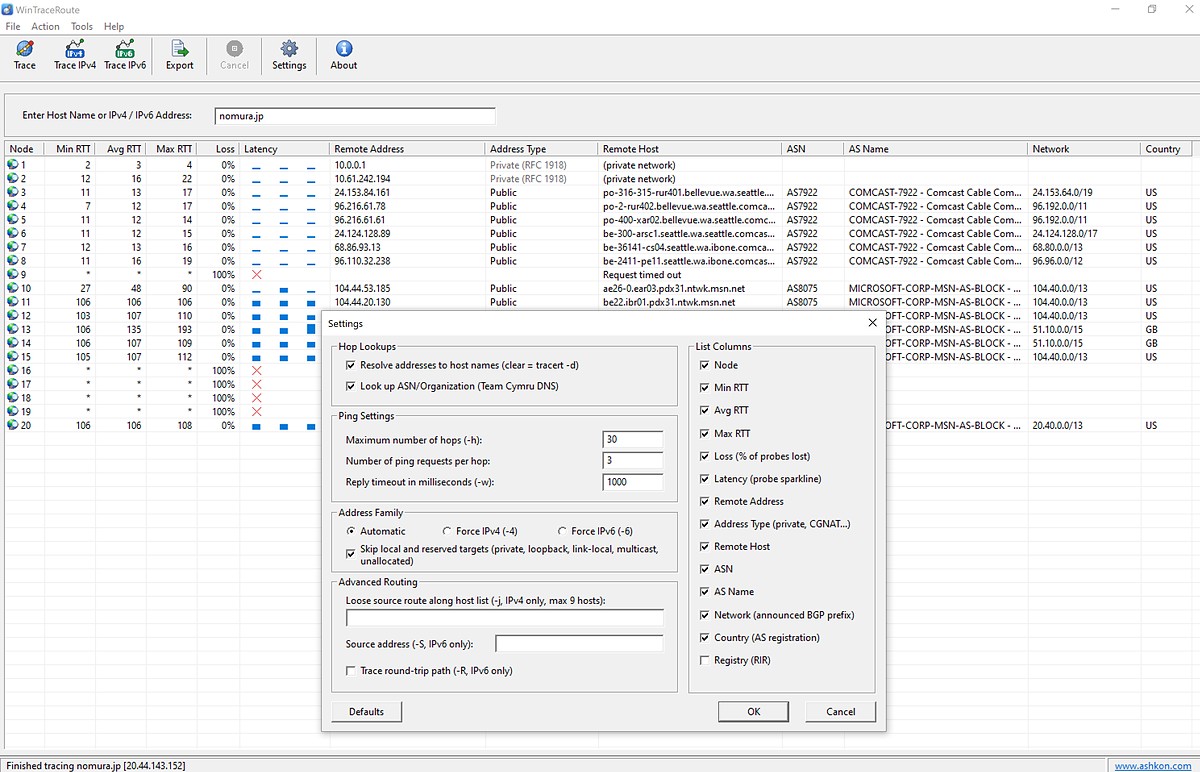
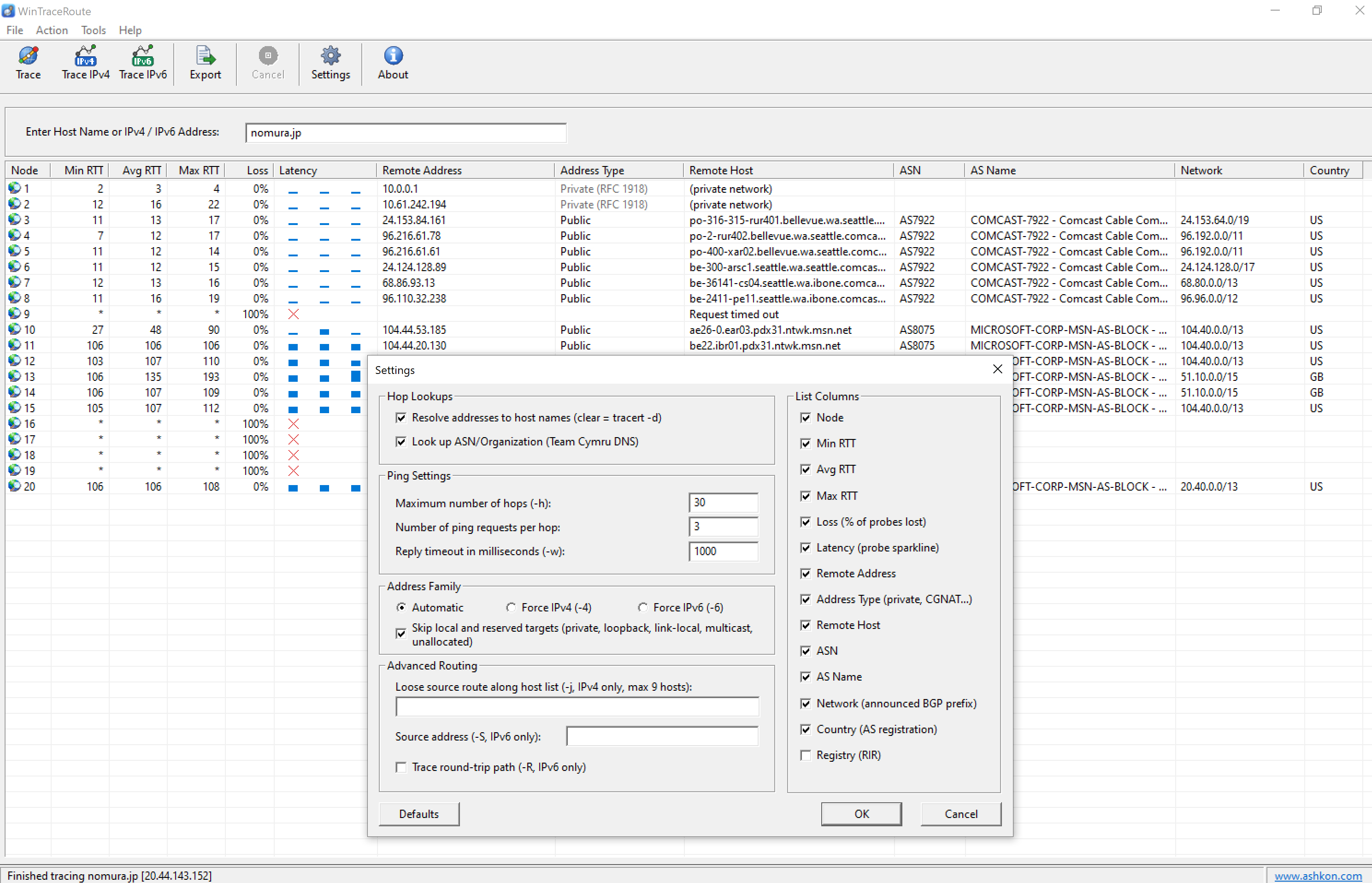
Each row of the list is one hop on the route to the destination. The toolbar has the trace commands, and the status bar shows the result of the last trace. In the screenshot below a route to nomura.jp is traced; the Settings dialog is open on top of the results.
WinTraceRoute Quick Help
Below you may find a short help section. For a full guide please see the WinTraceRoute Help page.
Type a host name (for example example.com) or an IPv4 / IPv6 address in the Enter Host Name or IPv4 / IPv6 Address box and click Trace. Hops are added to the list as they are discovered. The toolbar commands are:
| Trace | Trace the route to the host, using the Address Family chosen in Settings. |
| Trace IPv4 | Trace the route over IPv4. |
| Trace IPv6 | Trace the route over IPv6. |
| Export | Save the trace results to a text file. |
| Cancel | Stop the trace that is running. |
| Settings | Change lookups, ping settings, address family, routing options and list columns. |
| About | Show the program version and registration information. |
How to read the results
Node is the hop number. The RTT columns show the fastest, average and slowest reply of the hop in milliseconds, and Loss shows how many probes were lost. An asterisk (*) and "Request timed out" mean that the router did not answer within the timeout. This is common: many routers do not reply to traceroute probes but still forward traffic. A problem is likely only when the loss or the delay continues on all the following hops up to the destination.
Settings
Click Settings on the toolbar. Make sure the Maximum number of hops is large enough (30 is enough for almost any destination): if it is too small, the trace stops before it reaches the host. A Reply timeout that is too short can make a slow router look as if it does not respond. Click Defaults to restore the original settings.