IP Monitoring Tool
IP Monitoring Tool watches your web sites, servers and network devices and tells you at once when something goes down, comes back up or changes. Add web pages, host names and IP addresses, choose what to check — HTTP/HTTPS status, page content, a keyword, ping, a TCP port or DNS — and let the program check them in the background on a schedule you set for each monitor.
Any downtime of a web site costs visitors and money, and you may not notice it while you are working at your computer. IP Monitoring Tool runs quietly in the notification area, keeps uptime and response time statistics, and alerts you with a Windows notification, a sound, or by running your own program as soon as a server stops answering, a page changes, or a TLS certificate is about to expire.
Size: 3.11 MB
Released: October 2026
Price: $19.95
Operating Systems: Windows 10/11
Monitor Types: HTTP/HTTPS, content change, keyword, ping, TCP port, DNS
Evaluation: free 30-day trial


Supported Features
Six types of monitors
- Web page (HTTP/HTTPS): the server must answer with any success code (1xx–3xx) or with the exact status code you expect. Use a fast HEAD request or a full GET.
- Content change: the page text is compared with the previous check. Compare visible text only and ignore numbers (counters, dates, times, prices) to avoid false alerts. A built-in viewer shows what changed.
- Keyword: a word or phrase must appear — or must not appear — on the page.
- Ping: the host must answer ICMP echo requests, IPv4 and IPv6.
- TCP port: the port must accept connections — HTTP, HTTPS, FTP, SSH, SMTP, POP3, IMAP, RDP, VNC, MySQL, SQL Server, PostgreSQL, Oracle, Redis, MongoDB or any port 1–65535.
- DNS: the host name must resolve; you are alerted when its IP addresses change.
Flexible checks for every monitor
- Check interval from 10 seconds to 7 days, set in seconds, minutes or hours.
- Timeout and the number of consecutive failures before an alert, so a single lost packet does not wake you up.
- Slow response warning when the server answers slower than a limit you set.
- TLS certificate expiry warning a number of days before the certificate of an HTTPS site expires.
- Modern HTTPS with TLS 1.2/1.3, automatic proxy detection, compression and redirects; clear error messages for certificate problems.
- Test Now button checks a monitor while you edit it. Pause and resume any monitor at any time.
Alerts
- Windows notifications when a monitor goes down, recovers, changes or shows a warning. Several events at once are combined into one notification; click it to open the program on that monitor.
- Play a Windows sound or your own WAV file, and bring the window to the front.
- Run a program with the placeholders %NAME%, %TARGET%, %EVENT%, %DETAILS% and %STATUS% — send an e-mail, write to your own log or restart a service.
- The tray icon changes color (green, red, orange, gray) and the taskbar button and window title show "N DOWN" or "N changed".
Runs in the background
- Taskbar mode: closing or minimizing the window keeps the program running in the notification area.
- Start with Windows, optionally hidden, and start monitoring automatically.
- Up to 32 checks run in parallel, so large lists are checked quickly.
Statistics, log and export
- Status, response time, last check, last change, uptime % and number of checks for each monitor; sort by any column.
- Event log pane with the history of every state change, plus an optional log file.
- Add many URLs at once, import a text or CSV list, or drag and drop .url shortcuts and text files onto the window.
- Export the results and the event log to CSV, print the list, copy addresses, open a site in the browser.
- Upgrading from URL Monitoring Tool 2.x keeps your URL list and settings.
Main Window
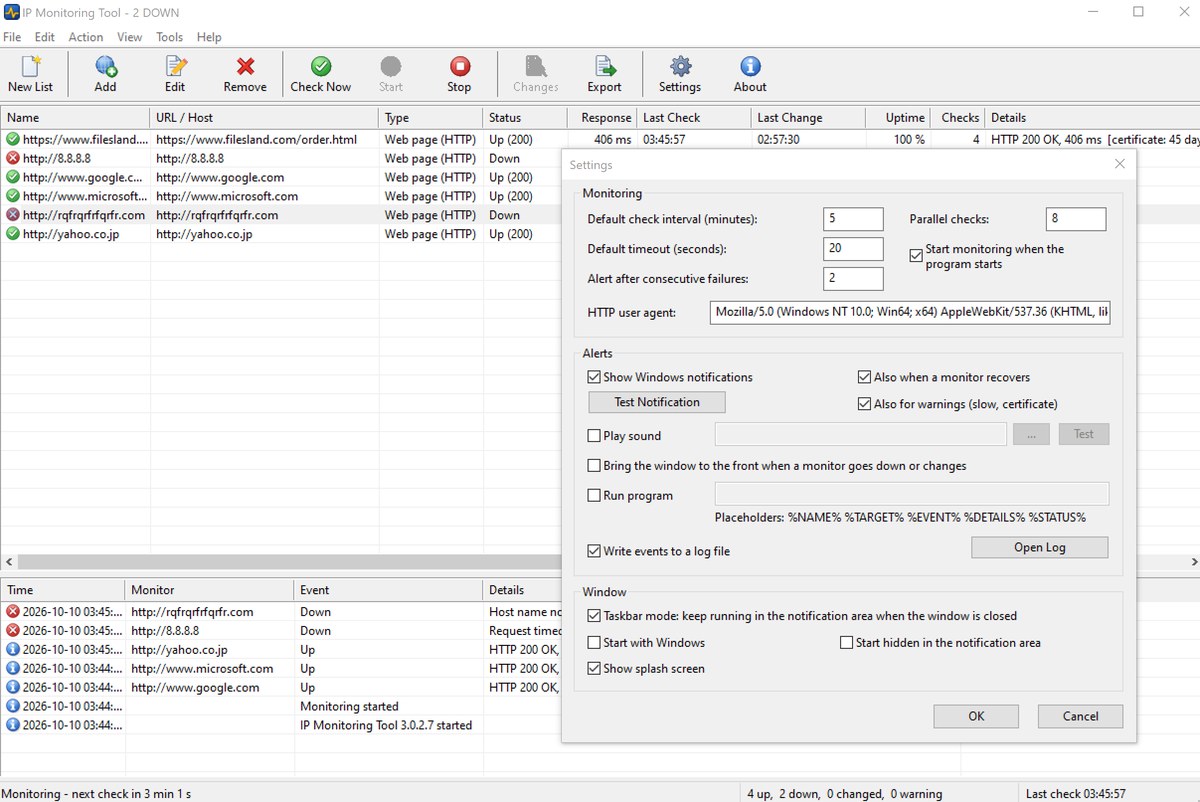
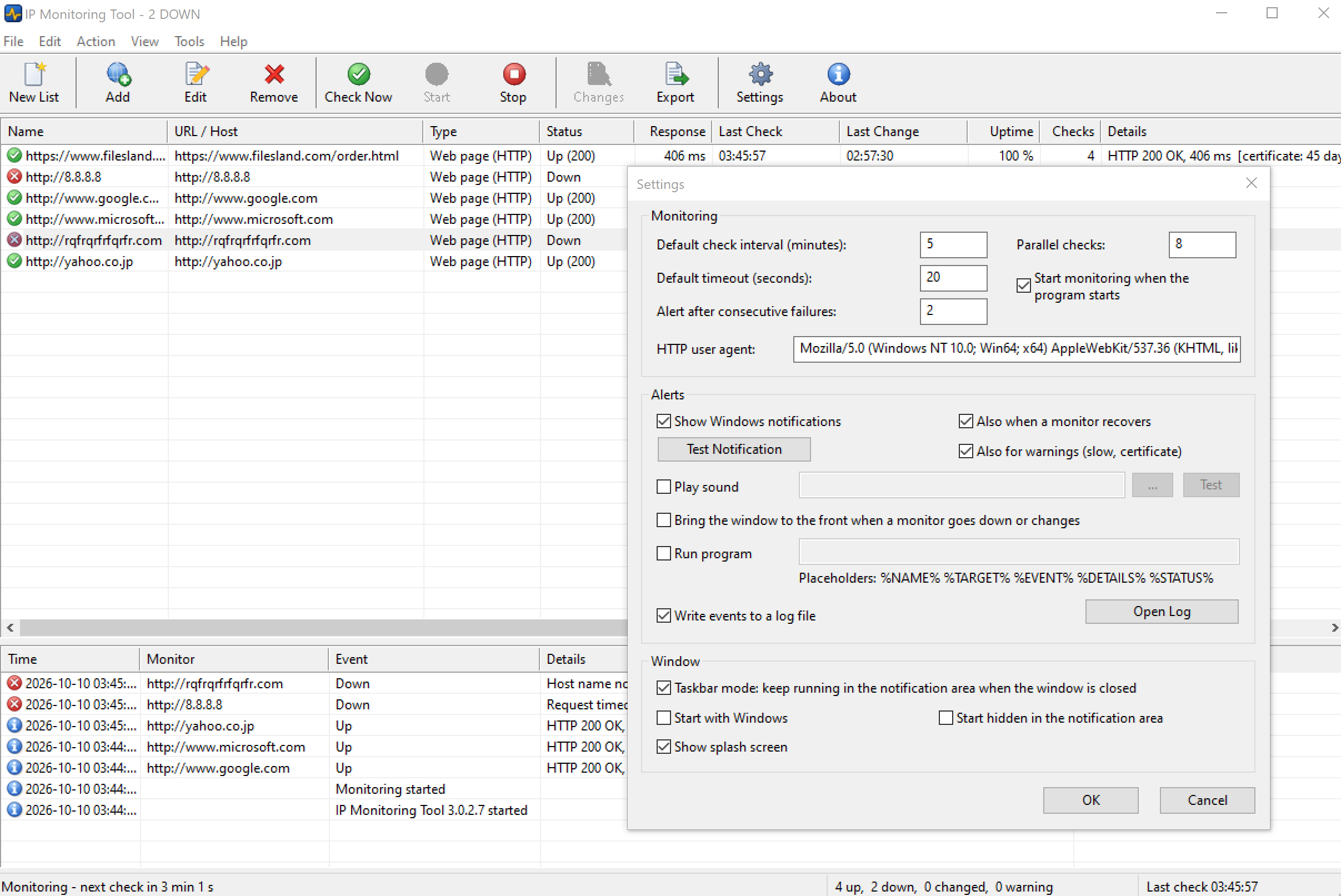
The upper list shows every monitor with its type, status, response time, uptime and details of the last check. The event log below it records every change. The status bar shows the time of the next check and how many monitors are up, down, changed or in a warning state. In the screenshot below two of six web sites are down, and the Settings dialog is open.
IP Monitoring Tool Quick Help
Below you may find a short help section. For a full guide please see the IP Monitoring Tool Help page.
Click Add on the toolbar (or press Insert) to add a monitor, or select File > Add Multiple URLs to paste a list of addresses. Then click Check Now to check all monitors at once, and Start to check them on schedule. The toolbar commands are:
| New List | Remove all monitors and start a new list. |
| Add | Add a web page, host name or IP address to monitor (Insert). |
| Edit | Edit the selected monitor (Enter or double-click). |
| Remove | Remove the selected monitors (Delete). |
| Check Now | Check all monitors now (Ctrl+F5). F5 checks only the selected monitors. |
| Start | Start monitoring: each monitor is checked at its own interval. |
| Stop | Stop monitoring. |
| Changes | Show what changed on the selected web page. |
| Export | Export the results to a CSV file. |
| Settings | Default interval and timeout, alerts, taskbar mode and startup options. |
| About | Show the program version and registration information. |
Settings
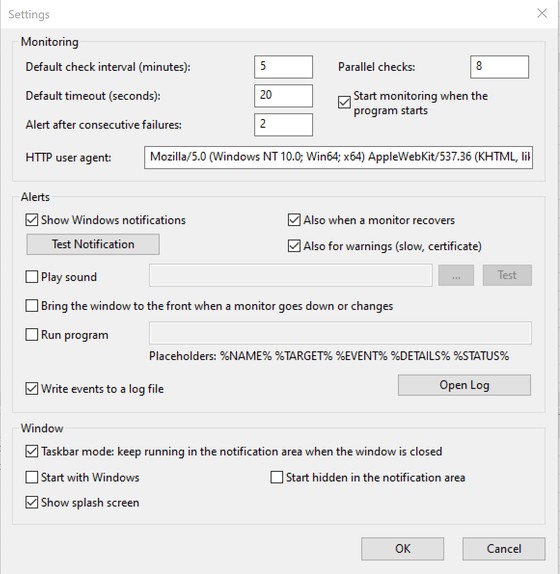
Click Settings on the toolbar or select Tools > Settings. Set the default check interval and timeout for new monitors, the number of failures before an alert and the number of parallel checks. In Alerts choose Windows notifications, a sound, bringing the window to the front or running a program. In Window turn on taskbar mode and start the program with Windows.