
Presentation Ticker
Presentation Ticker scrolls your own messages across a thin bar docked to the top or bottom edge of the screen. Each message is a headline with an optional link: click it and the web page, document, folder or e-mail address behind it opens. The bar is a Windows desktop toolbar, so maximized windows, browsers and windowed PowerPoint slide shows stay clear of it, and the messages are always visible.
Use it on a trade show or kiosk computer to let visitors click through to your products and services, run it during a presentation to show announcements, contact details or a web address, or put company news, reminders and shortcuts to frequently used files in front of everyone in the office. Scrolling speed and direction, colors, font and position are all yours to choose, and the text moves smoothly in step with the display refresh.
Size: 2.01 MB
Released: October 2026
Price: $19.95
Operating Systems: Windows 7/8/8.1/10/11
Evaluation: free 10-day trial


Supported Features
Your messages, with clickable links
- Enter as many messages as you like; each one has a headline (up to 256 characters) and an optional target.
- The target can be anything Windows can open: a web address, a document or presentation, a folder, a program, or a mailto: address.NEW
- Messages without a target are shown as plain text; messages with a target are underlined under the mouse pointer and show the hand cursor.NEW
- Set the order of the messages with Move Up and Down; a new message is inserted after the selected one.NEW
- Unicode text: headlines in any language and international characters in file names.NEW
Always visible desktop toolbar
- The ticker docks to the top or to the bottom of the screenNEW; Windows reserves this area, so other windows, even maximized ones, do not cover it.
- Correct size and position at any display scaling (100%, 125%, 150%...) and with the taskbar on any edge of the screen.NEW
- The bar restores its place automatically after the screen resolution changes or Windows Explorer restarts.NEW
Smooth, controllable scrolling
- Smooth scrolling synchronized with the display refresh, without flicker or jerks.NEW
- Speed slider from Slower to Faster with 50 fine steps; direction right to left or left to right.
- Controls on the right of the bar: scroll left or right (fast while the button is held), pause / resumeNEW, Preferences and Exit. The controls switch between a dark and a light style to match the background color.NEW
- Hold the left mouse button on the bar to stop the line, or drag it with the mouse to scroll back to a message you missed.NEW
Fully customizable appearance
- Choose the background and text colors from the Windows color palette.
- Any installed font, size and style, with a live Sample message preview in the colors you selected.
- Show or hide the controls on the right of the bar.
- Apply button: see the changes on the bar before you close the Preferences dialog.NEW
- All settings and messages are saved and restored the next time the program starts. Settings and messages of earlier Presentation Ticker versions are imported automatically.NEW
Ticker and Preferences
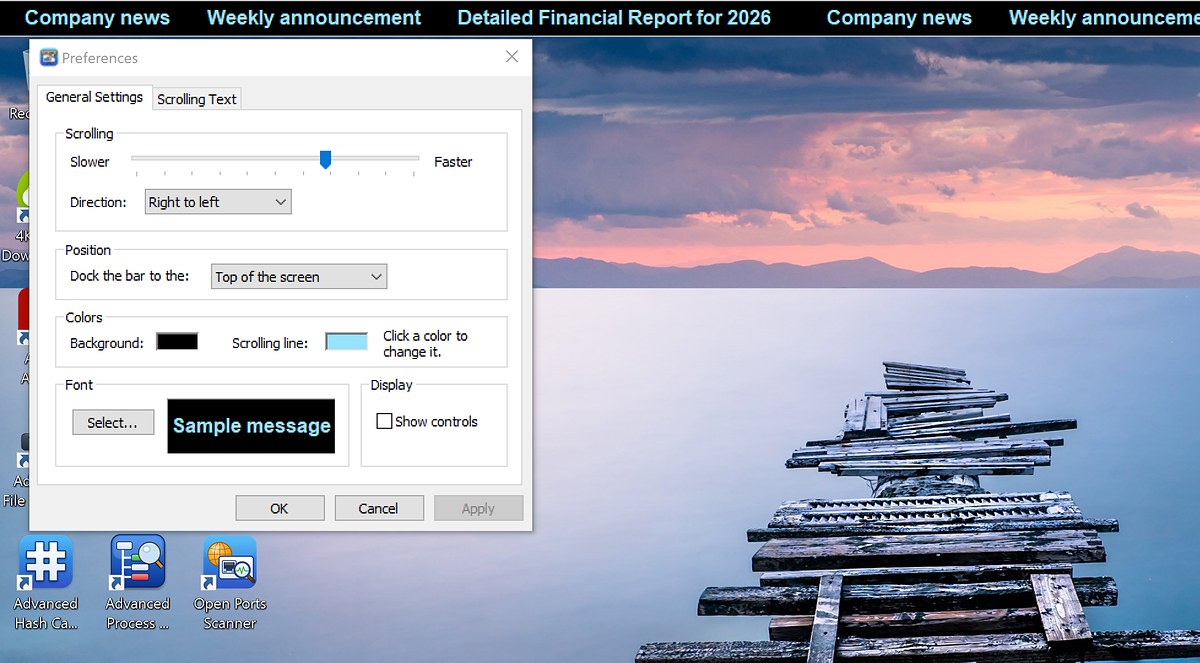
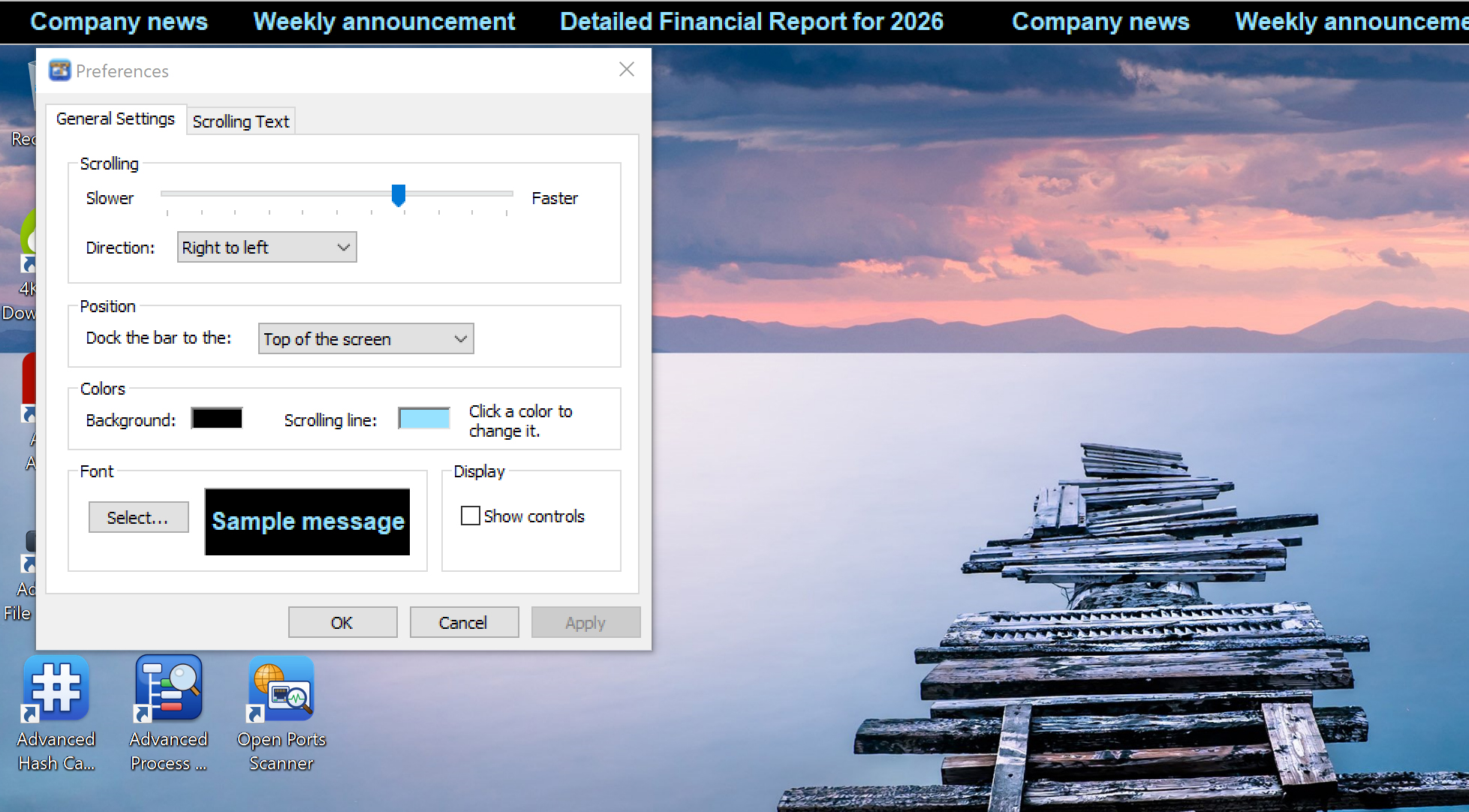
The ticker is docked to the top of the screen and scrolls the messages from right to left. The Preferences dialog shows the scrolling speed and direction, the position of the bar, the colors and the font. In the screenshot below the light blue text scrolls on a black background.
Presentation Ticker Help
- Getting started
- Entering messages and links
- What a link can open
- Using the ticker with the mouse
- The controls
- The right-click menu
- General Settings
- Top or bottom of the screen
- Typical uses
- Questions and answers
- What is new in version 3
- Trial and registration
Getting started
Start Presentation Ticker from the Start menu. A bar appears at the top of the screen and the other windows move down to make room for it. The first time you run the program the bar shows the text "Right-click the ticker and choose Preferences to enter your messages": click this text and the Scrolling Text page of the Preferences dialog opens, ready for your first message.
If you have used an earlier version of Presentation Ticker on the same computer, your messages, colors, font and speed are imported on the first start, and the ticker begins scrolling them at once.
Entering messages and links
Right-click the bar and choose Preferences, then click the Scrolling Text tab. The list shows each message with its Headline and Target URL; messages scroll on the bar in the order of the list.
| Add New... | Add a message after the selected one (or press Insert). Type the Headline and, if the message should open something when clicked, the URL. The headline is required; the URL can be left empty. |
| Edit Selected... | Change the selected message. You can also double-click a message or press F2. |
| Delete Selected | Remove the selected message (or press Delete). |
| Move Up / Down | Move the selected message one place up or down to change the order in which the messages scroll. |
Click OK or Apply to show the new messages on the bar. Cancel discards the changes. The bar keeps scrolling while you edit the list.
What a link can open
The URL of a message is opened the same way as when you double-click a file in Windows Explorer or type an address into the Run box, so it can be:
- a web address:
https://www.example.com/products/ - a document, presentation or spreadsheet:
C:\Sales\Price list 2026.pdf - a folder or a network share:
D:\Brochures,\\server\public\Catalog - an e-mail address:
mailto:sales@example.com?subject=Information request - a program:
notepad.exe
A document opens in the program associated with its file type, a web address in the default
browser and a mailto: link in the default e-mail program.
Using the ticker with the mouse
| Point at a message | A message with a link is underlined and the pointer changes to a hand. |
| Click a message | Opens the link of the message. |
| Hold the left button | The line stops while the button is held down, so a fast-moving message is easy to read and to click. |
| Drag the line | Press the left button and move the mouse left or right to scroll the line by hand, for example back to a message that has just gone by. Scrolling continues when you release the button. |
| Right-click | Opens the menu described below. |
The controls
When Show controls is selected in Preferences, a small panel appears at the right end of the bar. Its style changes between dark and light depending on the background color you choose.
| < | Scroll the messages to the left (right to left). Hold the button down to scroll fast. |
| II | Pause scrolling; click again to resume. The button stays pressed while the line is paused. |
| > | Scroll the messages to the right (left to right). Hold the button down to scroll fast. |
| Controls | Open the Preferences dialog. |
| X | Exit Presentation Ticker. |
The direction you choose with the arrow buttons is remembered.
The right-click menu
| Open Link | Opens the link of the message you right-clicked. This command appears only when you right-click a message that has a link. |
| Scroll | Left or Right sets the scrolling direction; Stop pauses the line (choose it again to resume). |
| Align | Top or Bottom moves the bar to the top or the bottom edge of the screen. |
| Preferences... | Opens the Preferences dialog. |
| Help... | Opens this page. |
| About... | Shows the program version and registration information. |
| Exit | Closes Presentation Ticker and saves the settings. |
General Settings
Right-click the bar and choose Preferences, or click Controls on the bar. The General Settings page has these options:
| Scrolling | Move the slider towards Slower or Faster to set the scrolling speed. In Direction choose Right to left (the usual direction for reading) or Left to right. |
| Position | Dock the bar to the Top of the screen or the Bottom of the screen. |
| Colors | Click the Background or the Scrolling line color box and pick a color. Choose colors with good contrast, for example light text on a dark background. |
| Font | Click Select... to choose the font, style and size of the text. The Sample message box shows the result in your colors. The height of the bar does not change, so pick a size that fits it (the default is Arial Bold 12 pt). |
| Display | Show controls shows or hides the controls at the right end of the bar. With the controls hidden, use the right-click menu. |
Click Apply to see the changes on the bar while the dialog stays open, OK to apply and close, or Cancel to leave everything as it was.
Top or bottom of the screen
Presentation Ticker registers itself with Windows as a desktop toolbar (the same mechanism the taskbar uses). The strip of the screen it occupies is taken away from the working area, so maximized windows end just below (or above) the bar instead of covering it. To move the bar, right-click it and choose Align > Top or Align > Bottom, or change Position in Preferences. When the bar is at the bottom it sits above the taskbar, and the right-click menu opens upwards.
Typical uses
- Trade shows and kiosks. Not all information fits on one screen. Run a product video or your website on an unattended computer and let the ticker scroll the names of your products, each linked to its page, so visitors can read more about what interests them.
- Presentations. Keep the ticker running during a PowerPoint slide show, a demo or a browser session to show your web address, contact details or a short promotional message that complements the presentation.
- Office and reception screens. Scroll company news, meeting times and announcements, with links to the full documents on the network.
- Personal shortcuts. Put the documents, folders and web pages you open every day on the bar, one click away.
Questions and answers
The ticker is not visible during a PowerPoint slide show. A full-screen slide show covers the whole screen, including desktop toolbars. Choose Slide Show > Set Up Slide Show > Browsed by an individual (window) in PowerPoint and maximize the slide show window: it then fills the screen except for the ticker.
A message does not open when I click it. Check its URL on the Scrolling Text page. Web
addresses should start with http:// or https://, and files and folders
must exist at the path you entered. Messages without a URL are plain text.
The text is cut off at the top or bottom. The font is too large for the bar. Choose a smaller size with Select... on the General Settings page.
How do I start the ticker automatically when Windows starts? Press Win+R, type
shell:startup and press Enter, then copy the Presentation Ticker shortcut from the
Start menu or the desktop into the folder that opens.
How do I quit Presentation Ticker? Click X on the controls, or right-click the bar and choose Exit. The working area of the screen is restored at once.
Where are my settings stored? In the Windows registry under
HKEY_CURRENT_USER\Software\Filesland\PresentationTicker, separately for each Windows
user.
What is new in version 3
Presentation Ticker 3 is a complete redesign of the program. Compared with version 2:
- The bar can be docked to the bottom of the screen as well as to the top.
- New smooth scrolling engine, synchronized with the display refresh.
- New controls with a pause button and fast scrolling while an arrow button is held down; dark and light styles that follow the background color.
- Drag the line with the mouse to scroll it by hand; links are underlined under the pointer.
- The link of a message is optional, and it can open documents, folders, programs and
mailto:addresses, not only web pages. - Messages can be reordered with Move Up / Down, are inserted after the selected one, and can be edited with the keyboard (Insert, F2, Delete) or by double-clicking.
- Right-click menu with Open Link, Scroll and Align commands.
- Preferences dialog with an Apply button and a live font sample.
- Full Unicode support, correct layout at any display scaling, support for the taskbar on any edge of the screen and for Windows 11.
- Settings and messages of version 2 are imported automatically.
Trial and registration
The evaluation version is fully functional for 10 days. When it starts, a reminder shows the day of the evaluation period; click Continue to run the ticker, Register to open this page and buy a license, or Quit to exit. After you register, the reminder is no longer shown and your name appears in the About box.