PingTrace
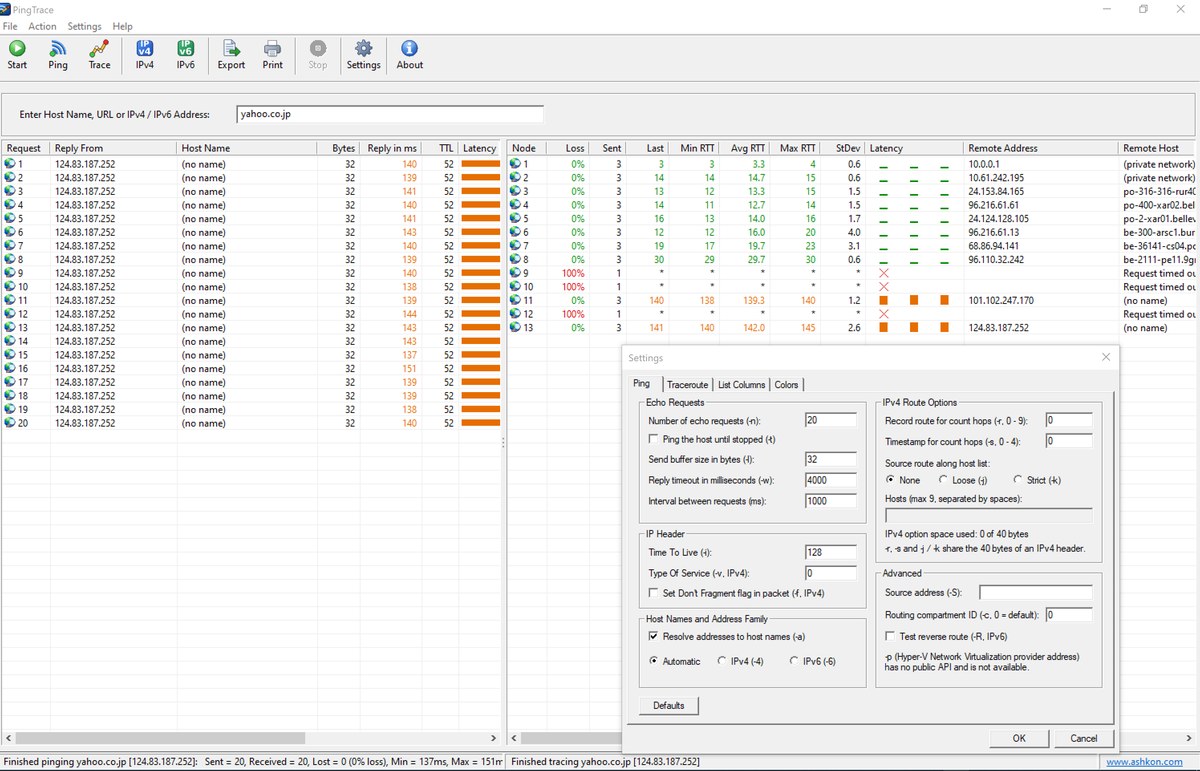
PingTrace puts ping and traceroute side by side in one window. Enter a host name, a URL or an IPv4 / IPv6 address and click Start: the left list pings the host and shows every reply with its time, TTL and a latency bar, while the right list traces the route and shows every router on the path with its packet loss, last, minimum, average and maximum round-trip time, jitter (standard deviation) and a latency graph, together with its host name, network owner (ASN and AS name), announced BGP prefix and country.
Switch on Continuous Traceroute (MTR) to trace the route again and again and keep running statistics for every hop, the way the popular mtr tool does — the best way to catch intermittent packet loss and latency spikes. Right-click any address to see its Whois / RDAP registration data or to run a TCP Port Check against it. All options of the Windows ping and tracert commands are available in one Settings dialog, latency and loss are colored by thresholds you choose, and results can be exported to CSV or printed. For a full guide please see the PingTrace Help page.
Size: 3.11 MB
Released: October 2026
Price: $19.95
Operating Systems: Windows 7/8/8.1/10/11
Protocols: IPv4 and IPv6
Evaluation: free 30-day trial


Supported Features
Ping and traceroute at the same time
- Start pings the host and traces the route to it in parallel; Ping and Trace run only one of them.
- IPv4 and IPv6 force one address family with a single click; otherwise it is chosen automatically from the addresses of the host.
- Paste a full URL such as https://www.example.com/page — PingTrace takes the host name out of it.
- Enter starts, Esc stops everything. Ping and traceroute can also be stopped separately.
Continuous traceroute (MTR)
- Trace the route repeatedly, for a set number of cycles or until stopped, with a configurable interval between cycles.
- Running per-hop statistics: Sent, Loss, Last, Min, Avg, Max and StDev (jitter).
- A latency sparkline of the most recent probes for every hop shows spikes and drops at a glance.
Who owns each hop
- Remote Host: the reverse DNS name of the router.
- ASN, AS Name, Network (announced BGP prefix), Country and Registry (RIR), looked up through the Team Cymru DNS service.
- Address Type labels private (RFC 1918), CGNAT, ULA and other special ranges, so you can see where your local network ends and the Internet begins.
- Whois / IP Info: right-click a hop or a ping reply to see the registration data (RDAP) of the address — owner, network range, abuse contacts and dates.
TCP Port Check
- Find out whether a host that does not answer ping is really down: PingTrace opens a TCP connection to the ports you list (for example 80, 443, 3389 or a range like 8000-8010, up to 1024 ports) and shows Open, Closed or no answer for each.
- Connect time, minimum / maximum and the IANA service name and description of every port.
All ping.exe and tracert.exe options
- Ping: number of echo requests (-n) or ping until stopped (-t), buffer size (-l), timeout (-w), interval, TTL (-i), TOS (-v), Don't Fragment (-f), resolve names (-a), IPv4 / IPv6 (-4 / -6), record route (-r), timestamps (-s), loose and strict source routing (-j / -k), source address (-S), routing compartment (-c) and reverse route test (-R).
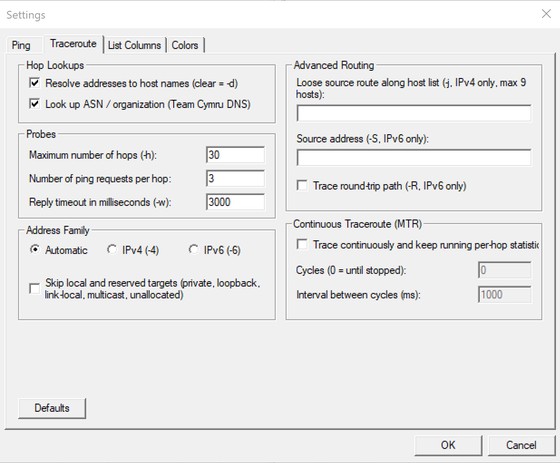
- Traceroute: maximum hops (-h), probes per hop, timeout (-w), no name resolution (-d), IPv4 / IPv6 (-4 / -6), loose source route (-j), source address (-S) and round-trip path (-R).
Colors, columns, export and print
- Latency and packet loss colored green, yellow, orange and red by thresholds you set.
- Show or hide any of the 9 ping and 17 traceroute columns; click a column header to sort.
- Export the ping list, the traceroute list or both to a CSV or tab-separated text file, or print them.
- Minimize to the notification area (system tray) and start a ping or trace from the tray menu. Flush the Windows DNS cache or open the host in your web browser from the Action menu.
Main Window
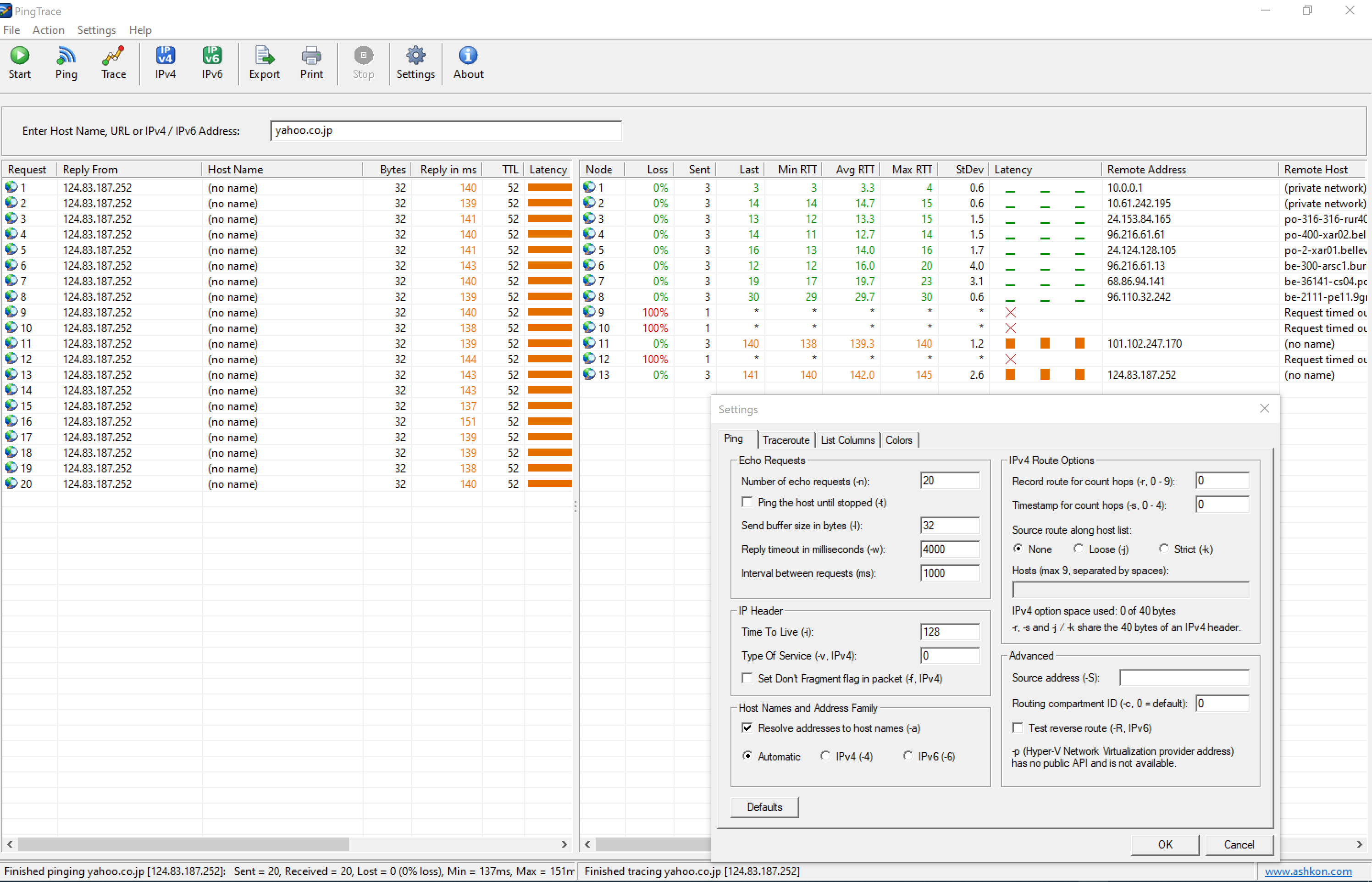
The ping list is on the left and the traceroute list is on the right; drag the bar between them to change their widths. The status bar shows the result of the last ping and of the last trace. In the screenshot below yahoo.co.jp is pinged and traced; the Settings dialog is open on top of the results.
PingTrace Quick Help
Below you may find a short help section. For a full guide please see the PingTrace Help page.
Type a host name (for example example.com), a URL or an IPv4 / IPv6 address in the Enter Host Name, URL or IPv4 / IPv6 Address box and press Enter or click Start. Ping replies and hops are added to the lists as they arrive. The toolbar commands are:
| Start | Ping the host and trace the route to it at the same time. |
| Ping | Ping the host only. |
| Trace | Trace the route to the host only. |
| IPv4 / IPv6 | Ping and trace over IPv4 or IPv6 only. |
| Export | Save the ping list, the traceroute list or both to a CSV or text file. |
| Print the ping or the traceroute list. | |
| Stop | Stop ping and traceroute. |
| Settings | Ping and traceroute options, list columns and colors. |
| About | Show the program version and registration information. |
How to read the results
In the traceroute list Node is the hop number, and the RTT columns show the last, fastest, average and slowest reply of the hop in milliseconds. An asterisk (*) and "Request timed out" mean that the router did not answer within the timeout. This is common: many routers do not reply to traceroute probes but still forward traffic. A problem is likely only when the loss or the delay continues on all the following hops up to the destination — and the ping list on the left shows directly whether the destination itself loses packets.
Settings
Click Settings on the toolbar. The Ping page holds the options of the Windows ping command; the Traceroute page holds the tracert options and the continuous (MTR) mode. Click Defaults to restore the original settings of a page.