
Advanced Cookie Manager
Advanced Cookie Manager is a cookie viewer and manager for Google Chrome, Microsoft Edge, Mozilla Firefox, Brave and Opera. Websites store cookies on your PC to remember logins, preferences and browsing activity. Ever wondered which sites have left cookies on your computer and what they contain?
This program finds the cookie files of every browser profile on your computer, shows each cookie with its host, name, path, creation and expiration dates and security flags, and lets you search, export and delete them. Firefox cookie values are shown in full. Chrome and Edge encrypt cookie values, so for these browsers the value column shows (encrypted), while all other cookie information is displayed. Cookies can be read while the browser is running, and the program can also scan the other user accounts on the computer.
Size: 3.00 MB
Released: September 29th, 2026
Price: $19.95
Operating Systems: Windows 10/11
Supported Browsers: Google Chrome, Microsoft Edge, Mozilla Firefox, Brave, Opera
Evaluation: free 30-day trial


Supported Features
Finds every browser profile
- Scans the computer for the cookie files of every Chrome, Edge, Firefox, Brave and Opera profile and shows them in a tree, labeled with the profile name.
- Chrome and Edge Stable, Beta, Dev and Canary channels, and the Microsoft Store version of Firefox.
- Scan All User Accounts also finds the cookie files of the other users of the computer (requires administrator rights).
View, filter and sort cookies
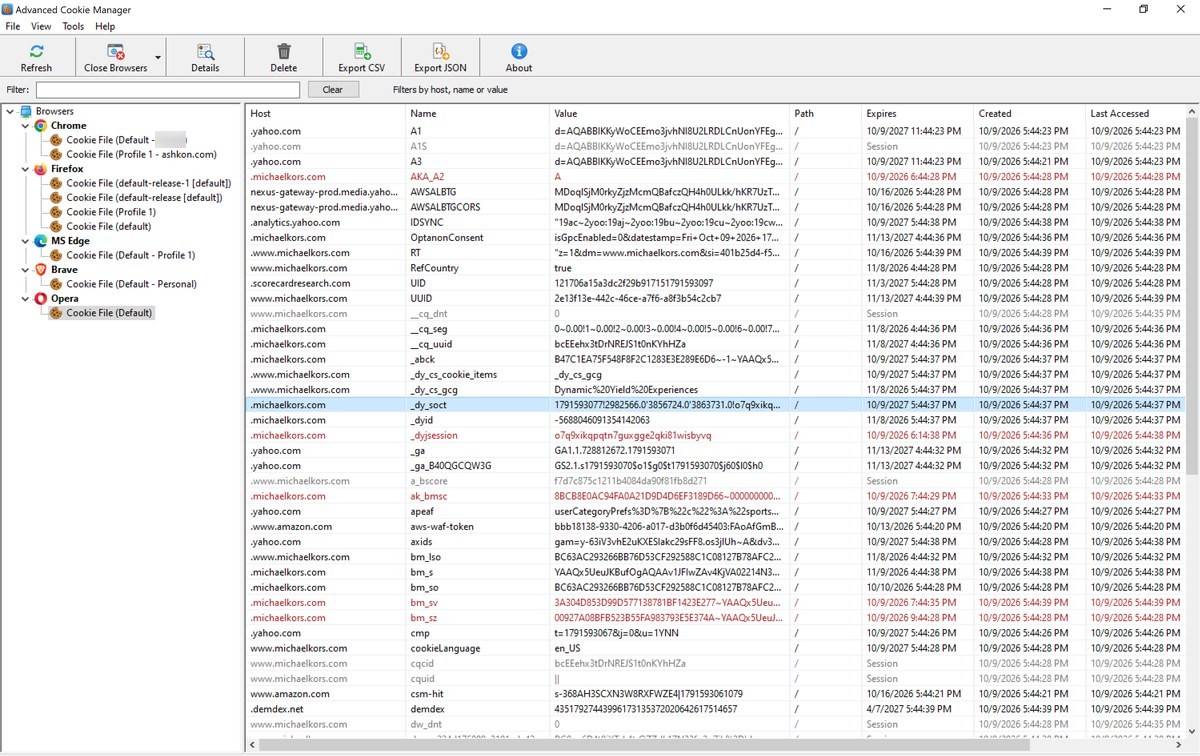
- Each cookie is shown with its host, name, value, path, expires, created and last accessed dates, and the Secure, HttpOnly and SameSite flags.
- Expired cookies are shown in red and session cookies in grey.
- Type in the Filter box to show only cookies whose host, name or value contains the text.
- Click a column header to sort; click it again to reverse the order.
- Cookies are read from a temporary copy of the cookie database, so you can view them without closing the browser.
Delete cookies
- Delete one or many selected cookies from the browser's cookie file.
- If the browser is running, the program offers to close it first, so deleted cookies are not written back from memory.
- Tools menu closes Chrome, Firefox, MS Edge or all browsers at once.
Copy and export
- Export CSV (opens in Excel) and Export JSON for all cookies of a cookie file.
- Copy Value, Copy Name=Value and Copy Row (tab-separated, ready to paste into a spreadsheet) from the right-click menu.
- Details window with all fields of a cookie and its full value.
Main Window
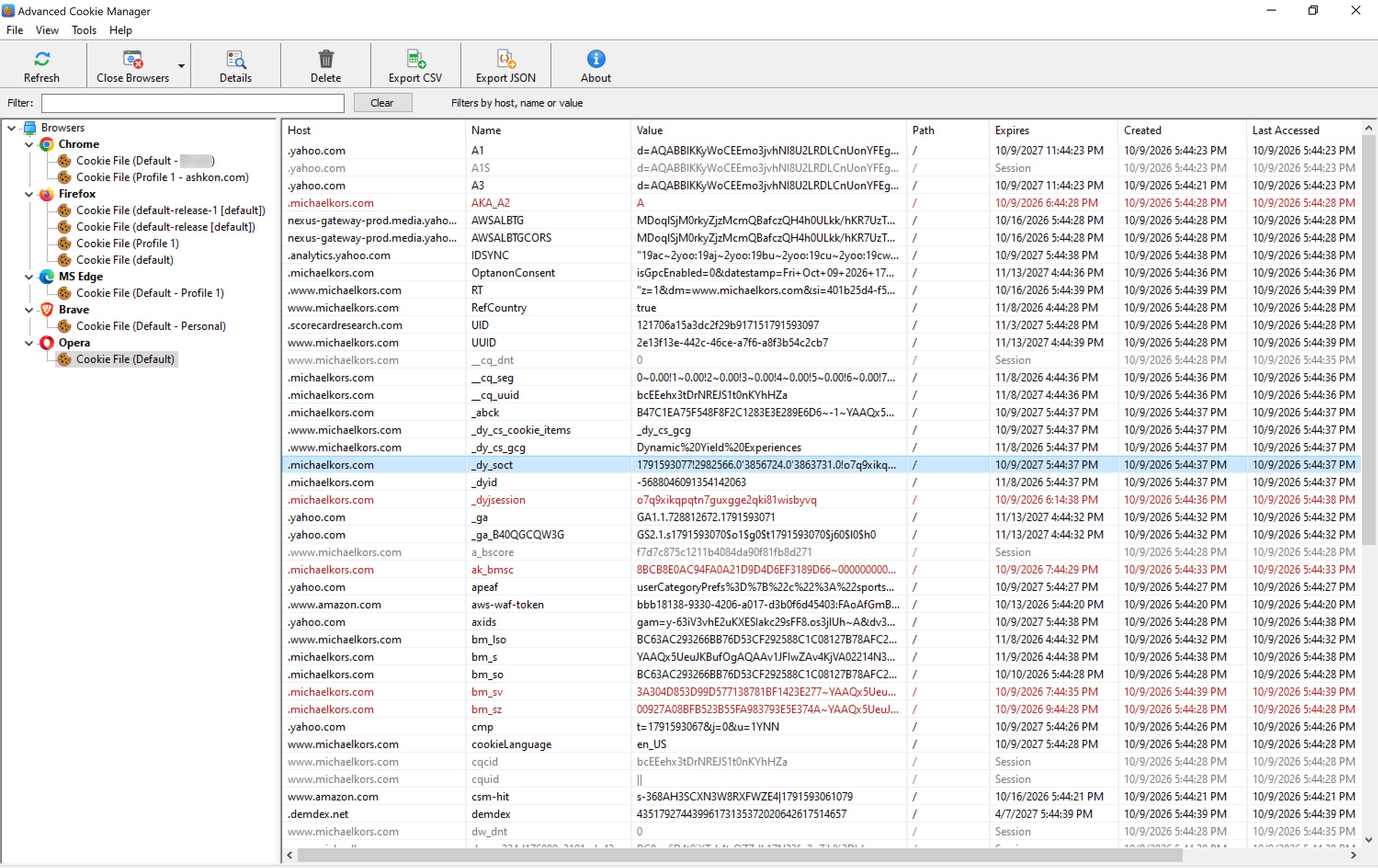
The left panel is a tree of browsers and the cookie files found for each browser profile. When you select a cookie file, the right panel lists its cookies, one per row. The toolbar has the most frequently used commands, and the Filter box above the list narrows the list as you type.
Advanced Cookie Manager Quick Help
Below you may find a short help section. For a full guide please see the Advanced Cookie Manager Help page.
These are the most frequently used commands. You can run them from the toolbar:
| Refresh | Scan the computer again for browser cookie files (F5). |
| Close Browsers | Close all running Chrome, Firefox and Edge windows so their cookie files can be read or changed. |
| Details | Show all fields of the selected cookie in a separate window. |
| Delete | Delete the selected cookie(s) from the browser's cookie file (Del). |
| Export CSV | Save all cookies of the selected cookie file to a CSV file that you can open in Excel. |
| Export JSON | Save all cookies of the selected cookie file to a JSON file. |
| About | Show the program version and registration information. |
What information is displayed in the panel windows?
The left panel is a tree of browsers (Chrome, Firefox, MS Edge, Brave, Opera) and the cookie files found for each browser profile. When you select a cookie file, the right panel lists its cookies, one per row: host, name, value, path, expires, created, last accessed, Secure, HttpOnly and SameSite. Click a column header to sort the list; click it again to reverse the order. Type in the Filter box above the list to show only cookies whose host, name or value contains the text you enter.
Copying cookies
Right-click a cookie to open a menu with Details, Copy Value, Copy Name=Value, Copy Row (tab-separated, ready to paste into a spreadsheet), Delete and the export commands. Right-click a cookie file in the tree to open the folder that contains it or copy its full path.
Encrypted values
Firefox stores cookie values as plain text, so they are shown in full. Chrome and Edge store cookie values encrypted, and these values are shown as (encrypted). The host, name, path, dates and flags of these cookies are still shown, so you can search, export and delete them like any other cookie. The status bar shows how many values in the selected file are encrypted.
Browser is running?
Cookies are read from a temporary copy of the browser's cookie database, so you can view them without closing the browser. If a browser locks its cookie file, use the Tools menu to close that browser (Chrome, Firefox or MS Edge) or all browsers at once. The list is read again automatically after the browser closes.
Other user accounts
View > Scan All User Accounts also finds cookie files that belong to the other users of this computer. This requires administrator rights. View > Scan Log lists any folders that could not be read.