Advanced Cookie Manager Help
Version 3.01 for Windows 10/11. This guide explains how to use Advanced Cookie Manager to view, search, export and delete the cookies stored by Google Chrome, Microsoft Edge, Mozilla Firefox, Brave and Opera.
Contents
- Getting started
- The main window
- Toolbar
- Menu commands
- The cookie list
- Filtering and sorting
- Cookie details and copying
- Deleting cookies
- Exporting cookies
- Encrypted cookie values (Chrome and Edge)
- Closing browsers
- Scanning other user accounts
- Where cookie files are found
- Keyboard shortcuts
- Troubleshooting
- Registration
1. Getting started
Advanced Cookie Manager requires Windows 10 or Windows 11. When the program starts, it scans your computer for the cookie files of every Chrome, Edge, Firefox, Brave and Opera profile and shows them in a tree on the left. Nothing is changed until you choose to delete a cookie.
To view cookies:
- Expand a browser in the left panel.
- Click a Cookie File entry. Each browser profile has its own cookie file.
- The cookies from that file appear in the list on the right.
You don't need to close your browser to view cookies. Only one copy of the program can run at a time on the computer.
2. The main window
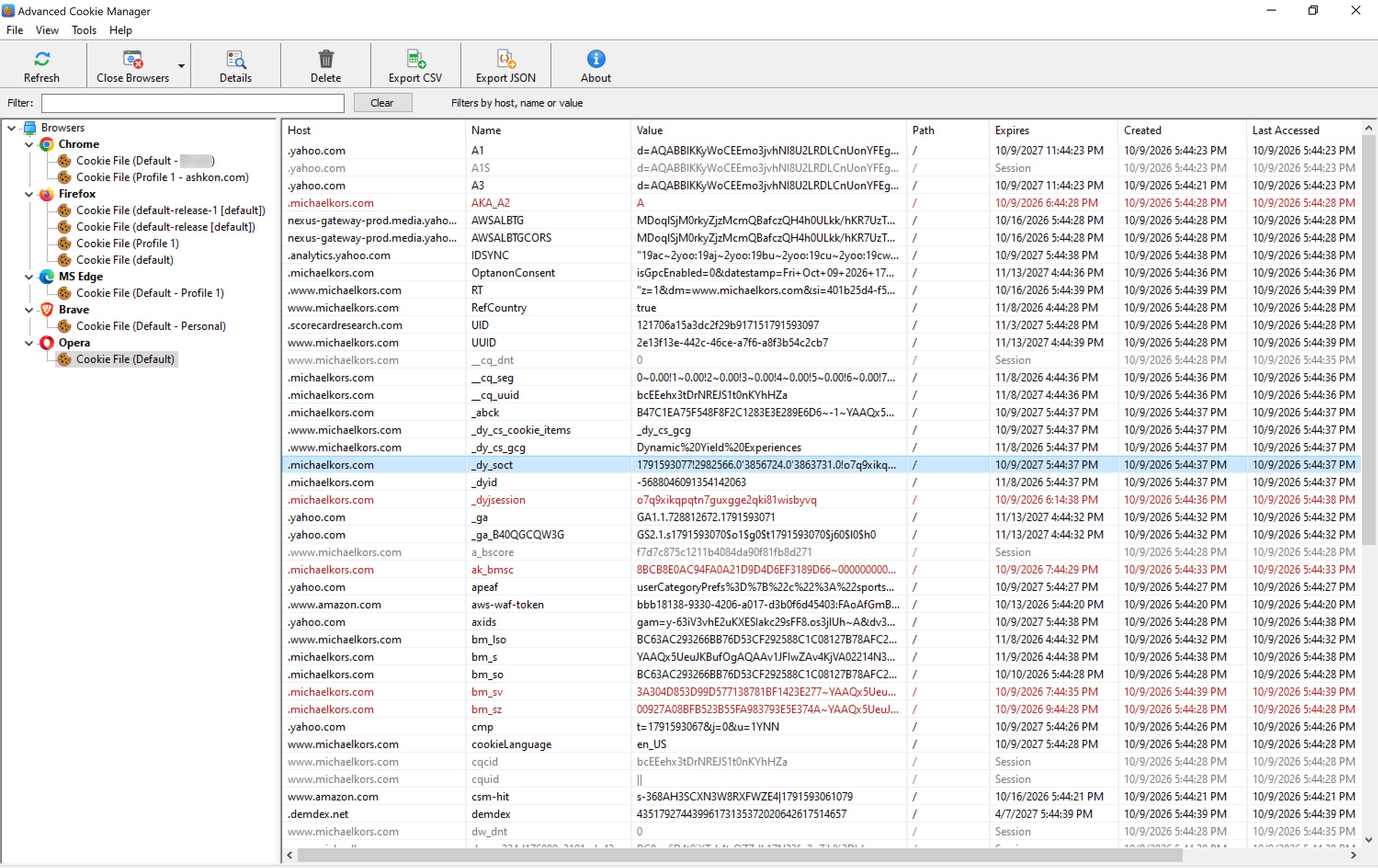
- Left panel (tree). The top node is Browsers. Below it are Chrome, Firefox, MS Edge, Brave and Opera, and under each browser are the cookie files that were found, labeled with the profile name, for example Cookie File (Default - John). If no cookie files are found for a browser, it shows (no cookie files found).
- Right panel (list). What it shows depends on what is selected in the tree: Browsers or a browser node shows a list of cookie files with the columns Browser, Channel (Stable, Beta, Dev or Canary), User, Profile, Size, Modified and Cookie File (the full path); a cookie file shows the cookies stored in that file, one per row.
- Filter bar. Above the list. Type text to show only matching cookies (see Filtering and sorting).
- Status bar. At the bottom. Shows the number of cookie files or cookies, the path of the selected cookie file, and how many cookie values are encrypted.
You can drag the divider between the panels to resize them. The window size and position, the panel width, and the width and order of the list columns are remembered the next time you start the program.
3. Toolbar
| Refresh | Scan the computer again for browser cookie files (F5). |
| Close Browsers | Close running Chrome, Firefox and Edge windows so their cookie files can be read or changed (see Closing browsers). |
| Details | Show all fields of the selected cookie in a separate window. |
| Delete | Delete the selected cookie(s) from the browser's cookie file (Del). |
| Export CSV | Save all cookies of the selected cookie file to a CSV file. |
| Export JSON | Save all cookies of the selected cookie file to a JSON file. |
| About | Show the program version and registration information. |
Hold the mouse over a toolbar button to see a short description in the status bar.
4. Menu commands
File
- Open Containing Folder: opens the folder of the selected cookie file in File Explorer.
- Copy Path (Ctrl+C): copies the full path of the selected cookie file to the clipboard.
- Export Cookies to CSV / JSON: see Exporting cookies.
- Exit: closes the program.
View
- Refresh (F5): scans the computer again.
- Scan All User Accounts: also scans the other user accounts on this computer (see Scanning other user accounts).
- Scan Log: shows details of the last scan, including folders that could not be read.
- Toolbar / Status Bar: show or hide these bars.
Tools
- Close All Running Browsers
- Close Chrome / Firefox / MS Edge: the menu shows how many processes of each browser are running, or that the browser is not running.
Help
- Register Now!: opens the registration page in your web browser.
- About Advanced Cookie Manager: version, copyright and registration status.
Right-click menus. Right-click a cookie file in the tree for Open Containing Folder, Copy Path and Refresh. Right-click a cookie in the list for Details, Copy Value, Copy Name=Value, Copy Row, Delete, Export to CSV and Export to JSON.
5. The cookie list
Each row is one cookie. The columns are:
| Host | The website domain the cookie belongs to, for example .example.com. |
| Name | The cookie name. |
| Value | The data stored in the cookie. Chrome and Edge values are encrypted (see Encrypted cookie values). |
| Path | The part of the site the cookie is sent to, usually /. |
| Expires | When the cookie expires. Session means it is deleted when the browser closes. |
| Created | When the cookie was first set. |
| Last Accessed | When the browser last used the cookie. |
| Secure | The cookie is sent only over HTTPS. |
| HttpOnly | Web page scripts can't read the cookie. |
| SameSite | Whether the cookie is sent with requests from other sites. |
Colors. Expired cookies are shown in red. Session cookies are shown in grey.
The cookie file is read in the background, so the program stays responsive while a large file loads. If the file contains no cookies, the list says so.
6. Filtering and sorting
- Filter. Click the Filter box (or press Ctrl+F) and type. The list shows only cookies whose host, name or value contains the text. The status bar shows how many cookies match, for example 12 of 340 cookie(s). Click Clear to show all cookies again.
- Sort. Click a column header to sort by that column. Click it again to reverse the order. Dates and sizes are sorted by their actual value, not alphabetically.
- Columns. Drag a column header to change the column order, or drag the edge of a header to change its width.
7. Cookie details and copying
Select a cookie and click Details to open the Cookie Details window. It shows the host, name, path, full value, the expiration, creation and last-accessed dates, and the Secure, HttpOnly and SameSite settings. Click Copy Value to copy the value to the clipboard.
From the right-click menu you can also copy:
| Copy Value | The cookie value only. |
| Copy Name=Value | The cookie as name=value. |
| Copy Row | All columns of the row, separated by tabs, ready to paste into a spreadsheet. |
8. Deleting cookies
- Select one or more cookies. Use Ctrl+click or Shift+click to select several.
- Press Del, click Delete on the toolbar, or right-click and choose Delete.
- Confirm the deletion.
Deleted cookies are permanently removed from the browser's cookie file. There is no undo, so export the cookies first if you may need them later.
If the browser is running. A running browser keeps its cookie file locked and holds its cookies in memory, so a deleted cookie would be written back. The program therefore offers to close that browser before deleting. Each browser window is asked to close first so it can save its data. If the browser can't be closed completely, nothing is deleted.
If some cookies changed in the file after the list was read, they are left alone, the list is refreshed, and a message tells you how many were deleted.
9. Exporting cookies
Select a cookie file, then choose Export CSV or Export JSON from the toolbar, the File menu or the right-click menu. The suggested file name is the browser and profile name. The export contains all cookies of the file, not only the filtered ones.
- CSV opens in Excel and other spreadsheet programs. Columns: Host, Name, Value, Path, Expires, Created, Last Accessed, Secure, HttpOnly, SameSite, Session, Expired.
- JSON is a list of objects with the fields host, name, value, path, expires, created, lastAccessed, secure, httpOnly, sameSite, session and expired.
10. Encrypted cookie values (Chrome and Edge)
Firefox stores cookie values as plain text, and they are shown in full.
Chrome and Edge store cookie values encrypted. Current versions of these browsers use encryption that only the browser itself can unlock, so the program shows these values as (encrypted - ...). The status bar shows how many values in the file could not be decrypted.
All other information about these cookies (host, name, path, dates and flags) is shown normally, so you can still see which sites have stored cookies, filter, sort, export and delete them.
11. Closing browsers
Use the Tools menu or the Close Browsers toolbar button to close Chrome, Firefox or Edge. You are asked to confirm first. Each browser window is asked to close so it can save its data. Processes that don't close are then ended, and any unsaved work in the browser is lost. A message shows how many processes were closed, ended or are still running.
Note: Closing MS Edge also ends the Edge (WebView2) runtime that some other applications use.
If some processes can't be closed (access denied), run Advanced Cookie Manager as administrator.
12. Scanning other user accounts
By default the program shows the cookie files of your own Windows account. Turn on View > Scan All User Accounts to also scan the other accounts on this computer. This requires running the program as administrator. The setting is remembered.
Cookie files of other users appear with the user name in the User column. Their Chrome and Edge values are always shown as encrypted.
Folders that could not be read are counted in the status bar. Choose View > Scan Log to see which ones.
13. Where cookie files are found
| Chrome | Stable, Beta, Dev, Canary: %LOCALAPPDATA%\Google\Chrome\User Data\<Profile>\Network\Cookies |
| MS Edge | Stable, Beta, Dev, Canary: %LOCALAPPDATA%\Microsoft\Edge\User Data\<Profile>\Network\Cookies |
| Firefox | Including the Microsoft Store version: %APPDATA%\Mozilla\Firefox\Profiles\<Profile>\cookies.sqlite |
| Brave | %LOCALAPPDATA%\BraveSoftware\Brave-Browser\User Data\<Profile>\Network\Cookies |
| Opera | %APPDATA%\Opera Software\Opera Stable\<Profile>\Network\Cookies |
Every browser profile has its own cookie file. Older Chrome versions stored the file directly in the profile folder; such files are marked (legacy location). To open a cookie file's folder, right-click it in the tree and choose Open Containing Folder.
14. Keyboard shortcuts
| F5 | Refresh |
| Ctrl+F | Go to the Filter box |
| Ctrl+C | Copy the path of the selected cookie file |
| Del | Delete the selected cookie(s) |
| Ctrl+click / Shift+click | Select several cookies |
15. Troubleshooting
- A browser is missing from the tree or shows "(no cookie files found)". The browser is not installed for this user, or it has not stored any cookies yet. Click Refresh after using the browser.
- The cookie file can't be read. Some browser builds lock the file completely. Close that browser from the Tools menu; the list is read again automatically.
- Deleted cookies come back. The browser was running and wrote them back from memory. Let the program close the browser when it asks, then delete again.
- "The cookie database is in use by another program." Close the browser and try again.
- Values show "(encrypted - ...)". This is expected for Chrome and Edge (see Encrypted cookie values).
- "Access denied" when closing browsers or scanning other users. Right-click the program and choose Run as administrator.
- "Advanced Cookie Manager requires Windows 10 or later." The program doesn't run on Windows 7, 8 or 8.1.
- "Already running in another user session." Only one copy can run on a computer at a time. Close the other copy first.
16. Registration
The unregistered version is fully functional for a 30-day evaluation period. The startup window shows which day of the evaluation you are on. Click Continue to keep evaluating or Quit to exit. When the 30 days are over, the program shows an expiration message and opens the registration page.
To register, click Register in the startup window (the program closes and opens the registration page in your web browser) or choose Help > Register Now!. The About window shows who the copy is registered to.