GetNetworkInfo
GetNetworkInfo finds every device connected to your home or office network and tells you what it is. Click Scan and the program lists each device with its IP address, name, MAC address, manufacturer, device type, response time, open ports and UPnP model — your router, computers, phones and tablets, smart TVs and streaming boxes, game consoles, printers, IP cameras, NAS drives, smart speakers and smart home gadgets.
Devices are discovered with ARP requests, so even a phone or a PC whose firewall blocks ping is found. Each device is then identified with a combination of methods: the manufacturer from the IEEE MAC address registry, names from DNS, NetBIOS and mDNS / Bonjour, model information from UPnP, open TCP ports, the title of its web interface and an operating system guess from ping. Use it to see who is on your Wi-Fi, find the IP address of a printer or camera, spot an unknown device, or check the settings of your own network adapters, including your public IPv4 and IPv6 address. For a full help guide please see the GetNetworkInfo Help page.
Size: 3.68 MB
Released: October 2026
Price: $19.95
Operating Systems: Windows 7/8/8.1/10/11
Networks: Ethernet and Wi-Fi, IPv4 (adapter info: IPv4 and IPv6)
Evaluation: free 30-day trial


Supported Features
Find every device on the network
- Fast ARP scan of the whole subnet, 64 addresses in parallel: a device that answers ARP is found even when its firewall drops ping.
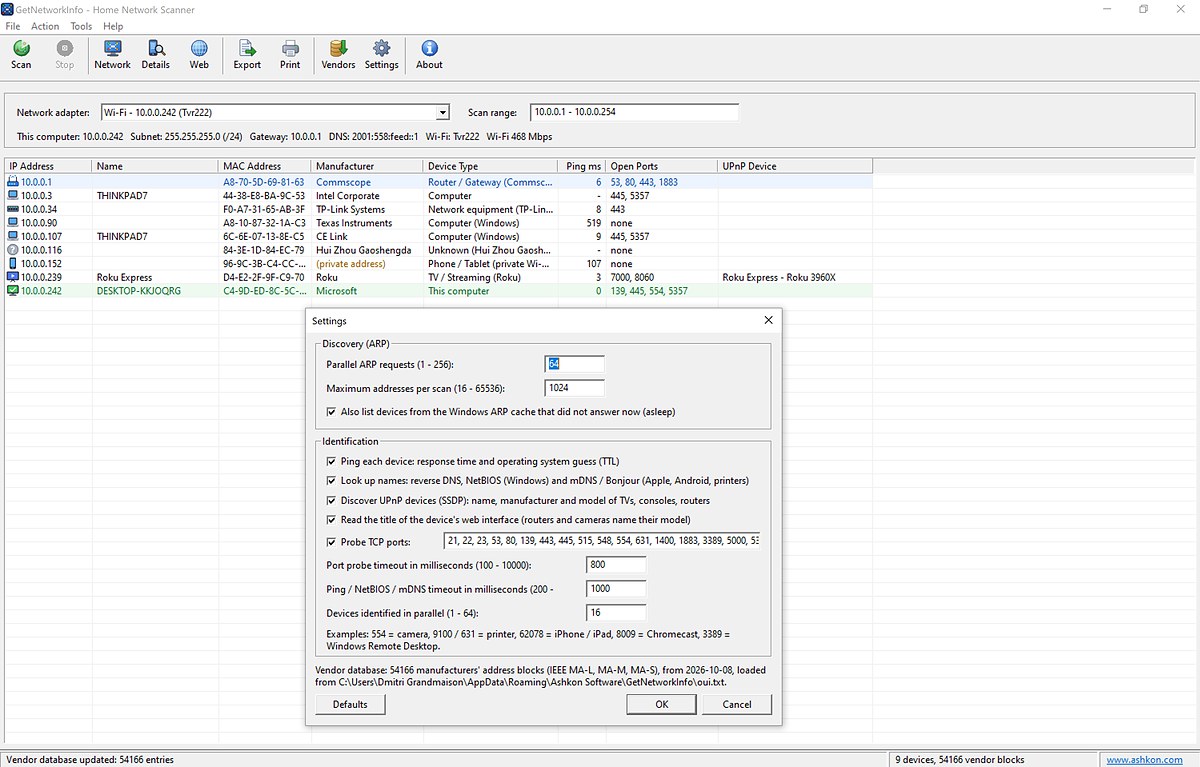
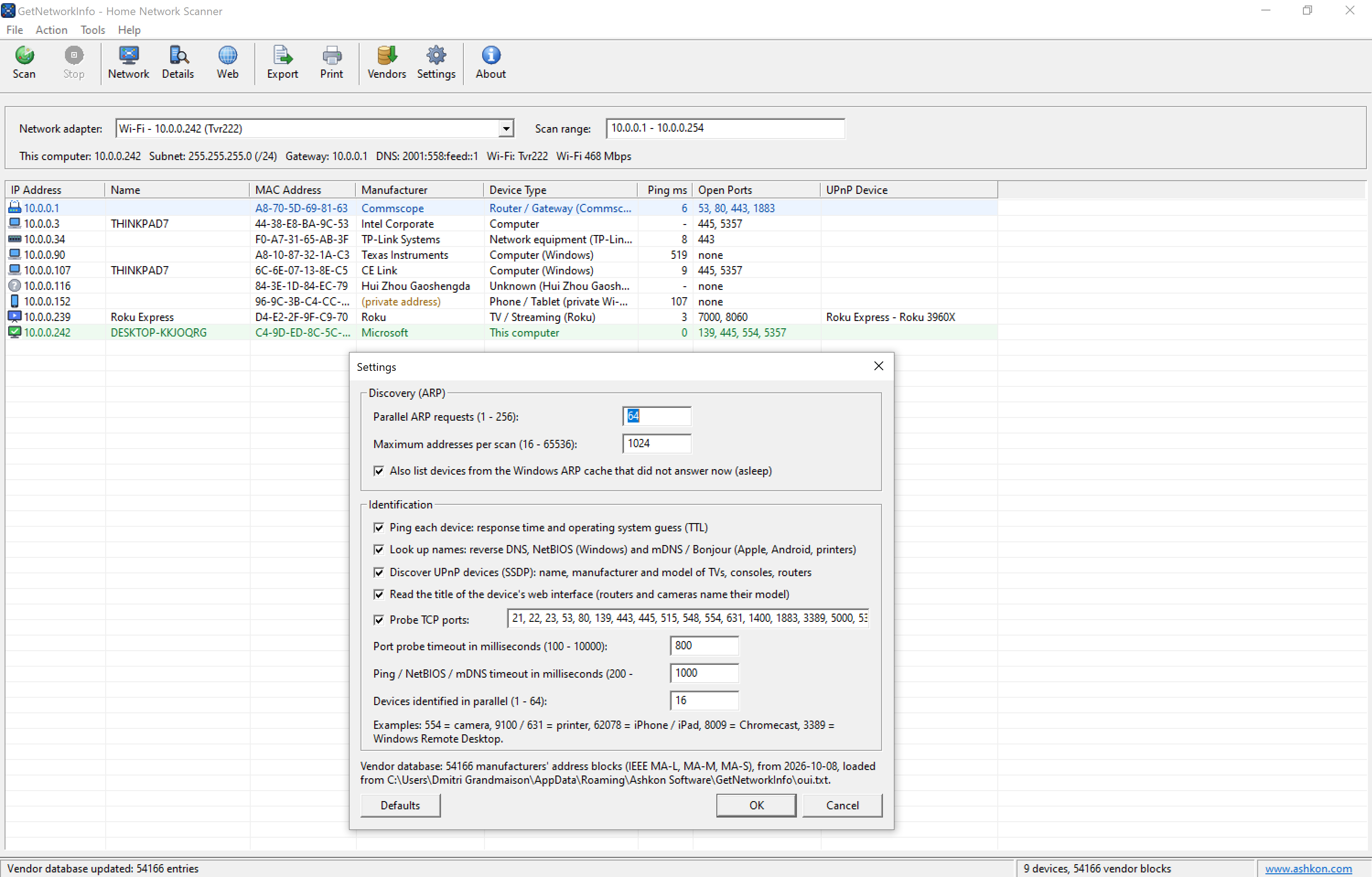
- Devices that are asleep (phones with the screen off) are added from the Windows ARP cache and shown in gray.
- Scans the subnet of the selected adapter automatically, or any range you type: 192.168.1.1 - 192.168.1.254, 192.168.1.0/24 or 192.168.1.10-50.
- Your router / gateway (blue row) and this computer (green row) are marked in the list.
Manufacturer of every device
- The MAC address is looked up in the built-in IEEE registry of more than 54,000 manufacturer address blocks (MA-L, MA-M and MA-S).
- Vendors downloads the latest registry from the IEEE with one click.
- Randomized "private Wi-Fi addresses" used by iPhones, Android phones and laptops are recognized and labeled (private address).
What each device is
- Ping: response time and an operating system guess from the TTL (Windows, Linux / Android / iOS / macOS, or network equipment).
- Names from reverse DNS, NetBIOS (Windows computer name and workgroup) and mDNS / Bonjour (Apple devices, Android, printers, Chromecast).
- UPnP / SSDP: friendly name, manufacturer, model and serial number of smart TVs, streaming players, game consoles, routers, Sonos speakers, NAS drives and cameras.
- Open TCP ports from an editable list of 31 ports that reveal cameras, printers, iPhones, Chromecast, Windows PCs, Macs, Plex, Roku and more.
- Web interface: the page title and server name of the device's built-in web page, where routers and cameras usually name their model.
- All of it is combined into a Device Type: Router / Gateway, Computer, Phone / Tablet, TV / Streaming, Game console, IP camera, Printer, NAS / Storage, Smart speaker, Smart home / IoT or Network equipment — and Device Details tells you why.
Your own network settings
- Network shows the computer name, workgroup or domain, Windows version and every connected adapter: IPv4 and IPv6 addresses, subnet mask, gateway, DNS servers, DHCP server and lease, MAC address, link speed and MTU.
- Wi-Fi network name (SSID), Wi-Fi standard, signal quality and channel.
- Your public (external) IPv4 and IPv6 addresses, as the Internet sees them.
Work with the results
- Open a device's web page (router or printer setup) in your browser, copy its IP or MAC address.
- Export the device list to CSV (Excel) or a tab-separated text file, or print it.
- Sort by any column and choose which of the 16 columns to show.
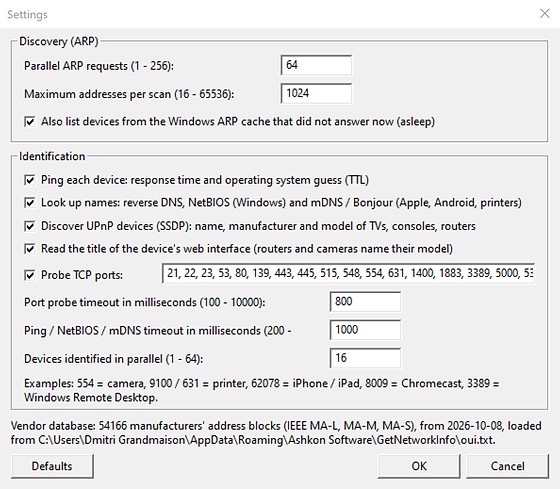
- Every identification method can be turned off and every timeout adjusted in Settings.
Main Window
Each row of the list is one device on the network. Select the network adapter and the scan range at the top; the line below shows this computer's address, subnet, gateway, DNS server and Wi-Fi connection. In the screenshot below a home Wi-Fi network has been scanned; the Settings dialog is open on top of the results.
GetNetworkInfo Quick Help
Below you may find a short help section. For a full guide please see the GetNetworkInfo Help page.
Choose the Network adapter that is connected to the network you want to scan (the scan range is filled in for you) and click Scan or press F5. Devices are added to the list as they answer and are then identified one by one. The toolbar commands are:
| Scan | Scan the range for devices and identify them (F5). |
| Stop | Stop the scan that is running (Esc). |
| Network | Show this computer's network information and public IP addresses. |
| Details | Show everything that is known about the selected device. |
| Web | Open the web interface of the selected device in your browser. |
| Export | Save the device list to a CSV or text file. |
| Print the device list. | |
| Vendors | Download the latest manufacturer database from the IEEE. |
| Settings | Change the discovery and identification options. |
| About | Show the program version and registration information. |
Device Details
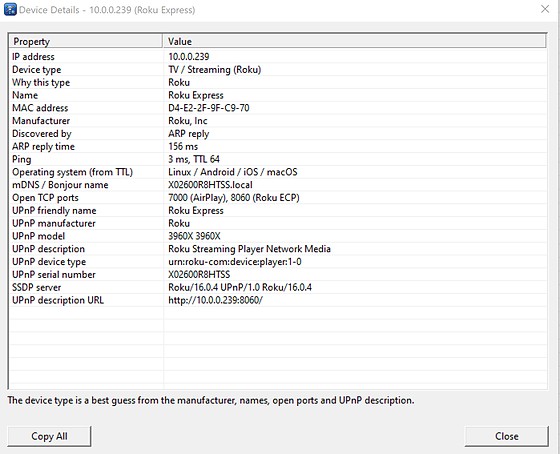
Double-click a device (or select it and press Enter) to see all the information collected about it, including the reason for the device type. Copy All copies the details to the clipboard.
Settings
Click Settings on the toolbar. Turn off identification methods you do not need for a faster scan, edit the list of TCP ports to probe, or increase the timeouts on a slow Wi-Fi network. Click Defaults to restore the original settings.