
Stock News Ticker
Stock News Ticker is a free Windows program that keeps the latest stock market news in view while you work. It docks a slim toolbar to the top of your screen and continuously scrolls fresh news headlines for the stocks and ETFs you follow, just like the ticker tape on a financial TV channel. Other windows open below the bar, the same way they end above the Windows taskbar, so it never covers your work.
Add the companies in your portfolio or on your watch list, and the moment a story breaks about one of them it scrolls past — without opening a browser or a trading platform. Click a headline to read the full article, or click a stock symbol to open its quote page on quotelinks.com with quotes, charts and financials.
Size: 2.40 MB
Released: October 2026
Price: Freeware
Operating Systems: Windows 10/11 (32-bit and 64-bit)
Symbols: Up to 50 US stocks and ETFs
Refresh: Every 1 to 60 minutes

Supported Features
Stock news at a glance
- Follow up to 50 US stocks and ETFs. For each symbol the bar shows the ticker, the company name and its newest headlines.
- 1 to 10 headlines per symbol, sorted newest first, with duplicate stories removed. Stories that mention the company come first.
- News is refreshed automatically every 1 to 60 minutes (every 5 minutes by default), or instantly from the tray icon or the right-click menu.
- Optionally show the news source and the age of every article (for example "2h").
- No account, no subscription and no API key needed.
One click to the full story
- Click a headline to open the full article in your web browser.
- Click a stock symbol to open its quotelinks.com page with quotes, charts, financials and more.
- Hover over an item to underline it and pause the scrolling; drag the line with the mouse to scroll it by hand.
- Right-click for a quick menu: open the story or the quote page, pause or change direction, update news, settings and exit.
Easy symbol entry
- Autocomplete: type a ticker or a company name and a list of matching companies drops down at once; press Enter to add the selected one.
- The built-in directory covers more than 13,000 US-listed symbols (NASDAQ, NYSE and other US exchanges) and is updated automatically every 3 days.
- Paste a whole list such as AAPL, NVDA, MSFT; class shares like BRK-B are recognized.
- Reorder symbols with Move Up, Move Down, Top and Bottom, or remove them with one click.
Make it your own
- 8 color schemes: Quotelinks Blue, Classic Dark, Light, Wall Street Green, Amber Terminal, Midnight, Graphite and High Contrast — or set 8 colors of your own.
- Any font, adjustable scrolling speed and direction (right to left or left to right).
- Show or hide the company name, the news source, the article age, the logo, the player controls and the separators for a minimal look.
- Player-style controls on the bar: scroll back, pause, scroll forward (fast while held), settings and exit.
Small and fast
- Native Windows program: no .NET Framework or other runtimes, very little memory and CPU.
- Smooth, flicker-free scrolling synchronized with the display.
- Start with Windows option and a system tray icon that shows the number of headlines and the time of the last update, and hides or shows the bar.
- Freeware: no ads, no registration, no account required.
The Ticker Bar
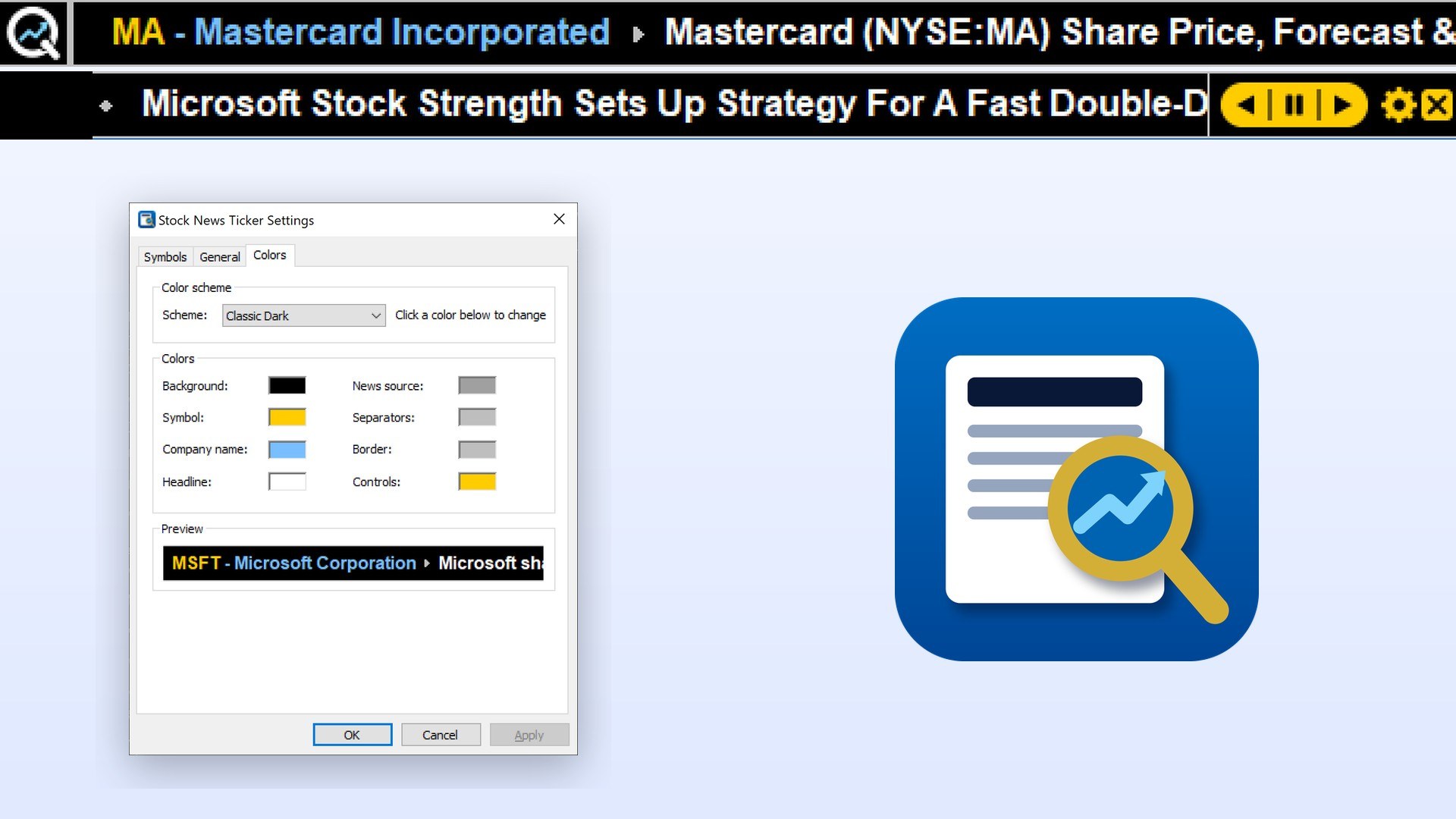
The bar sits at the top of the screen. On the left is the Quotelinks logo, in the middle the scrolling news, and on the right the player-style controls. Each symbol starts with the ticker and the company name, followed by its headlines. The screenshot below shows the bar in the Classic Dark color scheme together with the Colors page of the Settings window.
Stock News Ticker Quick Help
Below you may find a short help section. For a full guide please see the Stock News Ticker Help page.
When the program starts, the bar appears at the top of the screen and downloads the news for your symbols (Microsoft, MSFT, the first time). Use the mouse on the bar:
| Click a symbol | Open the quotelinks.com page of the stock. |
| Click a headline | Open the news story in your web browser. |
| Hover | Underline the item; scrolling pauses (optional). |
| Drag | Scroll the line by hand. |
| Click the logo | Download the news now and open www.quotelinks.com. |
| < and > | Scroll direction; hold the button to scroll fast. |
| || (pause) | Pause or resume the scrolling. |
| Gear | Open the Settings window. |
| X | Exit the program. |
| Right-click | Quick menu with all commands. |

Adding stocks
Click the gear button and open the Symbols page. Start typing a ticker or a company name in the Symbol box: a list of up to 10 matching companies drops down. Use the Up and Down keys to choose and press Enter, or click a company, to add it. Click OK and the news for the new symbols is downloaded at once.
News and scrolling
On the General page set the number of headlines per symbol (1 to 10), how often the news is refreshed (1 to 60 minutes), what is shown next to each headline, the scrolling speed and direction, the font and the toolbar items. Check Start Stock News Ticker when I sign in to Windows to start it automatically.
Colors
On the Colors page choose one of 8 color schemes, or click any color box to set your own colors. The preview at the bottom shows the result before you click OK or Apply.