
Stock News Ticker Guide
Stock News Ticker is a free Windows program that scrolls the latest news headlines for your stocks and ETFs in a slim bar at the top of the screen. This guide describes the ticker bar, all commands and every setting of the program.
- Installing and Starting
- Quick Start
- The Ticker Bar
- Using the Mouse
- Player Controls
- Right-Click Menu and Tray Icon
- Settings: Symbols
- Symbol Autocomplete
- Company Name Directory
- Settings: General
- Settings: Colors
- How Headlines Are Selected
- Tips and Troubleshooting
- Uninstalling
- System Requirements
Installing and Starting
- Download stocknews.exe and run it.
- Accept the freeware license agreement and choose the installation folder (by default C:\Program Files (x86)\Ashkon Software\Stock News Ticker).
- Optionally create a desktop shortcut and check Start Stock News Ticker automatically when I sign in to Windows.
- Leave Start Stock News Ticker now checked and click Finish.
The program can be started later from the Start menu (Stock News Ticker) or from the desktop shortcut. Only one copy runs at a time; if you start it again you are told that Stock News Ticker is already running.
Quick Start
- Start the program. The bar appears at the top of the screen and shows the news for Microsoft (MSFT).
- Click the gear button on the right end of the bar to open Settings.
- On the Symbols page type a ticker or a company name, for example nvidia, and press Enter. Add as many stocks as you like, up to 50.
- Click OK. The news for the new symbols is downloaded at once and starts scrolling.
- Click any headline to read the story, or a symbol to open its quote page.
The Ticker Bar
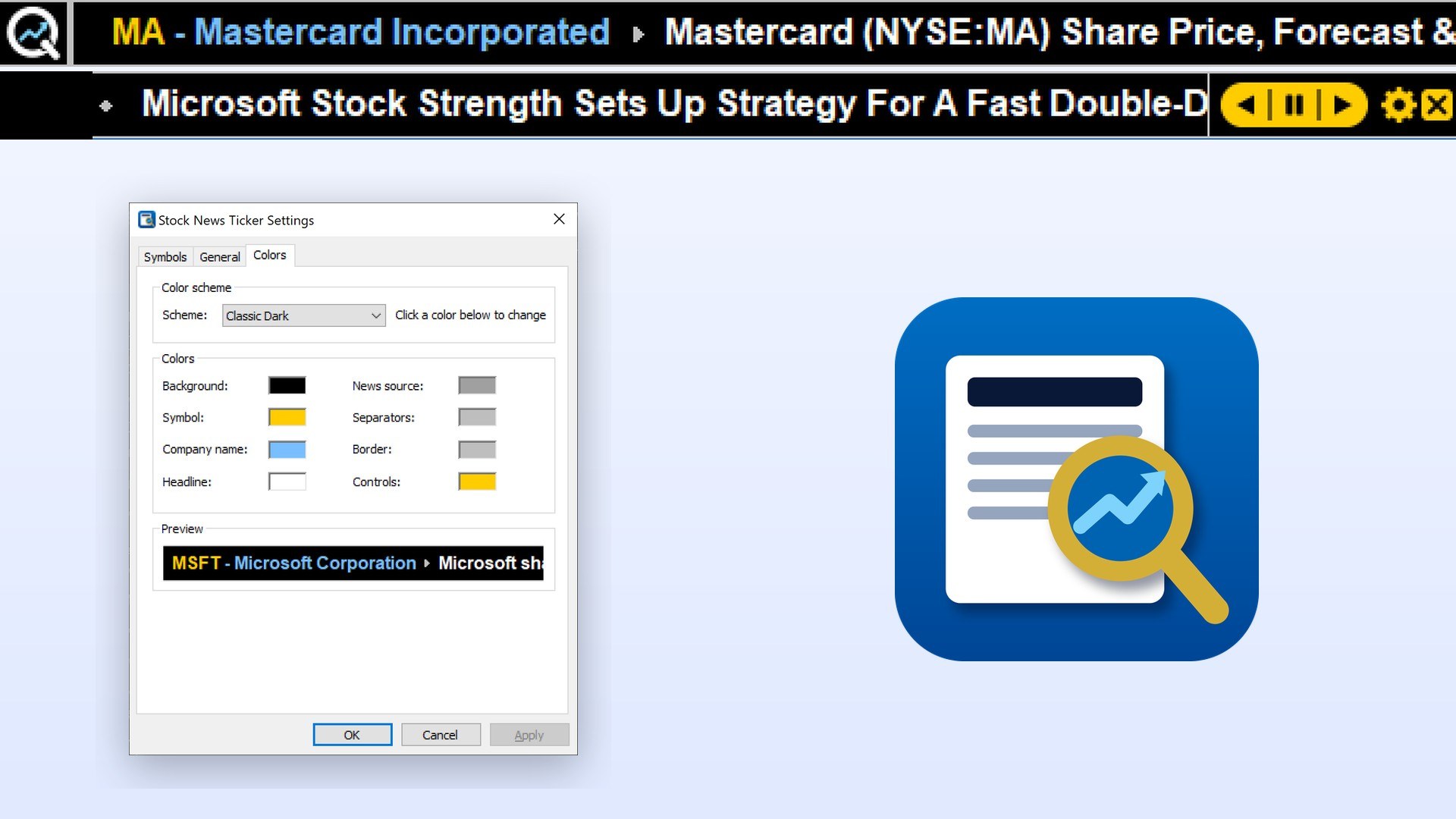
Stock News Ticker is an application bar, like the Windows taskbar. It reserves a strip at the top of the screen, so maximized windows end below it and the bar never covers other programs. The bar has three parts:
| Logo | The Quotelinks logo on the left. Click it to download the news now and open www.quotelinks.com. |
| News line | The scrolling headlines in the middle. |
| Controls | Player-style buttons on the right: back, pause, forward, settings and exit. |
The logo, the controls and the separators can each be hidden on the General page.
What a symbol looks like
Each symbol starts with the ticker and the company name, for example MA - Mastercard Incorporated, followed by its headlines. If a company name is not known, or Company name is turned off, only the ticker is shown. Small markers separate the headlines of one symbol, and a separator line divides one symbol from the next.

Each headline can be followed by the name of the news source and the age of the article, for example Reuters · 2h. While news is being downloaded, a new symbol shows loading news…; no recent news means no stories were found for the symbol, and news unavailable means the download failed (it is tried again at the next update).
Using the Mouse
| Action | Result |
|---|---|
| Click a symbol | Opens the stock's page on quotelinks.com (quotes, charts, financials, news). |
| Click a headline | Opens the full story in your default web browser. |
| Hover | Underlines the item under the mouse. If Pause on mouse hover is checked, scrolling stops while the mouse is over the bar, so you can click a moving headline easily. |
| Drag | Hold the left button and move the mouse to scroll the line by hand, forward or back. |
| Click the logo | Updates the news now and opens www.quotelinks.com. |
| Right-click | Opens the quick menu. |
Player Controls
The controls on the right end of the bar are drawn in the colors of the current color scheme. Hover a button to see its tooltip.

| < (back) | Scroll left to right. Hold the button down to scroll fast. |
| || (pause) | Pause or resume the scrolling. The button stays highlighted while the bar is paused. |
| > (forward) | Scroll right to left (the normal direction). Hold the button down to scroll fast. |
| Gear | Open the Settings window. |
| X | Exit Stock News Ticker. The screen space reserved for the bar is released. |
Right-Click Menu and Tray Icon
Right-click menu
| Open Story in Browser | Open the headline under the mouse. |
| Open on Quotelinks | Open the quote page of the symbol under the mouse. |
| Scrolling | Right to Left, Left to Right or Pause. |
| Settings... | Open the Settings window. |
| Update News Now | Download the news for all symbols immediately. |
| About... | Show the program version. |
| Exit | Close the program. |
Tray icon
Stock News Ticker puts an icon in the notification area (system tray). Hover it to see the number of symbols and headlines and the time of the last update. Click it for a menu with Update News Now, Hide Ticker / Show Ticker, Settings..., About Stock News Ticker and Exit. Double-click the icon to hide or show the bar quickly; while the bar is hidden the screen space is given back to other windows and the news is still updated in the background.
Settings: Symbols
Open Settings with the gear button, the right-click menu or the tray menu. The Settings window has three pages: Symbols, General and Colors. Changes take effect when you click OK or Apply; Cancel discards them.
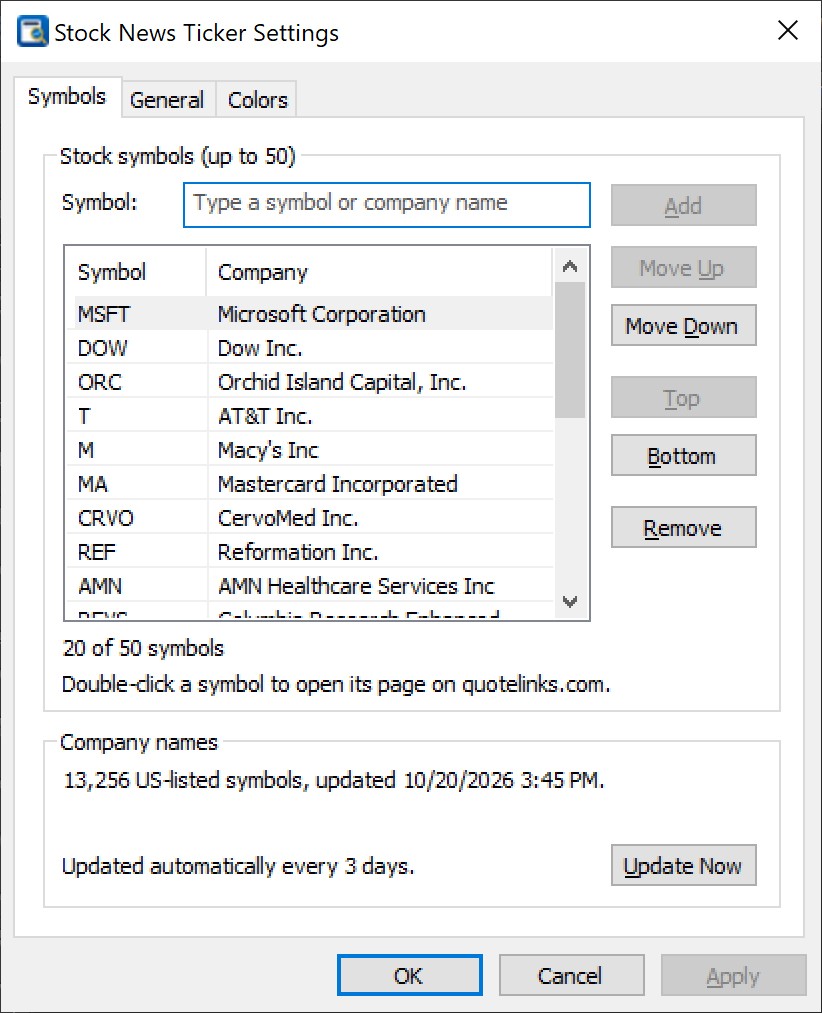
| Symbol | Type a ticker or a company name. See Symbol Autocomplete. |
| Add | Add the text in the Symbol box. You can enter one symbol or a list separated by commas or spaces, for example AAPL, NVDA MSFT. |
| List | Your symbols with their company names, in the order they scroll on the bar. Double-click a symbol to open its page on quotelinks.com. |
| Move Up / Move Down | Move the selected symbol one place (Ctrl+Up / Ctrl+Down). |
| Top / Bottom | Move the selected symbol to the start or the end of the list. |
| Remove | Remove the selected symbol (Del). |
| Counter | Shows how many symbols are in the list, for example 20 of 50 symbols. |
Symbols are stored in upper case. Class shares can be typed with a dot, a dash or a slash: BRK.B, brk-b and BRK/B all become BRK.B. A symbol that is already in the list is not added twice. Up to 50 symbols can be followed.
Symbol Autocomplete
From the first letter you type in the Symbol box, a list of up to 10 matching companies drops down under it, for example NVDA NVIDIA Corporation. Both tickers and company names match: msft, micro, crowd and brk-b all find what you expect.
- Order of matches: the exact symbol first, then symbols that start with the text, company names that start with the text, and names with a word that starts with the text. Common stocks come before ETFs and ETNs.
- Warrants, rights, units, preferred shares and notes appear only when you type their symbol exactly.
- Up and Down choose a company, Enter or a click adds it, Esc closes the list.
- An exact symbol match is preselected, so msft + Enter adds MSFT.
- Enter with nothing selected adds the text as typed (one symbol or a list).
- Symbols that are already in your list are grayed and marked (added); choosing one selects it in the list.
- The search runs on the local company directory, so typing is instant and works offline. If nothing matches and you typed 3 or more characters, quotelinks.com is asked once, shortly after you stop typing.
Company Name Directory
The Company names box on the Symbols page shows how many US-listed symbols the program knows (more than 13,000 stocks and ETFs from NASDAQ, NYSE and other US exchanges) and when the directory was last updated. The directory is installed with the program, so company names work on the first run, even offline.
The directory is downloaded again automatically when it is older than 3 days (checked at startup and every hour). Click Update Now to download it at once. A new copy replaces the old one only if it was downloaded completely, so a failed download never leaves you without company names. The directory is kept in %LOCALAPPDATA%\Ashkon Software\Stock News Ticker.
Settings: General
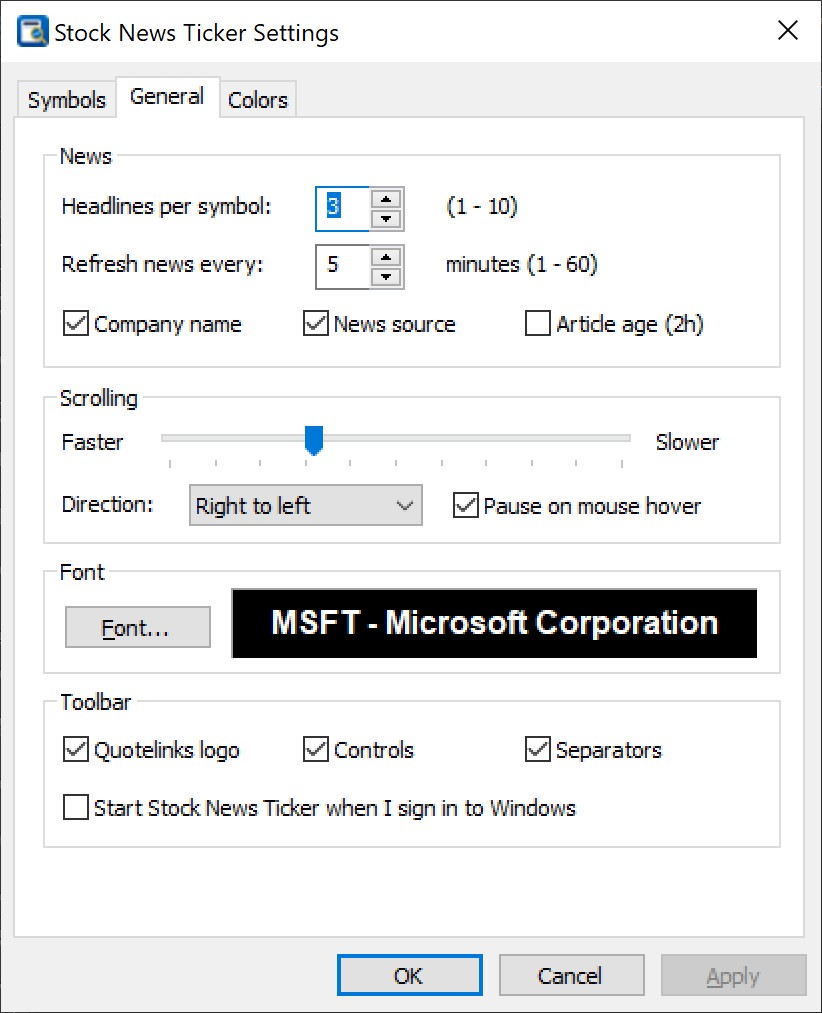
News
| Setting | Range | Description |
|---|---|---|
| Headlines per symbol | 1 - 10 (default 3) | How many of the newest stories are shown for each symbol. |
| Refresh news every | 1 - 60 minutes (default 5) | How often the news is downloaded again. |
| Company name | on / off | Show MSFT - Microsoft Corporation instead of just MSFT. |
| News source | on / off | Show the publisher after each headline. |
| Article age (2h) | on / off | Show how long ago the story was published, for example 15m, 2h or 3d. |
Scrolling
- Speed: move the slider toward Faster or Slower.
- Direction: Right to left (like a TV news ticker) or Left to right.
- Pause on mouse hover: stop scrolling while the mouse is over the bar.
Font
Click Font... to choose the font, style and size of the bar text. The sample next to the button shows the selected font.
Toolbar
- Quotelinks logo, Controls and Separators: show or hide these parts of the bar. With all three turned off the bar shows only the news.
- Start Stock News Ticker when I sign in to Windows: start the program automatically.
Settings: Colors
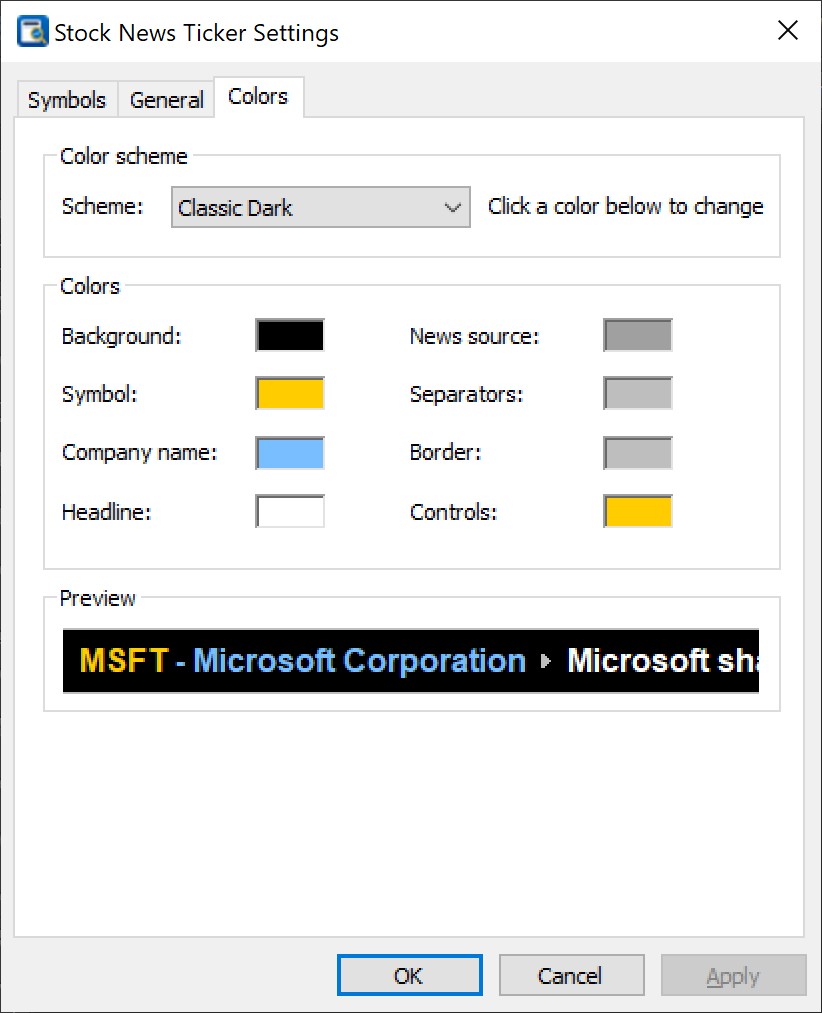
Choose a Scheme from the list:
| Scheme | Look |
|---|---|
| Quotelinks Blue | Default: blue background, yellow symbols, light blue company names, white headlines, gold controls. |
| Classic Dark | Black background, yellow symbols, blue company names, white headlines. |
| Light | White background, dark blue symbols, near-black headlines. |
| Wall Street Green | Bright green on a very dark green background, like a market board. |
| Amber Terminal | Amber text on black, like a classic trading terminal. |
| Midnight | Dark navy background, sky blue symbols, slate gray company names. |
| Graphite | Dark gray background, orange symbols and controls, light gray text. |
| High Contrast | Black background with yellow, cyan and white text for maximum readability. |
| Custom | Your own colors. |
To change a color, click its box: Background, Symbol, Company name, Headline, News source (also used for the age and status text), Separators, Border (top and bottom lines of the bar) and Controls (the player buttons). Changing any color switches the scheme to Custom. The Preview shows the result before you click OK or Apply.
How Headlines Are Selected
For every symbol the program downloads a news search for that stock from a free internet news service. Up to 4 symbols are downloaded at the same time, so even a long list is updated quickly.
- Stories whose title contains the ticker or the company name come first; other stories about the stock fill the remaining places.
- Very short tickers such as A, T or GE count only when written in ticker notation, for example (T), $T or NYSE:T, so ordinary words do not match.
- Duplicate titles are removed, and the headlines are sorted newest first.
- A headline link may pass through the news service before your browser opens the article on the publisher's site.
Tips and Troubleshooting
- A headline moves too fast to click. Check Pause on mouse hover, slow down the scrolling, or click the pause button first.
- No news, or "news unavailable". Check your internet connection and any firewall or proxy that may block the program, then choose Update News Now.
- "no recent news". There are no recent stories for that symbol. Small companies and some ETFs have fewer news stories.
- A company name is missing. The symbol may be new or not listed in the US. Click Update Now on the Symbols page to refresh the company directory.
- A symbol is not accepted. Only US ticker symbols can be added (letters, with an optional class such as BRK.B). Use the autocomplete list to find the right ticker.
- The text is too small or too large. Choose another font size with Font... on the General page.
- I want the screen space back for a moment. Double-click the tray icon to hide the bar, and again to show it.
- Settings are stored in the registry under HKEY_CURRENT_USER\SOFTWARE\Ashkon Software\Stock News Ticker.
Uninstalling
Open Settings > Apps in Windows (or Control Panel > Programs and Features), select Stock News Ticker and click Uninstall, or use Uninstall Stock News Ticker in the Start menu. A running ticker is closed first. The uninstaller removes the program, its settings, the start-with-Windows entry and the cached company directory.
System Requirements
- Windows 10 or Windows 11, 32-bit or 64-bit.
- An internet connection to download the news.
- About 3 MB of disk space. No .NET Framework or other runtimes are needed.
Stock News Ticker is freeware from Ashkon Software L.L.C.: no ads, no registration and no account required. Questions and suggestions are welcome on the Support page.