
Advanced DBX Viewer
Advanced DBX Viewer opens Microsoft Outlook Express 5 and 6 data files (.dbx) without Outlook Express. Browse the folders of the store, read e-mail messages and newsgroup articles exactly as they were sent, open and save attachments, search, and export your old mail — to EML, HTML, PDF, MBOX, Outlook MSG or a single Outlook PST file — all from one small program that needs no Outlook Express, no Windows Mail, no mail account and no import.
HTML messages are displayed by Microsoft Edge WebView2, the same modern engine used by Microsoft Edge, so newsletters, signatures, tables and inline pictures look the way the sender designed them. Messages in any character set (Unicode, Cyrillic, Greek, Central European, Chinese, Japanese, Korean ...) are shown correctly. Deleted messages that Outlook Express has not compacted away can be recovered, and damaged .dbx files are read without being changed. Your data files are opened read-only and are never modified.
Size: 3.15 MB
Released: October 2026
Price: $49.95
Operating Systems: Windows 10/11
Supported Files: Outlook Express 5 and 6 .dbx files (Folders.dbx, Inbox.dbx and all other folder files), Outlook Express address books (.wab)
Requires: Microsoft Edge WebView2 Runtime (preinstalled on Windows 10/11). Outlook Express is not required.


Supported Features
Opening Outlook Express files
- Outlook Express 5 and 6 stores: open Folders.dbx (or drop the store folder on the window) to see the whole folder tree — Local Folders, Inbox, Sent Items, Deleted Items, your own subfolders, IMAP and newsgroup accounts.
- Single folder files such as Inbox.dbx or Sent Items.dbx open on their own.
- Works without Outlook Express — no accounts, no identities, no import into another mail program.
- Several stores at once: every File > Open adds another store to the folder tree, for example the stores of several identities or old backups.
- Read-only, shared access: your .dbx files are never modified.
- Open files from the File menu, by drag and drop, from the command line, from the recent file list or with "Open with" in Windows Explorer.
- Folder files missing from Folders.dbx (left behind by a damaged or rebuilt folder list) are found and shown under "Folders not in Folders.dbx".
- Large files: messages appear immediately while big folders are still loading in the background.
- Full Unicode support for file names, folder names and message text in any language.
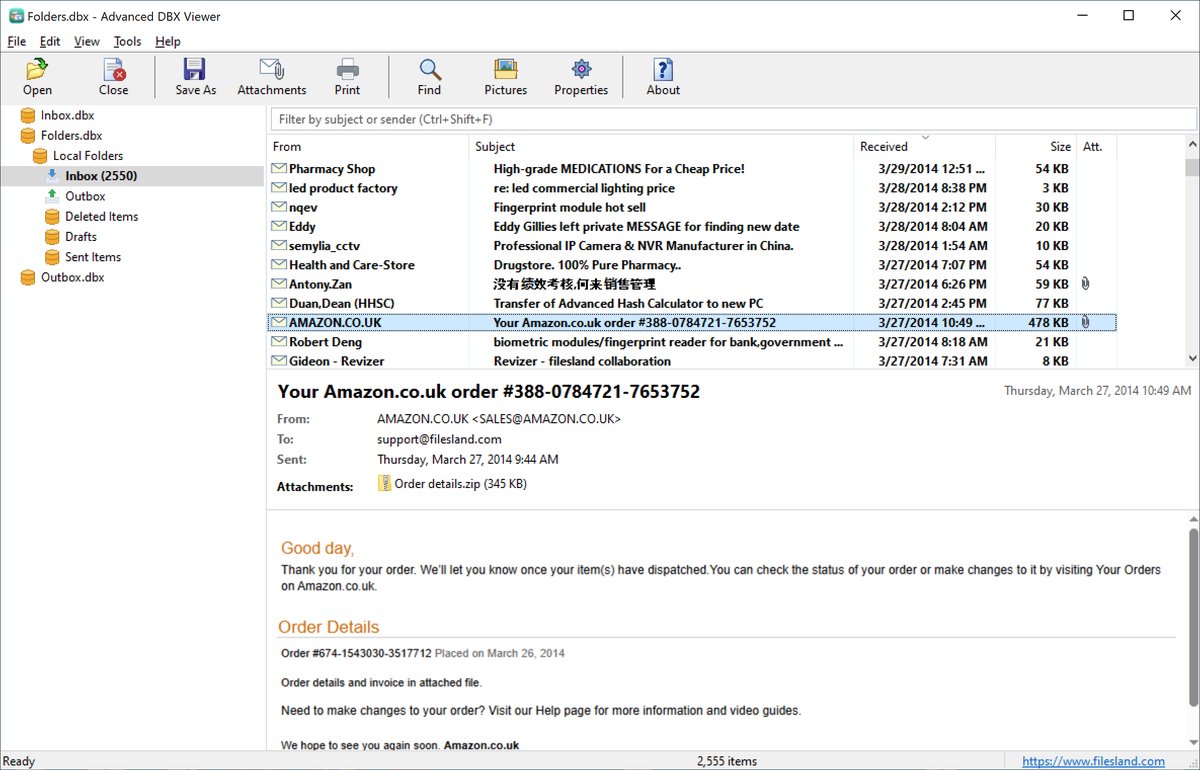
- Familiar three-pane layout: folder tree with unread counts and special folder icons, message list and reading pane.
- Double-click a message to open it in its own window; attached messages open in their own window as well.
- Window position, splitters, column widths and sort order are remembered.
Accurate message display
- HTML messages rendered by Microsoft Edge WebView2, with inline images.
- Plain text messages with clickable links; format=flowed text and uuencoded attachments are supported.
- E-mail and newsgroup articles; signed messages (S/MIME, PGP/MIME) show their text.
- Privacy protection: scripts never run, links open in your default browser, and pictures from the Internet (including tracking pixels) are downloaded only when you allow it.
- The real target of a link is shown on hover.
- Print messages with a header block (subject, from, sent, to, cc, attachments).
Attachments
- Open, save and save all attachments of a message (with a warning for executable and other risky file types).
- Extract attachments in bulk from the selected messages, the whole message list or a folder with all its subfolders.
- Filter by file type (for example
*.pdf; *.docx), skip inline pictures, save attached messages as .eml, create a subfolder for each mail folder and add a date prefix to file names.
Save and export
- Save a message as EML (the original message — opens in Outlook, Thunderbird, Windows Mail), single-file HTML with embedded images, plain text, PDF or Outlook MSG.
- Export selected messages, a folder, or a folder with all its subfolders to EML, HTML, TXT, PDF, MBOX (one file per folder, for Thunderbird and Apple Mail) or MSG (one Outlook message per message, with recipients and attachments).
- Export to Outlook PST: convert Outlook Express mail to a single Unicode Outlook data file with the whole folder tree, messages and attachments — open it in Outlook or Microsoft 365. Outlook does not need to be installed.
- Recreate the folder structure on disk.
- File name patterns such as
{date}_{from}_{subject}(tokens: date, time, subject, from, to, folder, type, index, id, year, month, day); long names are shortened automatically and duplicates are numbered. - Export the message list to CSV (Excel) for reports and eDiscovery: folder, subject, sender, To / Cc / Bcc, sent and received dates, size, importance, read status, flag, attachment count and names, Message-ID and more.
- Exported files can keep the message dates as their file dates (created = sent, modified = received).
Address books
- Opens Outlook Express address books (.wab): open a .wab file, or keep it next to the .dbx files and it is found automatically.
- View contacts and groups with every field; deleted contacts are found and shown in gray.
- Export contacts to CSV (with Outlook's column names) or vCard (one .vcf file, or one file per contact).
Search and organize
- Find messages by subject, people (sender and recipients, sender only or recipients only), message text or attachment names.
- Search all open files at once, all folders of one store, or a folder and its subfolders; the results show the folder and source file of each message.
- Search options: match case, whole words, date range, "with attachments" and message size range.
- Search hits are highlighted in the message body, subject, From / To / Cc lines and attachment names.
- Quick filter box above the message list (Ctrl+Shift+F) filters by subject or sender as you type.
- Column chooser: From, Subject, Received, Size, Attachment, To, Cc, Sent, Importance, Flag, Categories — drag to reorder; your choice is remembered.
- Sort by any column and group by date (Today, Yesterday, Earlier This Week, Last Week, Earlier This Month, Last Month, Older).
Recovery, damaged files and forensics
- Recover deleted messages that Outlook Express has not yet compacted away; they are listed under "Recovered Items".
- Reads damaged .dbx files without changing them: broken headers or indexes, files cut off at the 2 GB limit, and a damaged Folders.dbx (the folder tree is rebuilt).
- Internet headers of a message.
- Message properties: the index fields of the .dbx file, every header field and the MIME structure of the message.
- File information with MD5 and SHA-256 of every source file and a list of all problems found.
- Forensic manifest and log for exports: origin, source file, file offset and MD5 / SHA-256 of every exported message and attachment.
Main Window
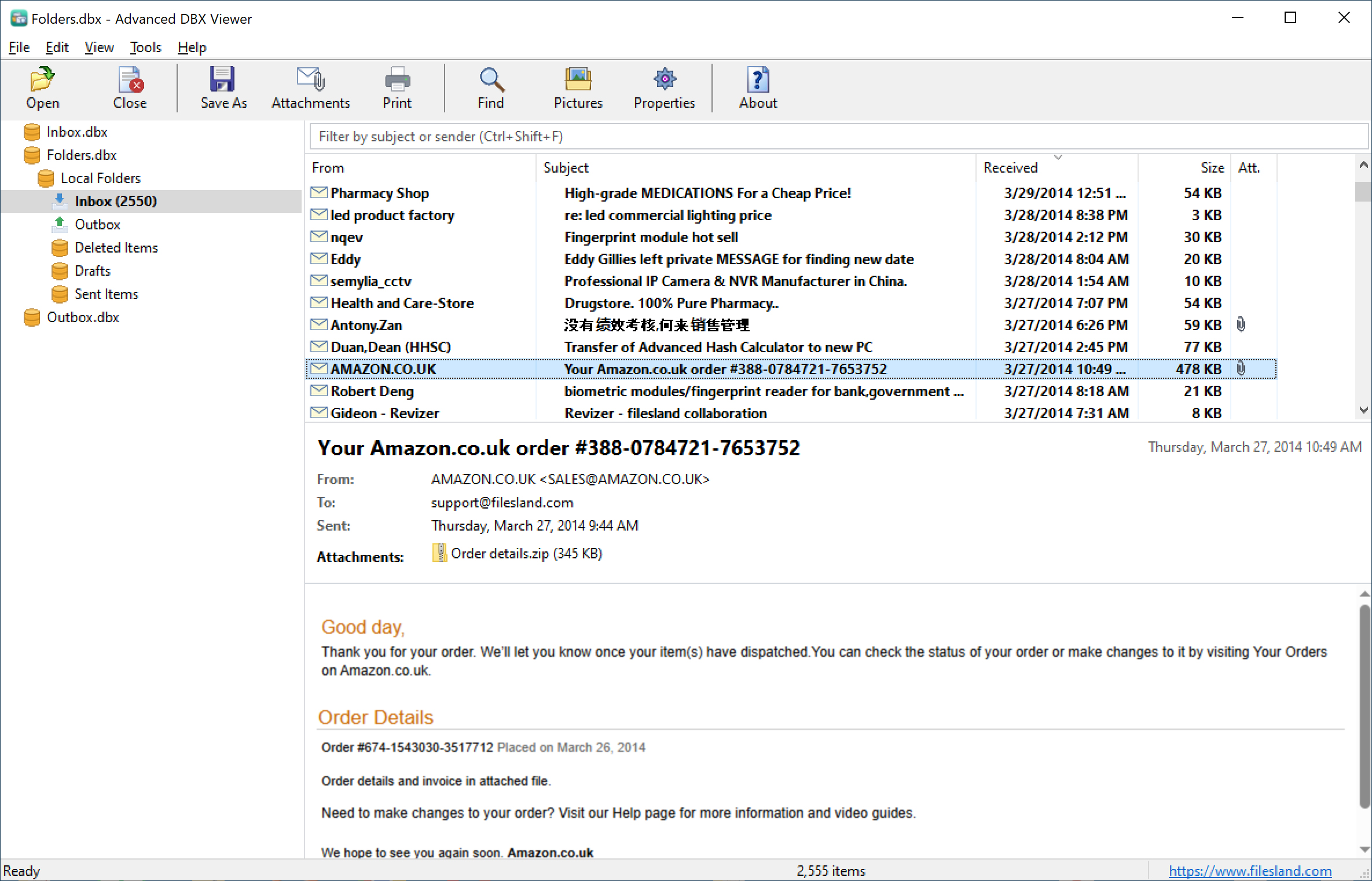
The folder tree of the Outlook Express store is on the left, the message list with the quick filter box is on the top right, and the selected message is shown in the reading pane below it.
Convert Outlook Express DBX to Outlook PST
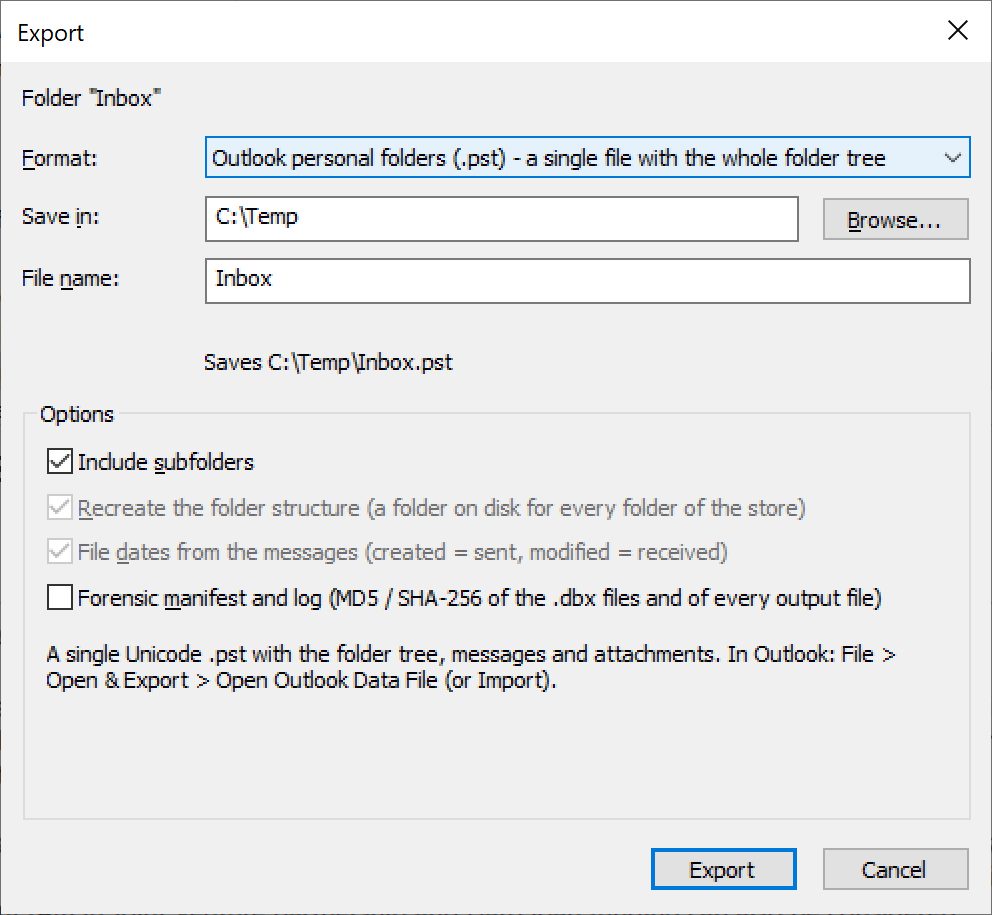
Select a folder (or the root of the store), choose File > Export to Outlook PST and pick a file name. The whole folder tree, with every message and attachment, is written to one Unicode .pst file that opens in Outlook and Microsoft 365. No Outlook installation and no MAPI are needed.
Getting Started
Click "Open" on the toolbar (Ctrl+O) and choose Folders.dbx to open the whole Outlook Express store, or any other .dbx file to open just that folder. File > Open starts in the usual location of the store, %LOCALAPPDATA%\Identities\{identity}\Microsoft\Outlook Express. Select a folder in the tree on the left to list its messages, then click a message to read it in the reading pane. Press Enter or double-click to open the message in its own window.
These are the most frequently used commands. You can run them from the toolbar:
| Open | Open an Outlook Express store (Folders.dbx), a folder file (.dbx) or an address book (.wab). |
| Close | Close the store selected in the folder tree. |
| Save As | Save the selected message as EML, HTML, TXT, PDF or MSG. |
| Attachments | Save the attachments of the selected message. |
| Print the selected message. | |
| Find | Search messages by subject, people, message text or attachment names. |
| Pictures | Download pictures from the Internet for HTML messages (blocked by default). |
| Properties | Show the index fields, header fields and MIME structure of the selected message. |
| About | Show the program version and registration information. |
The complete user guide — exporting, converting to PST, attachments, search, address books, recovery of deleted messages and forensic options — is in the Advanced DBX Viewer Help.