Advanced MBOX Viewer Help
Version 1.0.3.1 for Windows 10/11. This guide explains how to use Advanced MBOX Viewer to open, read, search, export and convert MBOX mailboxes from Mozilla Thunderbird, Apple Mail, Google Takeout (Gmail) and other mail programs without the program that created them.
Contents
- Getting started
- Which files and folders can be opened
- The main window
- Toolbar
- Menu commands
- The message list
- Reading messages
- Attachments
- Saving a message
- Exporting messages and folders
- Converting to Outlook PST
- Saving as PDF, page and Bates numbers
- Splitting MBOX files and removing duplicates
- Merging MBOX files
- Extracting e-mail addresses
- Extracting attachments in bulk
- Exporting the message list to CSV
- Finding messages
- Recovering deleted messages
- Properties, headers, hashes and the export log
- Where mailboxes are found
- Keyboard shortcuts
- Troubleshooting
- Registration
1. Getting started
Advanced MBOX Viewer requires Windows 10 or Windows 11 and the Microsoft Edge WebView2 Runtime, which is part of Windows 10/11. Thunderbird, Apple Mail or Outlook do not need to be installed.
- Click Open on the toolbar (Ctrl+O) and choose an MBOX file, or choose File > Open Folder (Ctrl+Shift+O) to open a Thunderbird profile, Local Folders or a folder of exported mailboxes.
- Select a folder in the tree on the left. Its messages appear in the list on the right.
- Click a message to read it in the reading pane, or press Enter to open it in its own window.
When Thunderbird is installed, the Open dialog starts in %APPDATA%\Thunderbird\Profiles. You can also drag files and folders onto the program window. All files are opened read-only and are never changed, so they can stay open in Thunderbird.
2. Which files and folders can be opened
| MBOX file | .mbox, .mbx, .mbs, or a Thunderbird folder file without an extension (Inbox, Sent, Trash ...). Its Thunderbird subfolders (Inbox.sbd) are shown below it. |
| .msf file | A Thunderbird summary file opens the folder file of the same name. |
| A folder | Every MBOX file in it and below it: a Thunderbird profile (Mail\Local Folders, ImapMail\<server>), Local Folders, or a folder of exported .mbox files. |
| Apple Mail | A Name.mbox package (or the mbox file inside it), with the packages nested in it. |
| Google Takeout | All mail Including Spam and Trash.mbox: all messages, plus a Gmail Labels folder with one folder per label (nested labels such as Work/Projects become subfolders). The read and starred state of every message is kept. |
| .pst, .ost, .dbx, .eml | Not opened. Use Advanced PST Viewer for Outlook files and Advanced DBX Viewer for Outlook Express files. |
Files are recognized by their content, not by their name. When a folder is opened, only real mailboxes are shown; other files of a Thunderbird profile (settings, databases, cache) are skipped.
Several mailboxes at once. Every File > Open adds another top-level entry to the folder tree. File > Close (Ctrl+F4) closes the mailbox selected in the tree; File > Close All closes all of them.
3. The main window
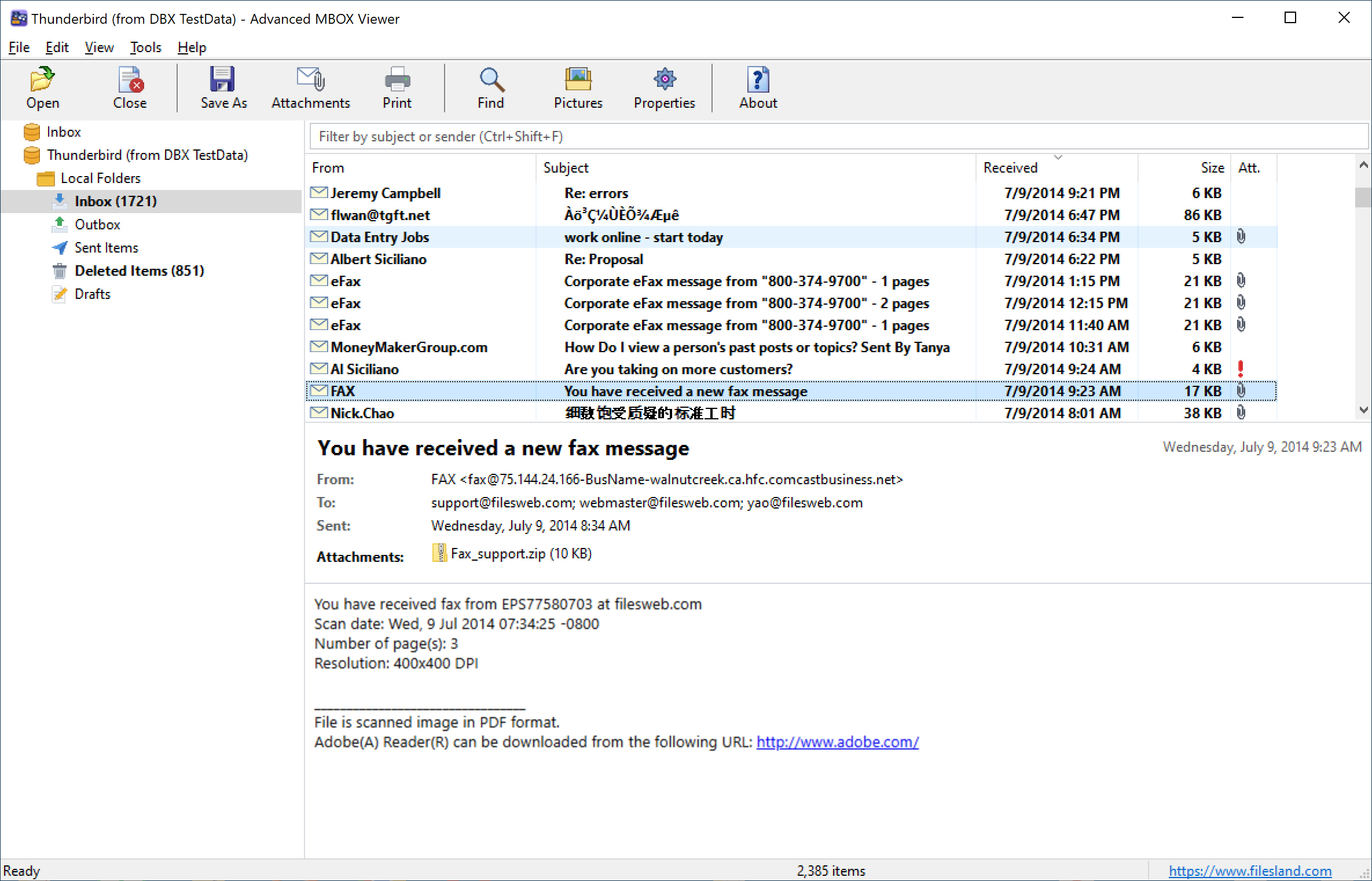
- Folder tree (left). Every open file or folder is a top-level entry, with its folders below it and special icons for Inbox, Outbox, Sent, Trash / Deleted Items and Drafts. Folders with unread messages are shown in bold with the unread count, for example Inbox (1721).
- Filter box and message list (top right). One message per row. Unread messages are bold; a paper clip marks messages with attachments and a red mark shows high importance.
- Reading pane (bottom right). The subject, date, From, To, Cc and Sent lines, the attachments, and the message text.
- Status bar. Hints for menu commands and toolbar buttons, the number of items in the list, and a link to the FilesLand web site.
The read, replied, forwarded and flagged state of a message comes from the mailbox itself (X-Mozilla-Status, Status and Gmail labels). Messages without this information are shown as read. Drag the dividers to resize the panes. The window position, the pane sizes, the columns and the sort order are remembered the next time you start the program.
4. Toolbar
| Open | Open an MBOX file (.mbox, Thunderbird folder file, Google Takeout, Apple Mail mbox) (Ctrl+O). |
| Close | Close the mailbox selected in the folder tree (Ctrl+F4). |
| Save As | Save the selected message as EML, HTML, TXT or PDF (Ctrl+S). |
| Attachments | Save the attachments of the selected message (Ctrl+Shift+S). |
| Print the selected message (Ctrl+P). | |
| Find | Find messages by subject, people, message text or attachment names (Ctrl+E). |
| Pictures | Download pictures and other content from the Internet for HTML messages. |
| Properties | Show the mailbox fields, header fields and MIME structure of the message (Alt+Enter). |
| About | Show the program version and registration information. |
5. Menu commands
File
- Open (Ctrl+O), Open Folder (Ctrl+Shift+O), Close (Ctrl+F4), Close All.
- Save Message As (Ctrl+S): see Saving a message.
- Export Selected Messages (Ctrl+Shift+E) and Export Folder: see Exporting.
- Save Selected as PDF, Save Selected as One PDF and Export Folder as PDF: see Saving as PDF.
- Export Selected to Outlook PST and Export Folder to Outlook PST: see Converting to Outlook PST.
- Export List to CSV: see Exporting the message list.
- Save Attachments (Ctrl+Shift+S), Print (Ctrl+P), the recent file list and Exit.
Edit
- Select All (Ctrl+A).
- Find Messages (Ctrl+E), Find in Selected Folder and Quick Filter (Ctrl+Shift+F): see Finding messages.
View
- Toolbar / Status Bar: show or hide these bars.
- Download Pictures from the Internet: always load remote pictures in HTML messages.
- Columns: choose the columns of the message list, including the MD5 and SHA-256 hash. Group by Date: group the list by date.
- Open Message in New Window (Enter), Message Properties (Alt+Enter), Internet Headers (Ctrl+H).
Tools
- Extract Attachments: see Extracting attachments in bulk.
- Extract E-mail Addresses: see Extracting e-mail addresses.
- Merge MBOX Files: see Merging MBOX files.
- Recover Deleted Messages: see Recovering deleted messages.
- File Information: details about the open mailbox.
Help
- Online Help (F1): opens this page.
- About Advanced MBOX Viewer: version, copyright and registration status.
Right-click menus. Right-click a folder in the tree for Find in This Folder, Export Folder, Export as PDF, Export to Outlook PST, Extract Attachments, Extract E-mail Addresses and Close. Right-click messages in the list for Open, Save As, Export Selected Messages, Save as PDF, Save as One PDF, Export to Outlook PST, Export to CSV, Save Attachments, Extract Attachments, Extract E-mail Addresses, Print, Properties, Internet Headers and Select All. Right-click an attachment for Open, Save As and Save All Attachments.
6. The message list
- Columns. Right-click a column header, or use View > Columns, to show or hide From, Subject, Received, Size, Attachment, To, Cc, Sent, Importance, Flag, Categories, MD5 and SHA-256. Drag a header to change the column order, or drag its edge to change the width.
- Sort. Click a column header to sort by that column; click it again to reverse the order.
- Group by Date. View > Group by Date groups the messages under Today, Yesterday, Earlier This Week, Last Week, Earlier This Month, Last Month and Older.
- Selecting. Use Ctrl+click and Shift+click to select several messages, or Ctrl+A to select all. Most commands work on all selected messages.
- Large mailboxes. A mailbox is indexed in one fast pass (gigabyte files take seconds); the message text is read from the file only when a message is shown.
7. Reading messages
HTML messages are shown by Microsoft Edge WebView2 with their inline pictures, exactly as the sender designed them. Plain text messages are shown with clickable links. Text in any character set is decoded correctly.
- Privacy. Scripts in messages never run. Pictures and other content from the Internet (including tracking pixels) are blocked. To load them for one message, click Download pictures in the yellow bar or the Pictures toolbar button. To always load them, turn on View > Download Pictures from the Internet.
- Links open in your default web browser. Hold the mouse over a link to see its real target.
- Message windows. Press Enter or double-click a message to open it in its own window. Attached messages open in their own window too. Press Esc to close a message window.
- Printing (Ctrl+P) prints the message with a header block: subject, from, sent, to, cc and the names of the attachments.
8. Attachments
Attachments are listed in the reading pane under the header. Double-click an attachment to open it, or right-click it for Open, Save As and Save All Attachments. An attachment is opened from a temporary read-only copy; for executable and other risky file types you are warned first. File > Save Attachments (Ctrl+Shift+S) saves all attachments of the selected message to a folder. To save the attachments of many messages, see Extracting attachments in bulk.
9. Saving a message
Select a message and choose File > Save Message As (Ctrl+S). Choose the format in the Save as type box:
| E-mail (.eml) | The original message as stored in the mailbox, with all attachments. Opens in Outlook, Thunderbird and Windows Mail. |
| Web page (.html) | One file with the header, the message text and its pictures embedded. |
| Text (.txt) | Header lines and the plain text of the message. |
| PDF (.pdf) | The message as it looks in the reading pane, with a header block. |
10. Exporting messages and folders
To save many messages at once, select them and choose File > Export Selected Messages (Ctrl+Shift+E), or select a folder and choose File > Export Folder. In the Export window:
- Format: E-mail messages (.eml), Web pages (.html) and Text files (.txt) create one file per message; PDF documents (.pdf) create one file per message or all messages in one file; MBOX mailbox (.mbox) creates one file per folder; Outlook data file (.pst) creates one file with all folders. A short description of the selected format is shown in the window.
- Save in: the destination folder. Click Browse to choose it.
- File names: a pattern for the names of the exported files, using the tokens
{date} {time} {subject} {from} {to} {folder} {type} {index} {id} {year} {month} {day}, for example{date}_{from}_{subject}. Characters that are not allowed in file names are replaced, long names are shortened to stay within the Windows path limit, and duplicates are numbered. An example of the resulting name is shown below the box. - Include subfolders: also export all subfolders of the folder.
- Recreate the folder structure: create a folder on disk for every folder of the mailbox.
- Skip duplicate messages: see Removing duplicates.
- Write an export log: see Export log and chain-of-custody report.
- Format options: extra settings for PDF, MBOX and PST, described in the next sections.
Click Export. A progress window shows how far the export is; click Cancel to stop it. The program stays responsive while an export runs.
11. Converting to Outlook PST
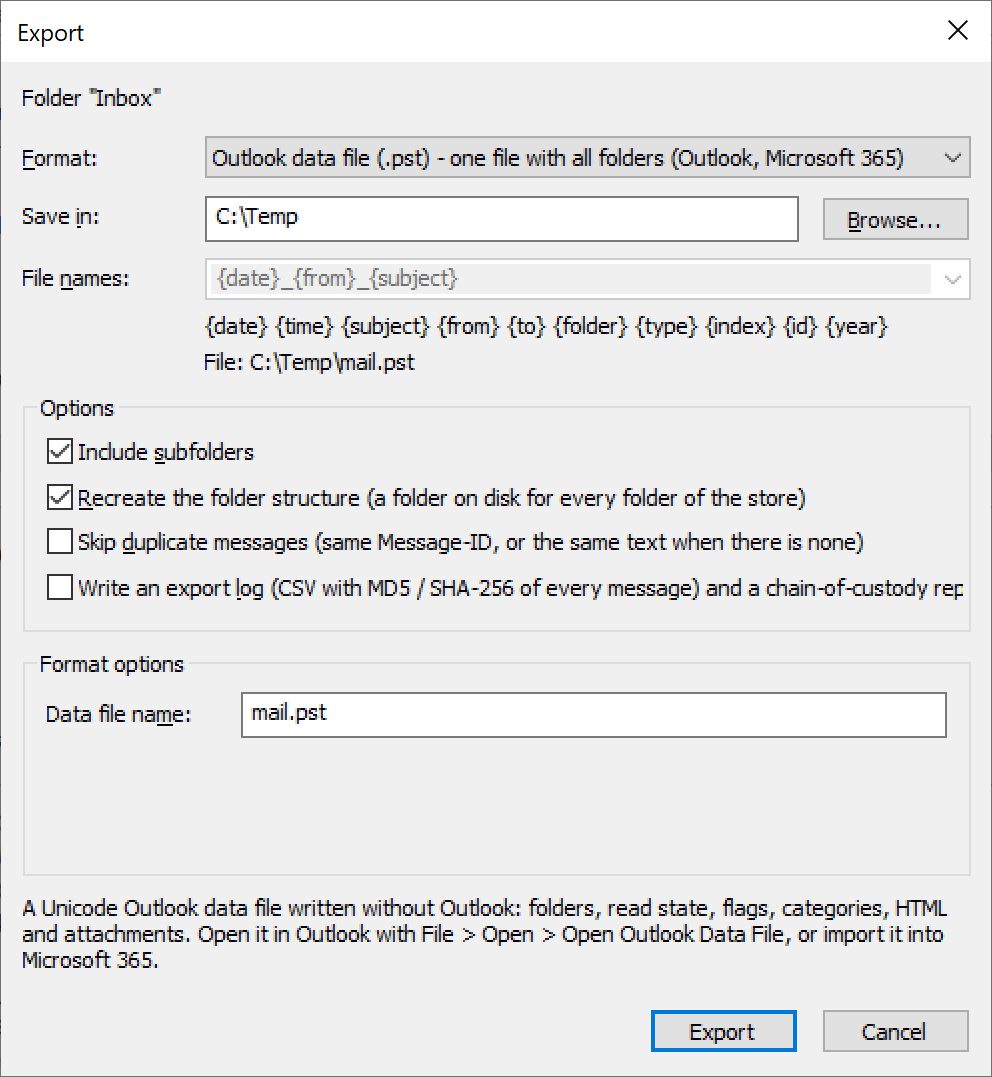
Advanced MBOX Viewer converts Thunderbird, Gmail (Google Takeout) and Apple Mail mailboxes into a Unicode Outlook data file (.pst) for Outlook and Microsoft 365. Outlook does not need to be installed on the computer that runs the conversion.
- Select a folder in the tree (to convert everything, select the top-level entry), or select messages in the list.
- Choose File > Export Folder to Outlook PST or File > Export Selected to Outlook PST (or Export with the format Outlook data file (.pst)).
- Choose the destination folder in Save in and type the Data file name, for example mail.pst. The full path is shown under the file name box.
- Keep Include subfolders and Recreate the folder structure checked to keep your folders, and click Export.
The .pst file keeps the folders, sender and recipients, dates, the read, replied, forwarded and flagged state, categories (the Keywords header), the HTML and plain text of every message, its Internet header and its attachments. In Outlook choose File > Open & Export > Open Outlook Data File to open it, or Import/Export to copy the messages into your mailbox. The file can also be imported into Microsoft 365.
12. Saving as PDF, page and Bates numbers
File > Save Selected as PDF saves each selected message as its own PDF file, and File > Export Folder as PDF does the same for a whole folder. File > Save Selected as One PDF puts all selected messages into a single PDF document; each message starts on a new page. PDF files are created with Microsoft Edge WebView2 and look like the message in the reading pane.
In the Export window with the PDF format, the Format options are:
- Combine all messages into one PDF file.
- Page numbers: None, Page numbers ("Page 1 of 12") or Bates numbers (for example ABC000001). For Bates numbers enter the Bates prefix, the First number and the number of Digits (1 to 15). Bates numbers continue from one PDF file to the next.
Pictures from the Internet are included only when View > Download Pictures from the Internet is on. Page and Bates numbers need WebView2 Runtime 131 or later (current Windows 10/11 updates include it).
13. Splitting MBOX files and removing duplicates
Exporting to the MBOX format is the way to split, combine or clean up mailboxes. The written files use the standard mboxrd format and open in Thunderbird, Apple Mail and other MBOX programs. In the Format options:
- One mailbox file for all folders (merge): write every exported folder into a single MBOX file.
- Split files: No, By size (enter the size in MB per file), By year or By month.
Skip duplicate messages (an export option for every format) leaves out a message when an earlier one has the same Message-ID, or the same text when a message has no Message-ID.
14. Merging MBOX files
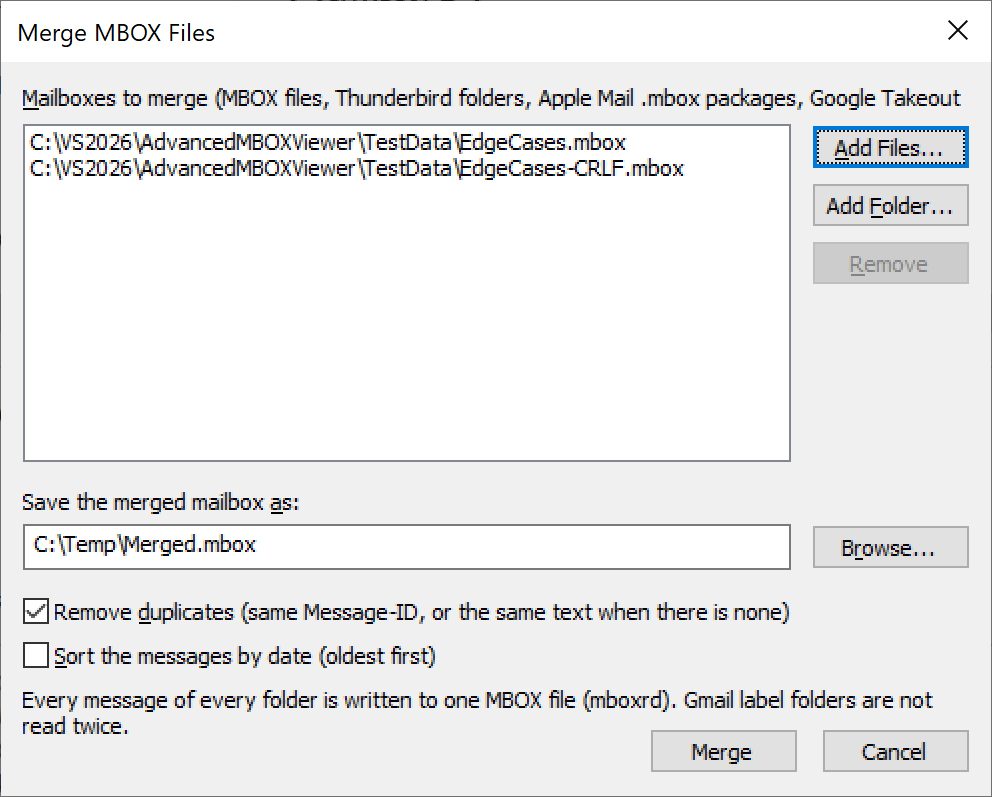
Tools > Merge MBOX Files combines any number of mailboxes into one MBOX file, without opening them first.
- Click Add Files or Add Folder to add MBOX files, Thunderbird folders, Apple Mail .mbox packages or Google Takeout files. Select an entry and click Remove to take it off the list.
- Enter the file in Save the merged mailbox as, or click Browse.
- Check Remove duplicates to keep only one copy of messages with the same Message-ID (or the same text), and Sort the messages by date to write them oldest first.
- Click Merge.
Every message of every folder is written to one MBOX file. Gmail label folders are not read twice, so a message with several labels is written once.
15. Extracting e-mail addresses
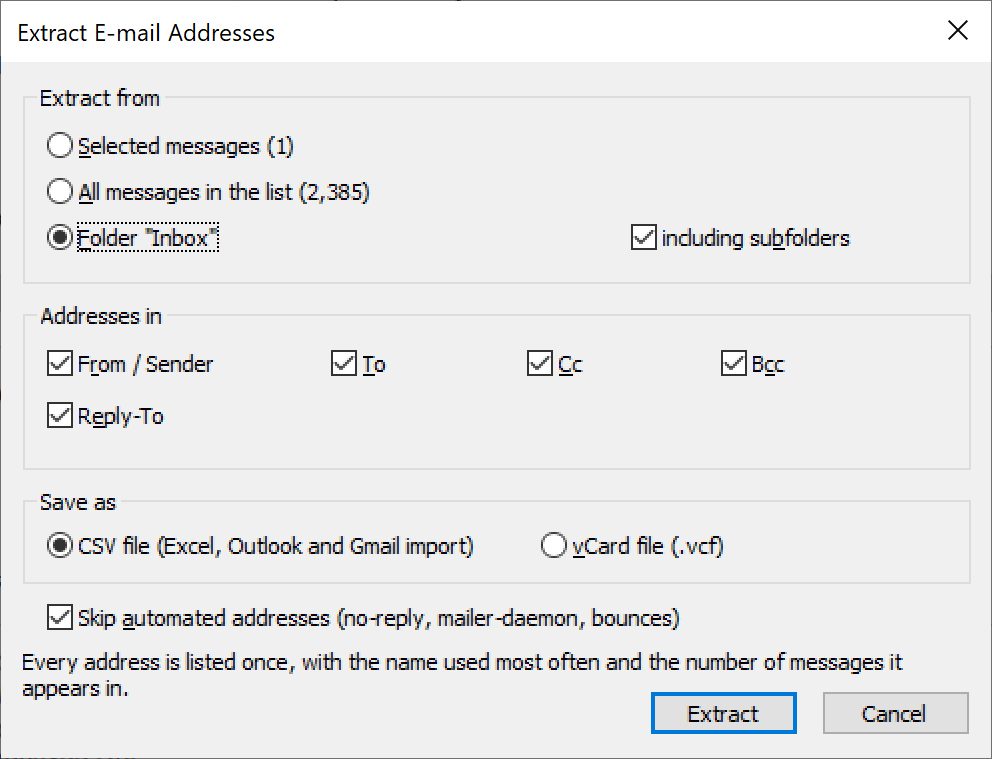
Tools > Extract E-mail Addresses builds a list of the people you corresponded with.
- Extract from: the selected messages, all messages in the list, or a folder (optionally including its subfolders).
- Addresses in: From / Sender, To, Cc, Bcc and Reply-To.
- Save as: a CSV file (for Excel, and with the import columns of Outlook and Gmail) or a vCard file (.vcf).
- Skip automated addresses: leave out no-reply, mailer-daemon and bounce addresses.
Every address is listed once, with the name used most often, the number of messages it appears in, and the first and last date it was seen.
16. Extracting attachments in bulk
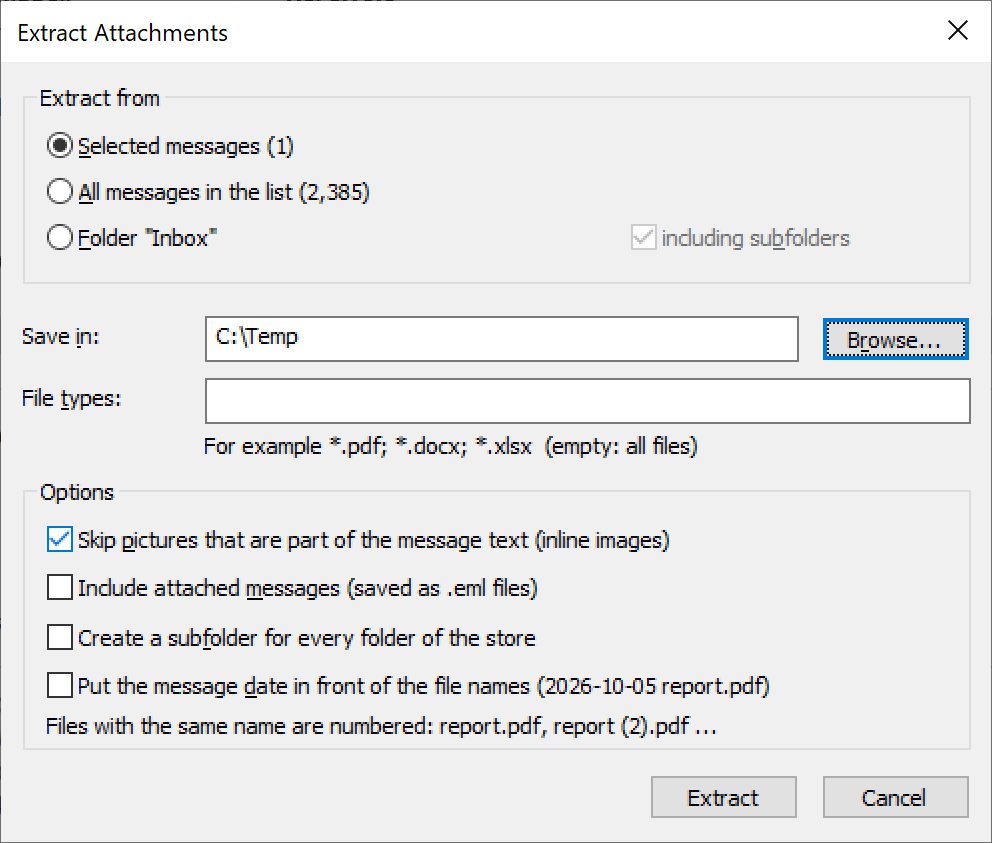
Choose Tools > Extract Attachments to save the attachments of many messages at once.
- Extract from: the selected messages, all messages in the list, or the selected folder (optionally including its subfolders). The number of messages is shown next to each choice.
- Save in: the destination folder.
- File types: for example
*.pdf; *.docx; *.xlsx. Leave the box empty to save all files. - Skip pictures that are part of the message text: do not save inline images such as logos and signatures.
- Include attached messages: save attached e-mails as .eml files.
- Create a subfolder for every folder of the store.
- Put the message date in front of the file names, for example 2026-10-05 report.pdf.
Files with the same name are numbered: report.pdf, report (2).pdf and so on.
17. Exporting the message list to CSV
File > Export List to CSV saves the messages in the list (or only the selected messages) as a UTF-8 CSV file for Excel and other spreadsheet programs, for reports and eDiscovery. It contains the folder, subject, sender, recipients, dates, size, state, attachments, Message-ID and the MD5 and SHA-256 hash of every message.
18. Finding messages
Quick filter. Type in the Filter box above the message list (Ctrl+Shift+F) to show only messages whose subject or sender contains the text. Clear the box to show all messages again.
Find Messages (Ctrl+E, or the Find toolbar button) searches more thoroughly:
- Find messages that contain: the text to look for, with Match case and Whole words only.
- Look in: Subject, People (sender and recipients, sender only, or recipients only), Message text (slower) and Attachment names.
- Search: all folders, or the selected folder and its subfolders (Edit > Find in Selected Folder starts with this choice).
- More conditions: a date range, only messages with attachments, and a size range in KB.
The results are listed with the folder of every message. Search hits are highlighted in the message text, the subject, the From / To / Cc lines and the attachment names. The results can be exported, saved as PDF or used for attachment and address extraction like any other list.
19. Recovering deleted messages
When you delete a message in Thunderbird, it is only marked as deleted (expunged) and stays in the MBOX file until the folder is compacted. Advanced MBOX Viewer hides these messages from their folder. Tools > Recover Deleted Messages lists them in a Recovered Items folder, together with message text found in front of the first message of a damaged file. You can read, search, save and export recovered messages like any other message. Messages removed by compacting cannot be recovered.
20. Properties, headers, hashes and the export log
- Internet Headers (Ctrl+H): the original header lines of the message (Received, Return-Path, Message-ID ...). Click Copy to copy them to the clipboard.
- Message Properties (Alt+Enter): the mailbox fields of the message (file, offset, length, separator line, X-Mozilla-Status, Status, Gmail labels and thread ID, state), its MD5 and SHA-256 hash, every header field (decoded, and as stored) and the MIME structure.
- Message hashes. The MD5 and SHA-256 hash of a message covers the message as stored (header and body, without the MBOX separator line and quoting), so it stays the same in every MBOX file and export. Show them with View > Columns > MD5 / SHA-256.
- Export log and chain-of-custody report (export option Write an export log): writes Export Log <time>.csv with one row per message (folder, subject, from, date, Message-ID, source MD5 / SHA-256, output file and its SHA-256, Bates range, status) and Export Report <time>.txt with the user, computer, time, source files and their SHA-256, the options, counts, output files with their SHA-256 and the SHA-256 of the log.
- File Information: details about the open mailbox files.
21. Where mailboxes are found
| Thunderbird | %APPDATA%\Thunderbird\Profiles\<profile>\Mail\Local Folders (local and POP mail) %APPDATA%\Thunderbird\Profiles\<profile>\ImapMail\<server> (IMAP accounts) A folder file has no extension (Inbox, Sent ...); its subfolders are in a folder named Inbox.sbd. |
| Google Takeout | Download your Gmail data at takeout.google.com; the archive contains Mail\All mail Including Spam and Trash.mbox. |
| Apple Mail | Mailbox > Export Mailbox creates a Name.mbox package; copy it to the Windows computer and open it. |
| Other programs | Eudora (.mbx), SeaMonkey, Unix mail and many web mail exports use the MBOX format as well. |
To open a whole Thunderbird profile, choose File > Open Folder and select the profile folder or its Mail folder.
22. Keyboard shortcuts
| Ctrl+O | Open a file |
| Ctrl+Shift+O | Open a folder |
| Ctrl+F4 | Close the selected mailbox |
| Ctrl+S | Save the message as ... |
| Ctrl+Shift+S | Save the attachments of the message |
| Ctrl+Shift+E | Export the selected messages |
| Ctrl+P | Print the message |
| Ctrl+E | Find messages |
| Ctrl+Shift+F | Go to the Filter box |
| Ctrl+A | Select all messages |
| Enter | Open the message in a new window |
| Alt+Enter | Message properties |
| Ctrl+H | Internet headers |
| Esc | Close a message window |
| F1 | Online help |
23. Troubleshooting
- Which file is the Thunderbird folder? Thunderbird folder files have no extension (Inbox, Sent ...) and sit next to a .msf file of the same name. Open either one, or simply use File > Open Folder and select the profile or Local Folders folder.
- A folder opened from a Thunderbird profile is empty. The folder may really be empty, or its messages are only on the IMAP server (Thunderbird was not set to keep a local copy).
- Messages I deleted in Thunderbird are not in the folder. They are hidden because Thunderbird marked them as deleted. Run Tools > Recover Deleted Messages.
- Pictures are missing in an HTML message. Pictures from the Internet are blocked for your privacy. Click Download pictures in the yellow bar.
- Messages are shown as plain text only. The Microsoft Edge WebView2 Runtime is missing. It is part of Windows 10/11; it can also be downloaded from Microsoft.
- Page or Bates numbers are missing in the PDF. Update the Microsoft Edge WebView2 Runtime to version 131 or later.
- A .pst, .ost, .dbx or .eml file can't be opened. These are not MBOX files. Use Advanced PST Viewer for Outlook files and Advanced DBX Viewer for Outlook Express files.
24. Registration
The unregistered version is fully functional for a 30-day evaluation period. The startup window shows which day of the evaluation you are on. Click Continue to keep evaluating or Quit to exit. When the 30 days are over, the program shows an expiration message and opens the registration page.
To register, click Register in the startup window (the program closes and opens the registration page in your web browser). The About window shows who the copy is registered to.